Upload
You can upload new versions of the files attached to Tasks using the individual Upload New Version icons for each file.
To upload a new version of a file attached to a task,
-
Open the Task page for the task containing the file to be uploaded.
-
Click the Upload New Version button that appears at the right when you hover on the file to be updated.
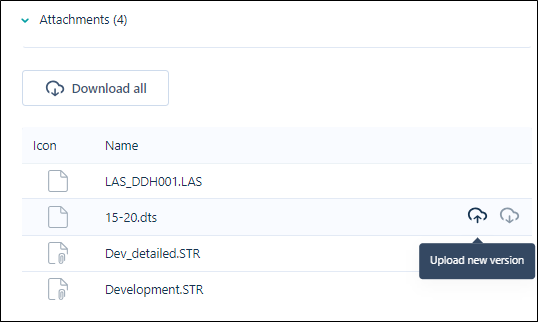
Clicking the icon will open the Upload New Version page.
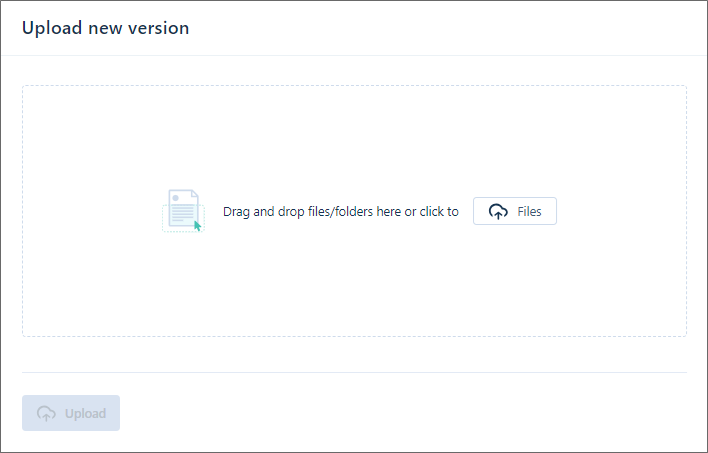
You can add the file to be uploaded using the Add File button, or the drag and drop panel.
-
If you click the Add File button, the Explorer will open and you can navigate to and select the new version of the file. The file will appear in the list and the Upload Files button will be enabled.
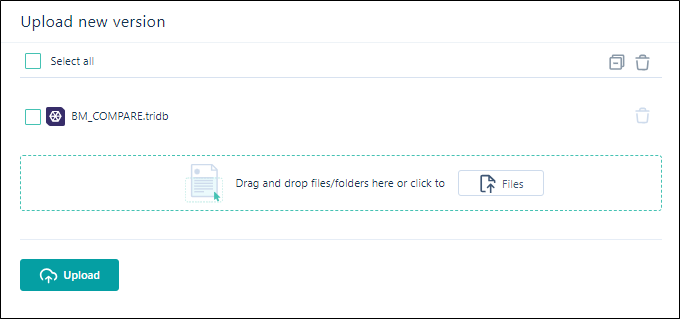
The Add File button is now disabled. This is because, unlike the standard Upload process, only one file can be uploaded to the task - as a new version of the selected attachment. The drag and drop feature will display an error in the File Info panel if any files are dragged to it:

-
Click the Upload Files button to upload the new version of the selected attachment for the task.
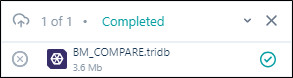
The progress of the upload is indicated in the pop up panel at the bottom right.