Check In
In the Info pane, select Other | Check In to return a checked out file for editing. Until a file or object is 'checked in', no other user with access will be able to make changes to it across your workspaces and projects.
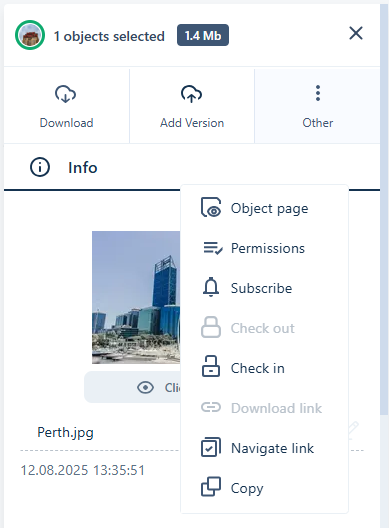
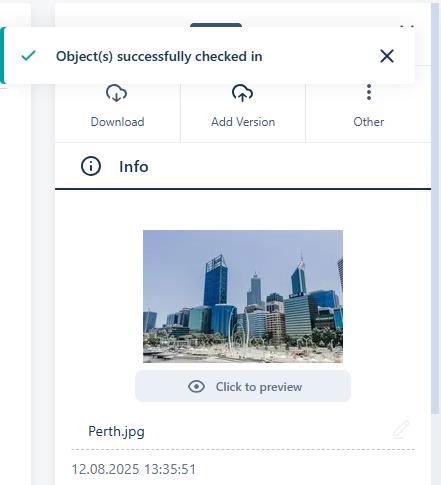
Only files that are checked out will have the Check In option available in the Info panel menu. When you Check In a file/object, the selected file/object/s will be marked as 'checked in' and an information prompt will be displayed at the top of the Info panel:
An email notification will be sent to all object subscribers to inform them of the updated status.
The file is now 'checked in' and available as normal for editing to all users with access, and the Check Out option will again be available.
The file can be checked back out using the Check Out option. See Check Out.