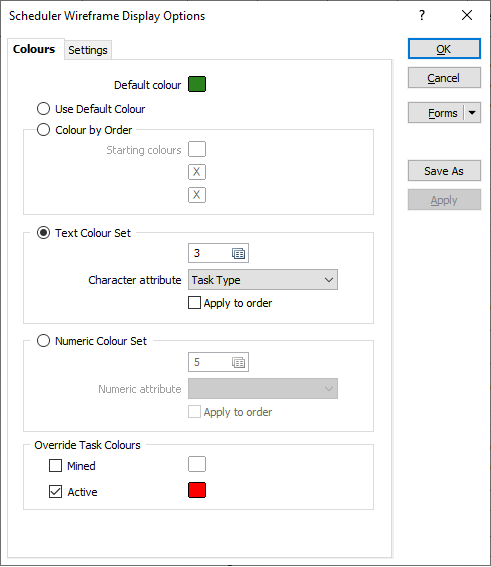
Vizex Display Options
When mining blocks are added to a schedule as tasks, a cached wireframe layer is created which is linked to the tasks in the Gantt Chart.

To to enable/disable the display of the task wireframes in Vizex for the current schedule, click Enable on the Scheduling | View tab, in the Vizex Link group.

Colours
Display colour options are available on the Colours tab of the form, Wireframes can be colour coded by attribute, for example, Start Date. Alternatively, you can map a standard attribute or a custom character attribute against the values defined in a TEXT colour set, or map a (Volume, Tonnes, Grades etc.) numeric attribute against the values defined in a NUMERIC colour set.
Default colour
Double-click to select a Default colour. If a colour set is being used to colour the wireframes, the default colour will be used when no sequence order has been specified, or when there is no mapping between an attribute value and the values in a colour set.
Use default colour
Select this option to colour ramp the mining blocks randomly using the default colour as the base colour.
Colour by Order
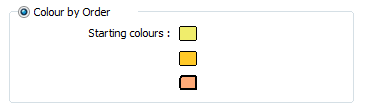
Select this option to colour ramp the mining blocks in the Start Date order they are sequenced. A Starting colour can be selected for up to 3 groups of linked tasks.
Default colour
Double-click to select a Default colour. If a colour set is being used to colour the wireframes, the default colour will be used when no sequence order has been specified, or when there is no mapping between an attribute value and the values in a colour set.
Text Colour Set
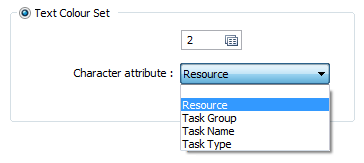
Select this option to ramp the colour of the mining blocks based upon the colours defined in a text colour set. Double-click to select a text colour set. To create a new set, right-click in the input box and select New from the right-click menu.
Select a standard (Resource, Task Name, Task Group, Task Type) or custom character attribute which has values that can be mapped to the values defined in the text colour set.
You can create custom character attributes in the Manage Attributes form.
Select the Apply to order option to apply the colour set to the first task in a group of connected tasks. The remaining tasks are ramped.
Numeric colour set
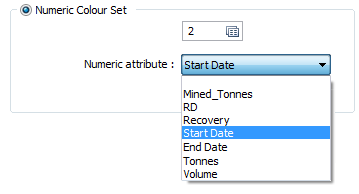
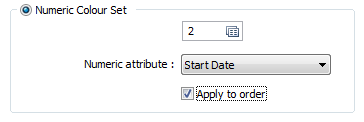
Select this option to ramp the colour of the mining blocks based upon the colours defined in a numeric colour set. Double-click to select a numeric colour set. To create a new set, right-click in the input box and select New from the right-click menu.
Select a numeric attribute which has values that can be mapped to the values defined in the numeric colour set. Start Date and End Date attributes are included in the list.
Select the Apply to order option to apply the colour set to the first task in a group of connected tasks. The remaining tasks are ramped.
Override Task Colours
The colours you have specified (above) may be overridden to depict mined blocks and active (in-progress) blocks so that they are easily identified.
Mined
Select this option to specify a colour, during an animation, for the blocks that have been mined out. Double-click to select a colour from the palette.
Active
Select this option to specify a colour, during an animation, for the blocks that are active (in the process of being mined). Double-click to select a colour from the palette.