Camera
Images are an important part of any Geological data capture process. Micromine Geobank For Field Teams is able to integrate with cameras built into devices, such as those in a toughpad or a laptop, as well as integrate with external DSLR cameras for the capture of high quality imagery. In particular, Micromine Geobank For Field Teams interfaces with Canon and Nikon DSLR cameras.
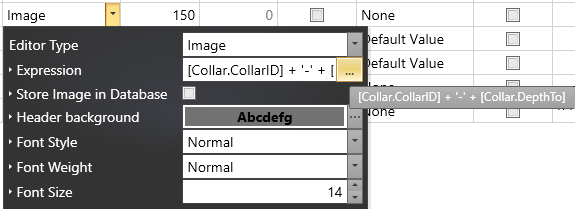
Images captured using Micromine Geobank For Field Teams can be assigned a meaningful name, such as the concatenation of a Collar ID and a Depth value. Once captured, images may be stored in a specified location (or within the database). These benefits make the management and usage of images far simpler.
When a camera is interfaced with Micromine Geobank For Field Teams there are two mode of operation:
- The camera is on a stand, in a fixed position, with its subject (e.g. a core tray) at a fixed distance away. Micromine Geobank For Field Teams can be used to activate the shutter remotely.
- The user holds the camera and manually focuses and presses the camera shutter to take pictures of drill pads, chip piles, environmental or heritage Items, etc
When setting up a logging profile, it is not necessary to configure a camera on the Devices tab (as is done for KT-10, GPS, and Weighing Scales). Instead, the configuration is managed through the settings of the Image Column and options on the Camera tab of the Micromine Geobank For Field Teams Options form.
Note: You cannot run two instances of Micromine Geobank For Field Teams when connected to an external camera.
Image Column Type
When setting up a logging profile, images may be managed by creating columns in the relevant tables using the Image data type and the Image Editor. The Expression setting for an Image column allows you to use the Expression Editor to define a name for the image file.
The Store Image in Database setting, if checked, will store the image as a BLOB in the database; this is convenient for synchronisation, but can impact adversely on database size and performance.
Camera Options
Camera options are available for selection on the Camera tab of the Options form:
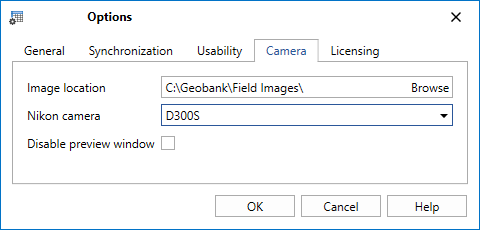
Image Location
The Image data type allows you to interactively capture and store an image using the camera on your laptop, tablet, or hand-held device. Specify the location where images will be stored when they are captured.
Nikon Camera
Nikon DSLR cameras require the model to specified. Canon cameras use a generic driver and do not require the model to be specified. For a list of compatible Canon DSLR cameras, see Micromine Geobank For Field Teams 22 Supported Canon DSLR Cameras.
Disable preview window
This option is turned off by default. Select this option when you want to disable the automatic preview of each image before it is stored at the image location specified on this tab of the Options dialog.
The purpose of the Disable preview window option, in conjunction with the column Auto-advance settings, is to allow the capture of a sequence of images without the need to touch or click anything in Micromine Geobank For Field Teams. This can significantly speed up, or allow the automation of, core tray or chip tray photography.
After any of these options have been enabled/disabled, you must close and re-open the profile for the changes to take effect.
Micromine Geobank For Field Teams displays images in the preview using the most common 1.5 aspect ratio. Please set you camera accordingly.