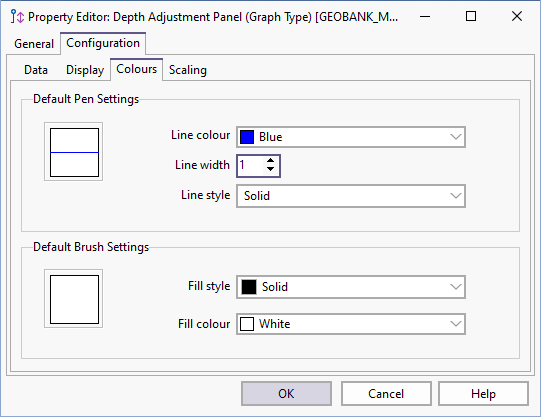
Panel Setup: Colours
On the Colours page, set pen and brush settings of the panel. In the case of a Bar Type panel, the Fill page is enabled and you can also associate the column with a legend and a symbology set that will be used to hatch the column.
Default Pen Settings
The pen colour is the colour used to draw the border and other lines making up the column. The pen style is the line style (solid, dot, dash etc.) and width used to draw the border and other lines making up the column.
Only solid lines are supported for line widths greater than 1.
Default Brush Settings
Set the brush (fill) colour and style options. The brush colour is the colour used to render the background of the template. The fill style is the hatch or stipple used for the background.
When setting DEFAULT_BRUSH (style) properties in the code, the following (integer only) enumerations can be used:
bsSolid = 0
bsClear = 1
bsHorizontal = 2
bsVertical = 3
bsFDiagonal = 4
bsBDiagonal = 5
bsCross = 6
bsDiagCross = 7
When setting the DEFAULT_COLOUR (fill) properties in the code, the following formula can be used to calculate an integer, where R, G and B represent the 0-255 values for these colours. The formula is:
R + G*256 + B*65536
For example:
Red is 255 + 0*256 + 0*65536  = 255
Blue is 0 + 0*256 + 255*65536 = 16711680