Panel Setup: Scaling
Use the Scaling page of the Property Editor: Depth Adjustment Panel to configure the horizontal scale bar for the panel. A horizontal scale bar is required for line graphs but is optional for panels of type "Column". In the latter case, the scale bar will be used to scale the graphic column.
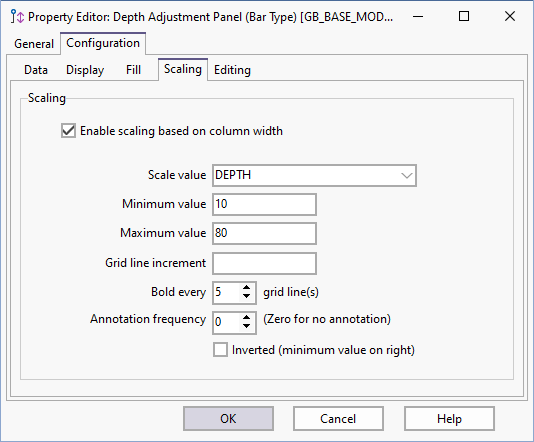
Enable scaling based on column width
Select this check box to enable the Scaling options to configure scaling for the scale bar.
Scale value
Select the column that contains the value that will be used to scale the line graph or graphic column.
Minimum and Maximum values
The display range for the scale bar is determined by the minimum and maximum values you enter.
Grid line Increment
Specify an interval that will be used to space the ticks.
Bold every
Specify the interval of grid lines to be made bold. Bold grid lines can make it easier to read the Depth Adjustment information at a glance.
Annotation frequency
Specify how (some or all of) the ticks will be annotated. The number of ticks displayed will depend on the Minimum-Maximum range and the grid increment value you have specified. When the minimum and maximum values are small whole numbers and the grid line increment is set to a fractional value, for example, 0.1, those values will be incremented and annotated accordingly.
Inverted (minimum value on the right)
Select this option if you want the maximum value to appear on the left end of the bar, with the minimum value on the right.