New Import
When you configure a new Import object, you associate the object with one or more import file specifications.
An import file specification determines the location and format of the source file, the name of the destination table, and the relevant field mappings between the source and destination.
To add an import to the current configuration:
- In the Configuration Manager, right-click on the User Interface| Data Transfer | Imports node of the navigation tree and select the New | Import option from the menu.

The Import Property Editor is displayed.
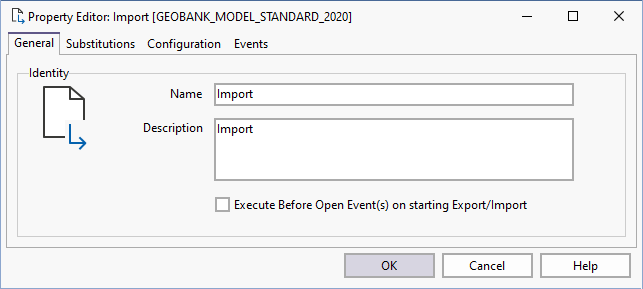
- Enter the general properties (Name, Description) of the import on the General page of the Property Editor.
Execute Before Open Event(s) on starting Export/Import
An export/import may require some sort of data 'setup' prior to the export with possibly a 'teardown' once the export/import has completed. This is usually achieved by configuring BeforeOpen and AfterClose SQL Events (for example, to create and populate a temporary table and then remove the temporary table after the export/import).
Select the Execute Before Open Event(s)... check box to change the sequence of events for the Import/Export. This will delay the execution of the process until the Before Open Event is executed. If the checkbox is not selected, the process will run immediately and the Before Open Event will occur after. After Open Events will always occur after the Export/Import process.
- When you run select queries to create the datasets, Substitution Parameters (for example HOLE_ID = '?Enter the Hole ID?') can be inserted into the queries.
- To add the file specifications that will be included in the import process, click on the Configuration tab. See: Import File Specification: Configuration
- To configure the messages to be shown, or the scripts to be executed, when the import process is invoked, click on the Events tab.
If you are configuring a task in Unattended mode, be aware that you should use the full UNC path for any mapped network drive: for example, \\server001\data\reports\ instead of N:\Reports. For detailed information, see Automation.