Using Entra MFA
Microsoft® Entra Multifactor Authentication (MFA) enables two or more sources of authentication to be used when connecting to a database in Micromine Geobank - providing extra security for your important data.
To use MFA to connect to a configuration database, first create a connection using the method outlined in Connect to a Configuration Database then follow the configuration process which follows:
Connection
-
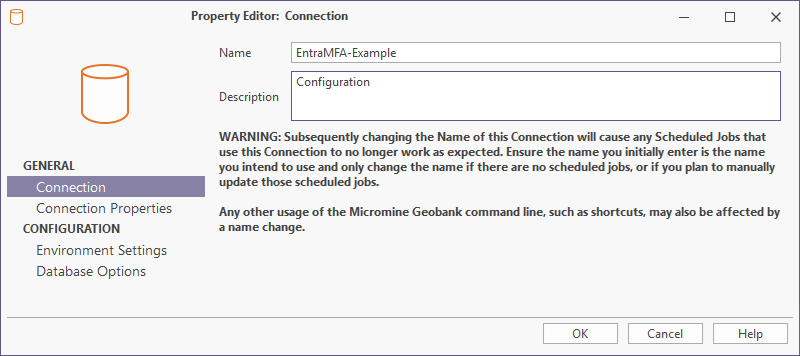
Provide a Name and (optionally) a Description for your MFA connection.
-
Click the Connection Properties tab.
Connection Properties
In the Connection Properties tab,
-
Click the Build button to open the Data Link Properties dialog.
-
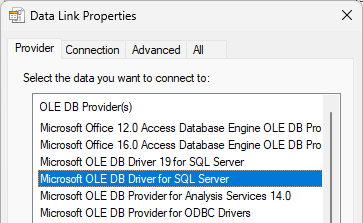
Select the Microsoft OLE DB Driver for SQL Server option from the Provider tab.
-
Click Next to proceed to the Connection tab.
-
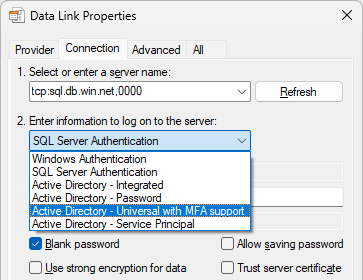
Enter the name of your server for connection in the field provided.
-
Select Active Directory - Universal with MFA Support from the drop down list:
-
Click OK to enter the ADO Connection String.
In the Connection Properties tab,
-
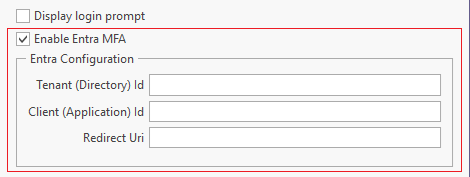
Select the Enable Entra MFA option to enable the Entra Configuration details:
-
Enter the Tenant (Directory) ID for the Entra tenant.
The Tenant ID is the identifier for the Microsoft Entra Tenant to which the database is assigned. This information is in the form of a GUID and will be provided by the Entra tenant administrator.
-
Enter the Client (Application) ID for the Entra tenant.
This information is provided when Micromine Geobank has been registered as an application via App Registrations in the Entra Tenant.
-
Enter the Redirect URL in the field provided.
This URL is also available when Micromine Geobank has been registered as an application in the tenant.
When this information is configured, you can click OK to create the connection, or configure any required Environment Settings and/or Database Options.
With the MFA connection configured, you can now Login to the database using the Configuration Database Login screen: