Connect to a Configuration Database
The Configuration Database is a Microsoft SQL Server database that will be used to store the Micromine Geobank configuration tables. A connection to a configuration database must be established the first time Micromine Geobank is run.
When you start the application for the first time, a blank login screen is displayed.
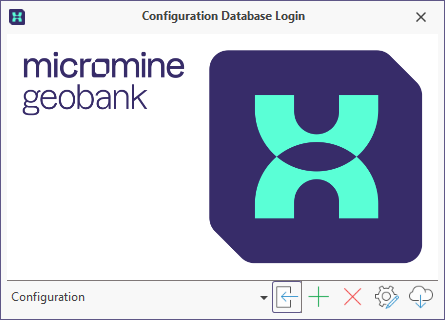
To add a connection to a configuration database:
- Click the Add button to add a database connection.
- Enter a Name and Description for the configuration database, then click the Connection Properties link.
- Click Build... to define the ADO connection string.
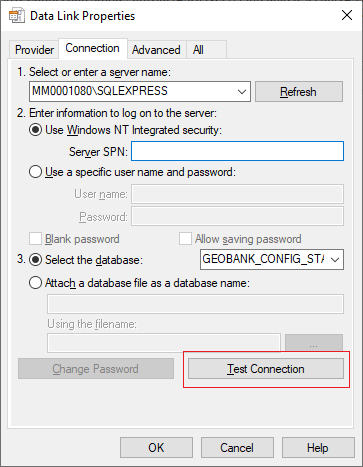
- In the Data Link Properties dialog, on the Provider tab, select Microsoft OLE DB Driver for SQL Server.
- On the Connection tab:
- Select the name of the data source that points to the instance of SQL Server (using the servername\instance format). You should use the Micromine Geobank configuration database server name here. The example shown below in the Data Link Properties dialog is for a networked configuration database. If you are using a local database server, the server name will be localhost\sqlexpress2008.
- Select Use Windows NT integrated security to allow access to the database based on your windows login details. Otherwise provide the login User Name and Password needed to access the database.
- Select the configuration database that you want to connect to. This should be provided by your system administrator.
- Click OK on the SQL Server Native Client Data Link dialog, then click OK on the Data Link Properties dialog to save the ADO Connection String properties and return to the Configuration Property Editor.
Click Test Connection.
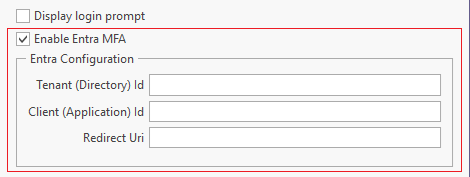
- If you are configuring a connection for MFA, you will need to select the Enable Entra MFA option to enable the Entra Configuration details:
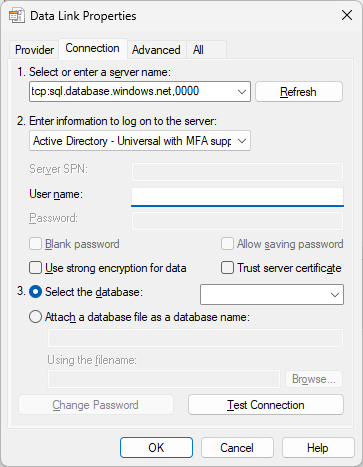
- Enter the Tenant (Directory) ID, Client (Application) ID and Redirect URL for your MFA connection in the fields provided.
For Administrators, more information on connecting to a database using MFA is contained in Using Entra MFA.
The Connection Property Editor is opened:
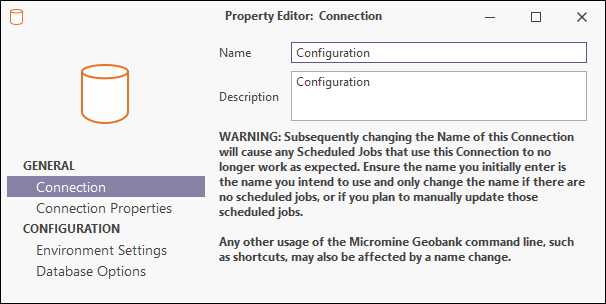
WARNING: Subsequently changing the Name of this Connection will cause any Scheduled Jobs that use this Connection to no longer work as expected. Ensure the name you initially enter is the name you intend to use and only change the name if there are no scheduled jobs, or if you plan to manually update those scheduled jobs.
Any other usage of the Micromine Geobank command line, such as shortcuts, may also be affected by a name change.
Note: All users accessing (Undefined variable: NX-General.GeobankProduct), will need Read access to the Master database.
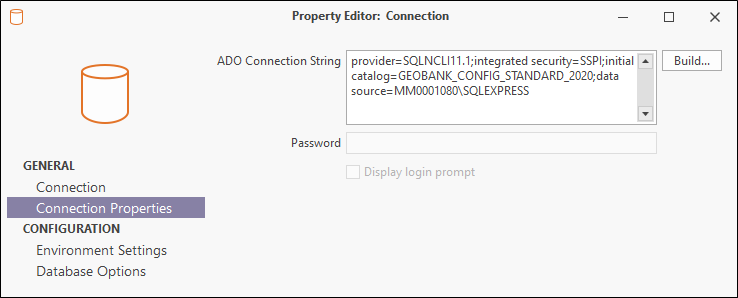
When a blank database is added as a new datasource, table name and column name mapping tables are created automatically
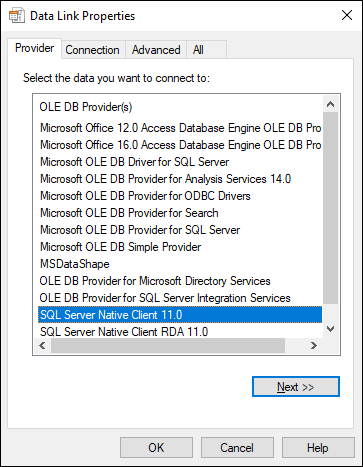
When the relevant details have been configured for the Connection tab,
- Click on Environment Settings to review or change Date and Time format settings, and the timeout values for the database connection and Micromine Geobank commands.
- Click on Database Options to setup options for the interaction between the SQL Server software and the database.