Managing Roles
The Pitram Portal provides a number of services to client applications. Which services are available when you log on will depend upon:
- the applications that are configured as part of the Pitram Portal
- the user roles that are assigned to you
If you have not been assigned a specific role, a 'Default' role is automatically assigned, ensuring that the default set of applications and services are available to you after logging on.
Default Role
A user with a 'Default' role is able to:
- Generate and view available reports when Reporting is selected.
- Import and display Target entries.
- View items in the Library.
- Launch (but not modify) existing Dashboards.
You can explicitly assign the 'Default' role in the same way as other roles. The 'Default' role cannot, however, be deleted or renamed.
Editing a Role
If you have administrator privileges, you can create and edit roles using the Administration | Manage Roles menu option.
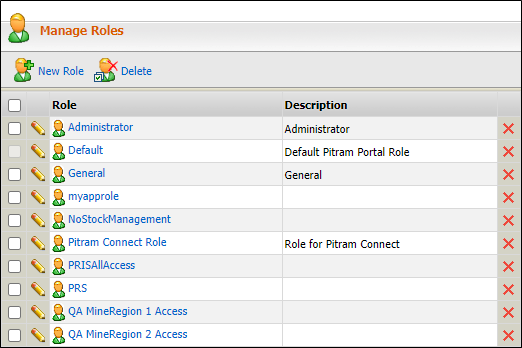
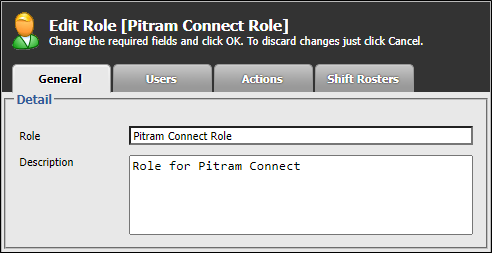
To edit the properties of a role, simply click on the Role name or the
edit icon  to the left of the role name. An Edit Role dialog
will be displayed.
to the left of the role name. An Edit Role dialog
will be displayed.
Adding a Role
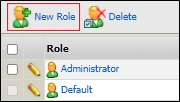
Click the New Role icon to add a role to the displayed list. In the Create New Role dialog, enter a name and a brief description for the role.
Click the Users tab and assign users to the role.
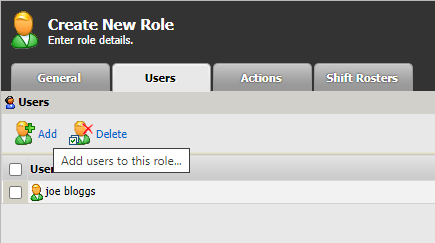
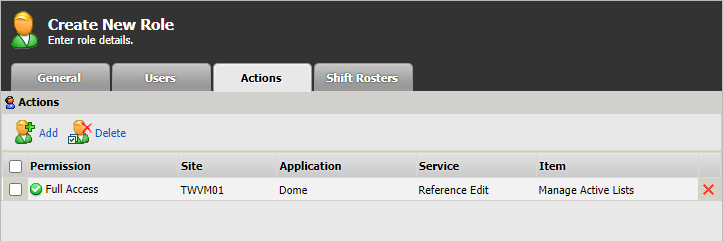
Click the Actions tab and assign actions to the role.
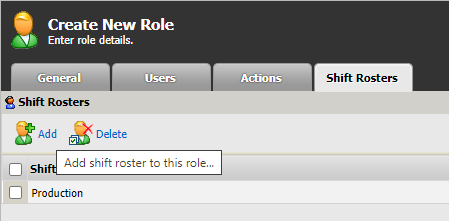
If required, click the Shift Rosters tab and add shift rosters to the role.
Finally, click the Create button.
Removing a Role
Select the check box alongside role you want to edit and click the Remove icon  .
.
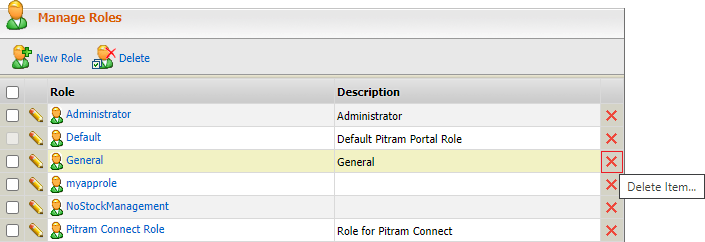
You may need to exit Pitram Portal and log in again before the roles you have added or removed are recognised by the system.