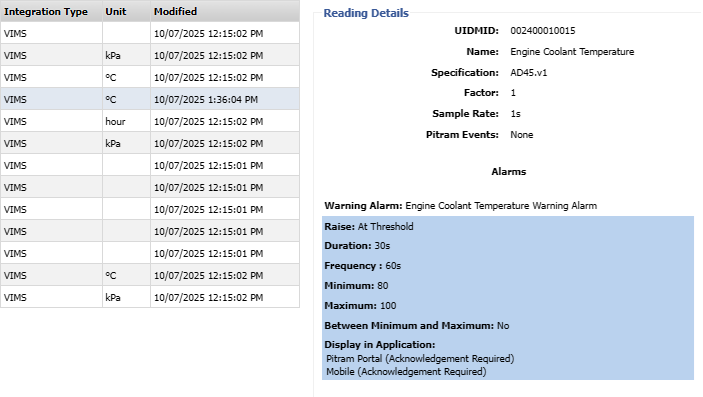
Import a VIMS File
On the Services ribbon, click Asset Health to display the dashboards showing the performance against the reading definitions you have configured for your assets.

The Asset Health module provides the Configuration page for the reading definitions and reading names used for setting up Asset Health dashboards, as well as a method of importing DBC and VIMS files which contain information for the signals used in configuring J1939 definitions.
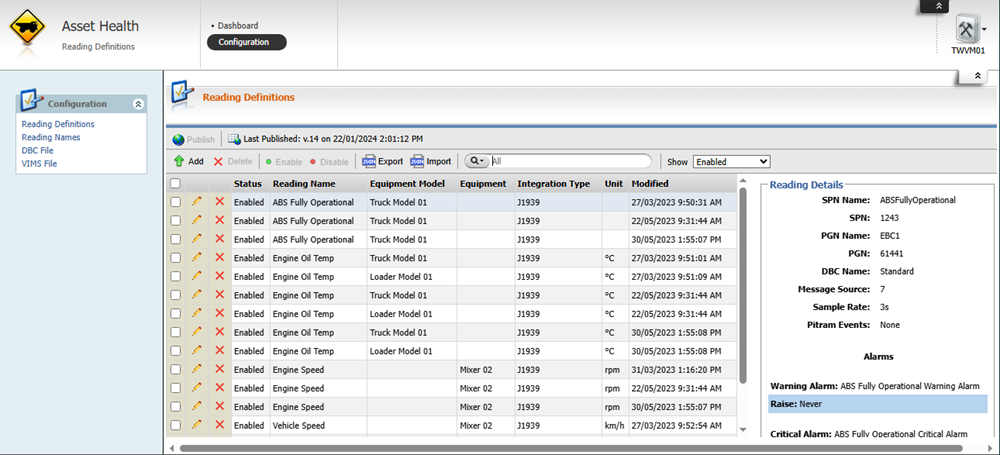
The VIMS File option is used to import a VIMS file which provides the signals used in configuring J1939 reading definitions.
Vital Information Management System (VIMS) integration is designed to automatically collect and process Asset Health data from the VIMS installed on CAT mining equipment, feeding this information directly into the Asset Health module in Pitram. Signals from VIMS - such as engine hours, temperatures, and other diagnostic parameters - are mapped to Pitram Asset Health readings.
Data is sampled at configurable intervals, with configured minimums to protect both performance and data quality. Asset health readings are stored in a time series database and can trigger Pitram events based on predefined thresholds or conditions.
Each equipment model and VIMS specification version can have its own profile, ensuring that the correct parameters are captured and interpreted for asset health monitoring. The system is designed to adapt to new VIMS specification versions without requiring code changes. This approach ensures robust, maintainable, and scalable integration of VIMS data into Pitram for improved equipment monitoring and operational insights.
To import a VIMS file,
-
Click the VIMS File option in the Configuration menu at the left.
The VIMS File page is displayed.
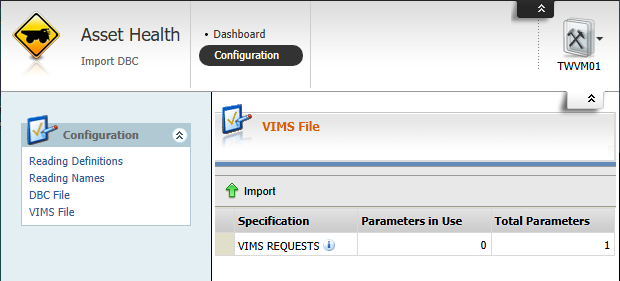
The Import button in the toolbar opens the Import
-
Click the Import button in the toolbar.
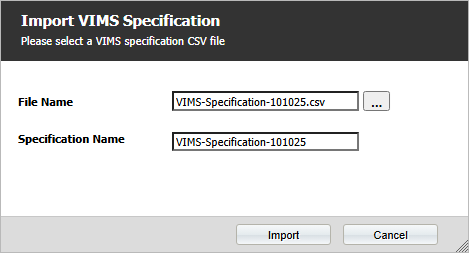
The Import VIMS Specification dialog opens.
-
Click the ellipsis for the File Name field to navigate to and select the VIMS file for import.
-
Accept the Specification Name option default, or modify the name if required.
-
Click the Import button.
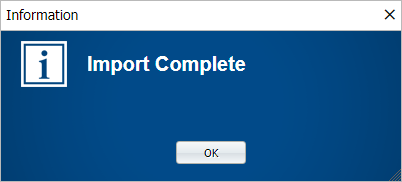
When your VIMS file has been successfully imported, an information prompt will be displayed:
-
Click OK to close the prompt.
The information you imported via the VIMS file will populate the Messages and Signals panel in Configuration.