Volvo Integration
Reference data groups can be configured to allow integration between Pitram and Volvo trucks via CAN Bus.
Volvo integration enables Pitram Mobile to collect and process operational data directly from Volvo trucks, supporting key measures such as engine hours, fuel level, and payload. J1939 signals from the trucks are decoded and mapped to measures using a dedicated Volvo profile and integration mapping. This process ensures that asset health readings are accurately captured and events (like engine hours, fuel changes, and payload dumps) are sent to Pitram servers for further processing and reporting. The system uses smoothing algorithms for fluctuating signals (such as fuel level) and configurable logic for event triggers, ensuring reliable and consistent data capture across different truck models and site conditions.
For payload management, the integration captures payload values at specific operational moments - such as when the truck’s body-down signal transitions, and when the load cycle changes from loaded to unloaded. Auxiliary signals (like gear lever and load cycle state) are also collected to support accurate event generation. The architecture is designed to accommodate multiple Volvo truck models and evolving DBC (database) files, allowing for flexible adaptation as new versions or site requirements emerge. This integration streamlines data flow from the truck to Pitram, supporting efficient fleet management and operational analysis for end users.
The following information outlines how to configure Equipment Health Device and Volvo Device integration.
Reference Data Deployment
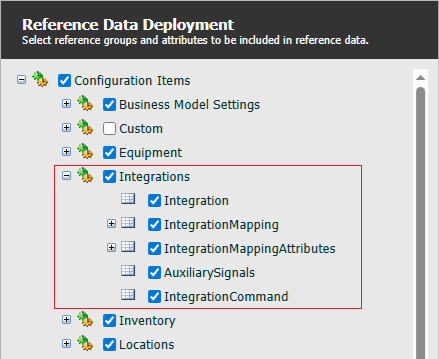
The following Mobile attributes should be deployed:
-
MobileSettings →VolvoProfile
-
MobileUnitConfiguration
-
VolvoProfile
-
EquipmentHealthProfile
-
-
Integrations
-
Integration
-
IntegrationMapping
-
IntegrationMappingAttributes
-
IntegrationCommand
-
AuxiliarySignals
-
The integration requires groups of reference data to be deployed:
-
Integration - Defines the integrations available.
-
IntegrationMapping - The mapping between Pitram tokens and tokens used in 3rd party integrations.
-
IntegrationMappingAttributes - Mapping between the Integration and the Pitram reference group and attribute.
-
IntegrationCommand - Contains pre-deployed reference data tokens representing the supported integrations.
-
AuxiliarySignals - Contains pre-deployed reference data tokens representing the supported signals.
To enable integration in Data Acquisition, reference groups must be deployed from Reference Edit.
To access the Integrations configuration screens:
Click on the Reference Edit icon to open the Reference Data service:

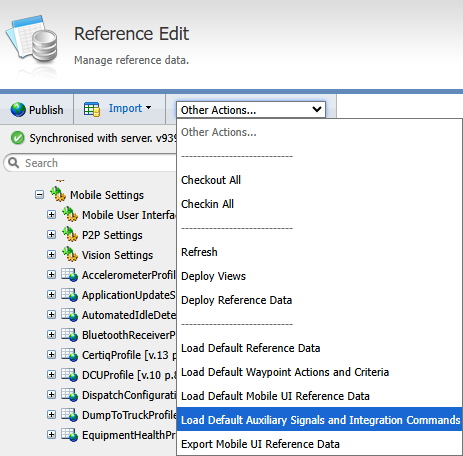
When these groups have been deployed, the Load Default Auxiliary Signals and Integration Commands option will be available from the Reference Edit → Other Actions menu.
You can load the Default Auxiliary Signals using the option:
DBC File
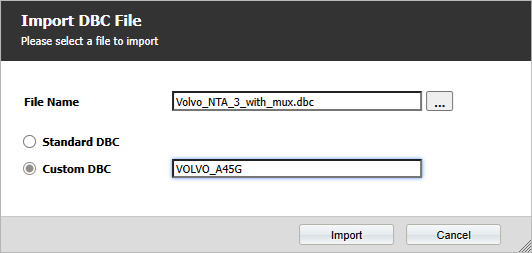
In Asset Health or Reference Data → Settings → DBC File, import the standard J1939 DBC file as well as the Volvo DBC file and publish, noting the name of the CustomOrigin used for the Volvo DBC
Note: To follow the procedure outlined below, use CustomOrigin = VOLVO_A45G
-
If Asset Health is Enabled - publish via the Asset Health → Configuration → Reading Definitions screen.
-
If Asset Health is Disabled - publish via the Reference Data Settings → DBC File screen.
Integration
An Integration token needs to be defined for Volvo integration.
The configuration screen lists the existing Integrations. To create a new Integration, Checkout the table and click New.
The following parameters must be configured:
Integration Mapping tokens need to be defined for each equipment used in the integration and measure codes for the configured source and target measures.
In the Integration Mapping configuration screen, Checkout the table and click New to create a new Integration Mapping.
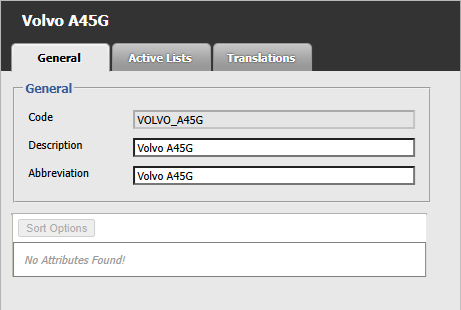
For example, for the Volvo A45G Load Cycle, the following parameters must be configured. Mandatory attributes appear asterisked and in red:
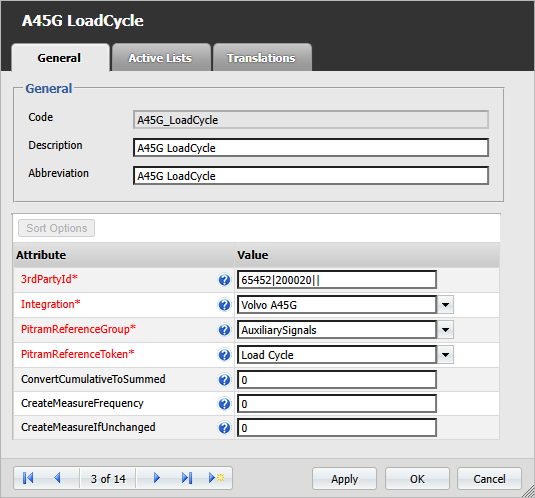
Enter the applicable 3rd Party ID for the Integration in the field provided.
The Integration drop down is used to select the associated Integration to be mapped - in this example, the Volvo A45G integration.
Select the Pitram Reference Group for the mapping from the drop down provided. For Volvo integration, this is AuxiliarySignals.
Use the Pitram Reference Token drop down to select the relevant token from the selected reference group.
The Convert Cumulative To Summed field is used to configure whether to convert cumulative signal into a summed measure. It does this by using the difference between the value and the previous value. Defaults to off (0), specify 1 to turn on.
Use the Create Measure If Unchanged field to configure whether to create a measure if the signal has not changed. Defaults to off (0), specify 1 to turn on.
The Create Measure Frequency field is used to configure the time interval, in seconds, that needs to pass before a measure is created. Set to 0 to create measures for every sample.
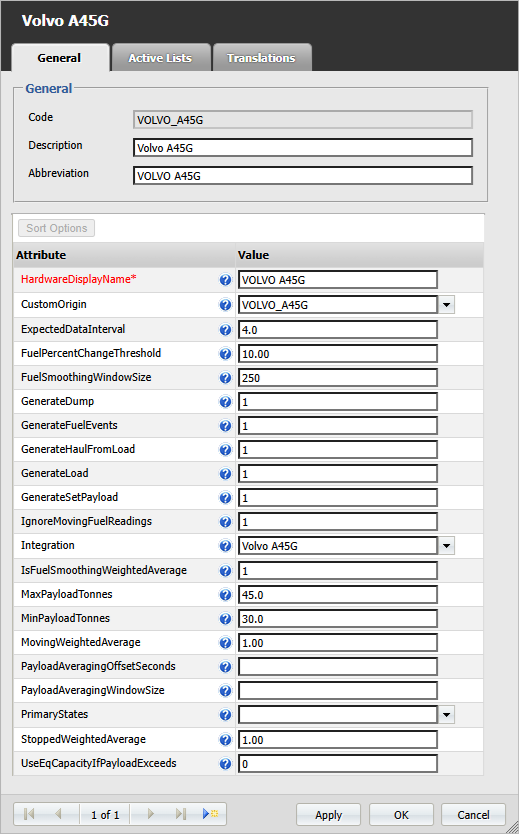
Volvo Profile
A Volvo Profile token needs to be defined for Volvo integration.
The following parameters must be configured:
Equipment Health Profile
An Equipment Health Profile for Volvo integration must be imported/created if you have enabled Asset Heath. For Volvo Integration, the profile is configured manually with the Motium API Type.
The following parameters are configured in Reference Data using Configuration Items → Mobile Settings → EquipmentHealthProfile:
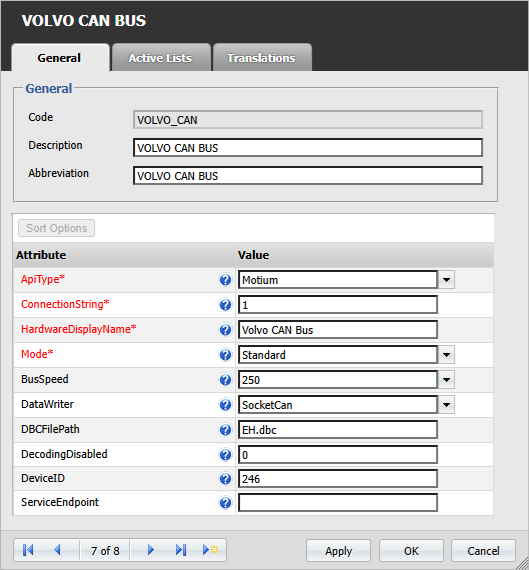
Note: DeviceID may need to be modified depending on other devices on the CAN bus.
Mobile Unit Configuration
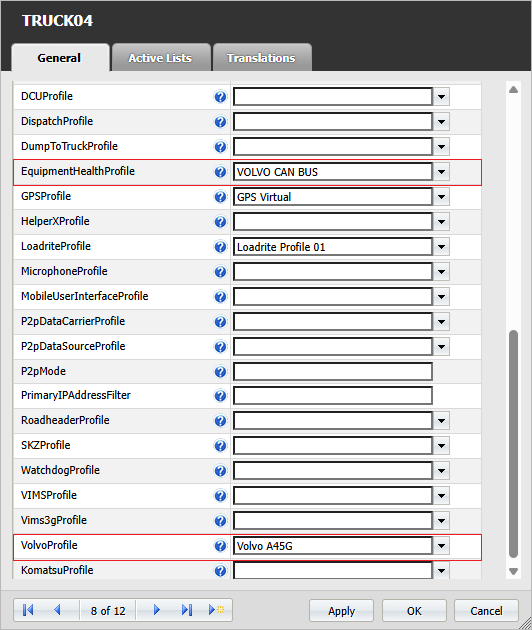
With the Integration Profile and the Equipment Health Profile configured, you can configure the Mobile Unit Configuration for your Volvo integration.
Select the required Equipment and set the VolvoProfile and EquipmentHealthProfile to the reference data tokens that have been created/imported. In this example:
-
EquipmentHealthProfile = VOLVO CAN BUS
-
VolvoProfile = Volvo A45G
Publish
Check in and publish all of the changes to Reference Data.
When you open Mobile for the Equipment that has been assigned the Volvo profile, if the configuration was applied successfully, there should be two Volvo Hardware Devices.
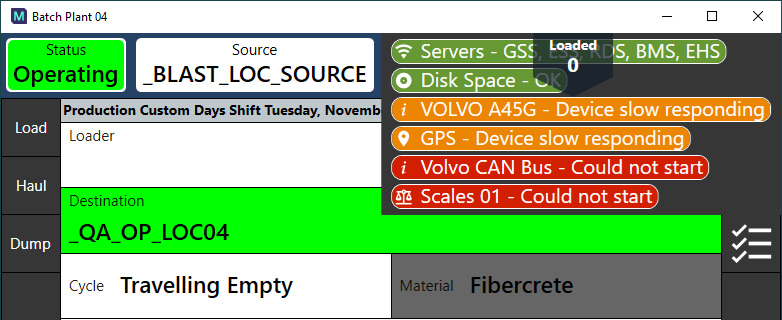
Note: The above is TEST data and for illustration purposes only.