Reversing Camera Configuration
A reversing camera and wiring harness are available as an option. The camera image is displayed on the screen of the TREK-773 or TREK-753 in place of the Pitram Mobile screen graphics. The camera image can be displayed automatically when reverse gear is selected, or manually selected at any time by the vehicle operator pressing a function key.
|
|
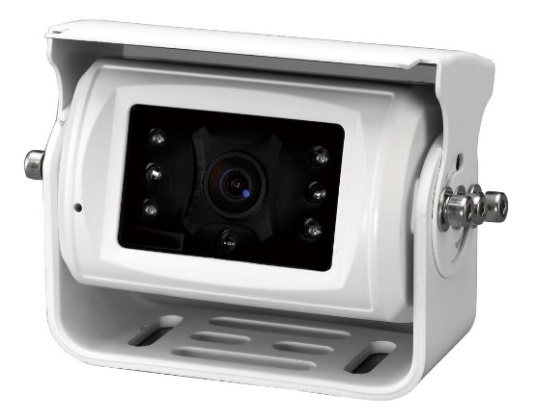
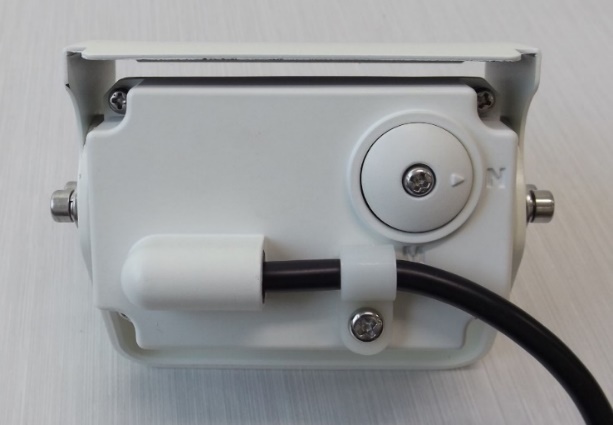
Front and rear view of reversing camera. Note MIRROR/NORMAL switch at rear.
The camera has Mirror and Normal image modes. Mirror mode should be used for a rear facing camera. In Mirror mode the screen image will have the same orientation as seen when looking in a conventional reversing mirror. Normal mode should be used for a front facing camera.
The reversing camera has a built-in infrared (IR) illuminator and ambient light sensor. The illuminator turns on automatically in dark conditions. Infrared light is not visible to the human eye but is easily picked up by the camera.
The Reverse Camera added in Pitram 4.6.0 will automatically activate when installed and the reverse gear is engaged.
The camera can also be configured to be activated by pressing a hardware button (F1, F2, F3, F4 or F5) on the mobile unit.
When activated by pressing the hardware button, the button must be pressed again to de-activate it. (i.e. changing out of reverse will not de-activate the camera when it has been activated by pressing the hardware button).
If a hardware button is configured for the camera, this takes precedence over anything else the same hardware button may be configured for.
To configure the camera:
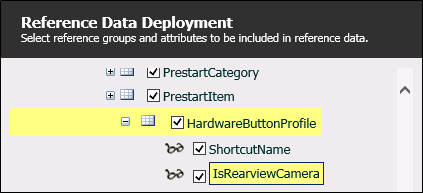
- Ensure the new attribute IsRearviewCamera is included in the Reference Data:
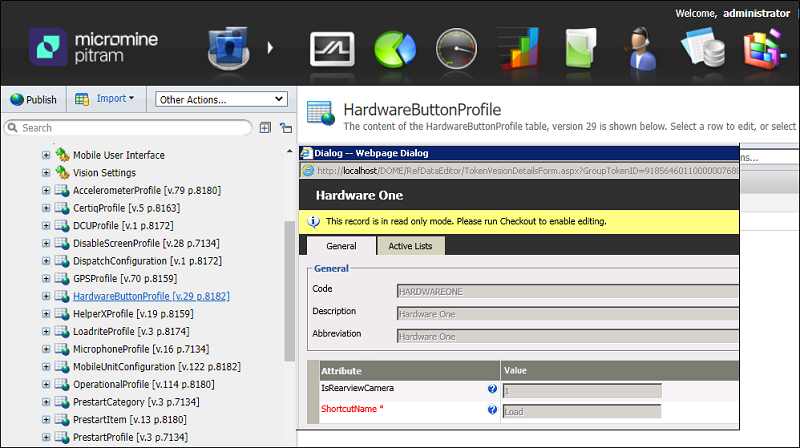
- Set the IsRearviewCamera flag:
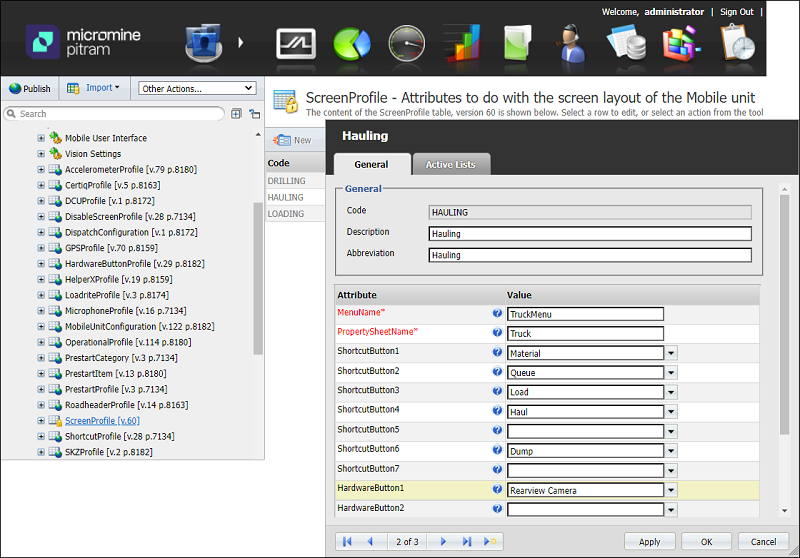
- Select the HardwareButtonProfile for the appropriate ScreenProfile:
- Check-in and Publish the changes.