Roadheader Integration
Integration reference data groups can be configured to allow the retrieval of production data from Roadheader onboard systems. Pitram can be configured to receive measures including meters advanced (meters penetrated), power consumed and engine hours.
The integration requires groups of reference data to be deployed:
-
Integration - Defines the integrations available.
-
IntegrationMapping - The mapping between Pitram tokens and tokens used in 3rd party integrations.
-
IntegrationMappingAttributes - Mapping between the Integration and the Pitram reference group and attribute.
-
RoadheaderProfile - The profile for the Roadheader.
-
MobileUnitConfiguration.RoadheaderProfile - The configuration for the Roadheader mobile unit.
To enable integration in Data Acquisition, reference groups must be deployed from Reference Edit.
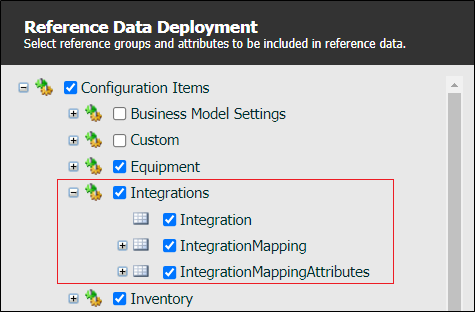
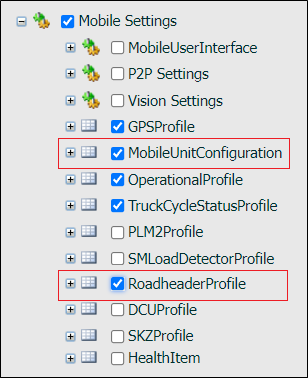
To access the Integrations configuration screens:
Click on the Reference Edit icon to open the Reference Data service:

The first step is to set up the integrations that will be mapped and configured.
Integration
In the Reference Data tree view, click on the Integration reference group:
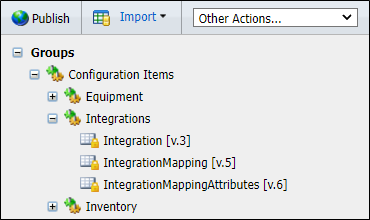
The Integration configuration screen is displayed:
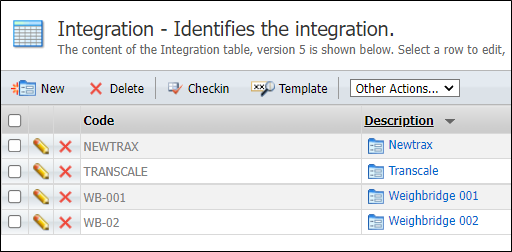
The configuration screen lists the existing Integrations. To create a new Integration, Checkout the table and click New.
The following parameters must be configured:
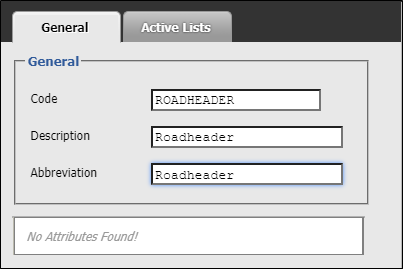
You can create an integration for each Roadheader, or one integration for all. Integrations can be given a custom name.
With at least one integration created, you can create the Roadheader profile for each integration.
Roadheader Profile
In the Reference Data tree view, click on the Mobile Settings reference group:
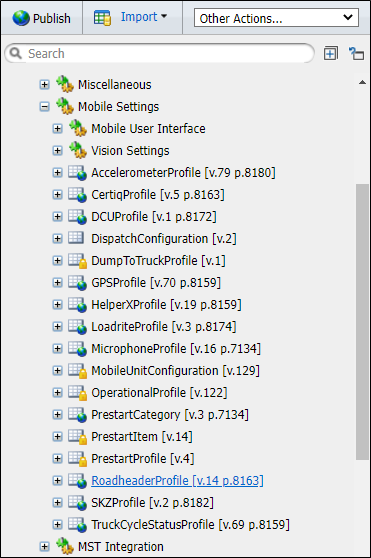
Select RoadheaderProfile to open the Roadheader Profile configuration screen.
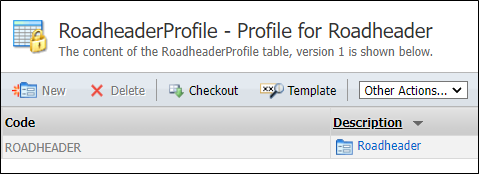
The Roadheader Profile configuration screen lists existing Roadheader profiles. To create a new profile, Checkout the table and click the New button.
The following parameters must be configured. Mandatory attributes appear asterisked and in red:
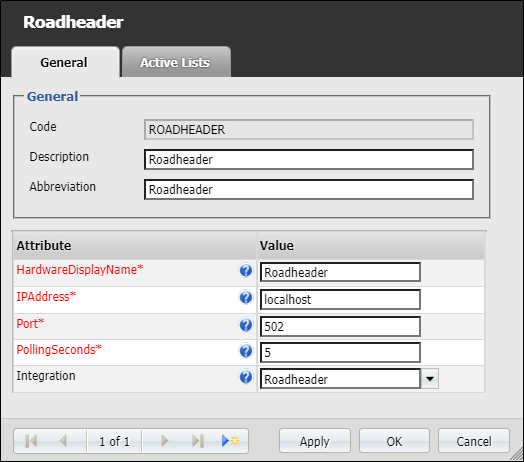
The HardwareDisplayName is used to enter the display name for this device in Mobile.
In the IPAddress field, enter the ethernet IP Address to which the device is connected. If using Modbus RTU with a COM port, it can be specified here (and the ethernet Port is ignored).
Use the Port field to specify the ethernet port to which the device is connected. The default port setting is 502.
The PollingSeconds field is used to enter the interval, in seconds, between polls.
Us e the Integration field to select the Integration for the Roadheader.
When the Roadheader Profile has been configured and created, you can associate it with equipment in Mobile Unit Configuration.
Mobile Unit Configuration
In the Reference Data tree view, click on the Mobile Settings reference group and click MobileUnitConfiguration. The Mobile Unit Configuration screen will open.
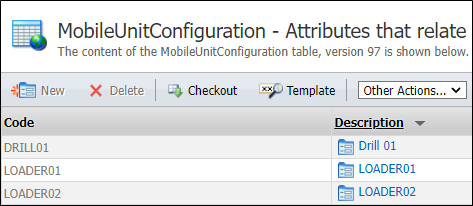
To associate an existing Mobile Unit Configuration, Checkout the table and click the Edit icon for the relevant entry. The edit form will open with the details for the mobile unit displayed. Select the associated Roadheader Profile from the drop down.
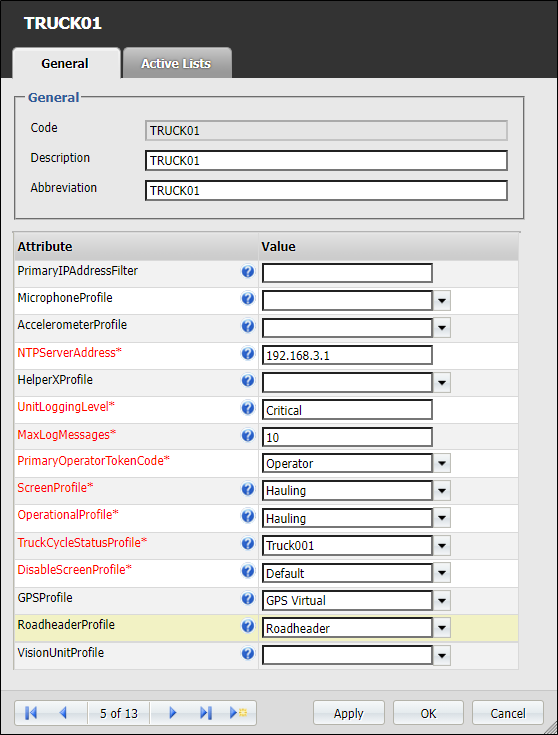
Click OK to save the changes to the mobile unit configuration. You can repeat this association process for any mobile unit applicable to a Roadheader profile.
When the required associations have been made, you can create any necessary measures for the Roadheader integration.
Measure
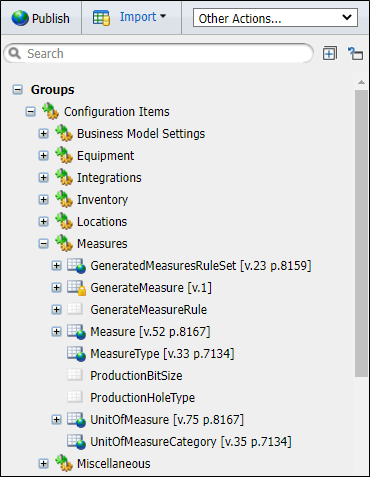
To view the configured measures for your system, in the Reference Data tree view, expand the Measures reference group and click on the Measure label.
The Measure configuration screen is displayed.
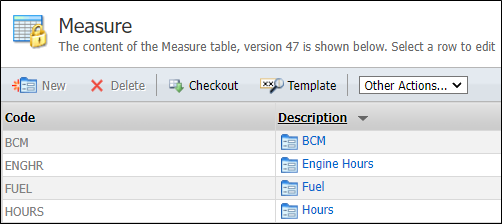
The configuration screen displays the existing Measures. In this example, the configured measure to create for the Roadheader is Operating Hours, Checkout the Measure table and click New to create a new measure. The following parameters must be configured.
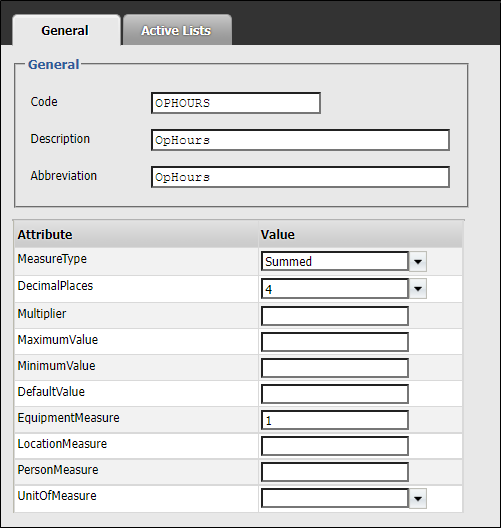
When you have created and configured the required Measures, an Integration Mapping can be created.
Integration Mapping
In the Reference Data tree view, click on the IntegrationMapping reference group:
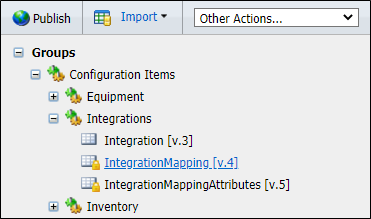
In the Integration Mapping configuration screen, Checkout the table and click New to create a new Integration Mapping.
The following parameters must be configured. Mandatory attributes appear asterisked and in red:
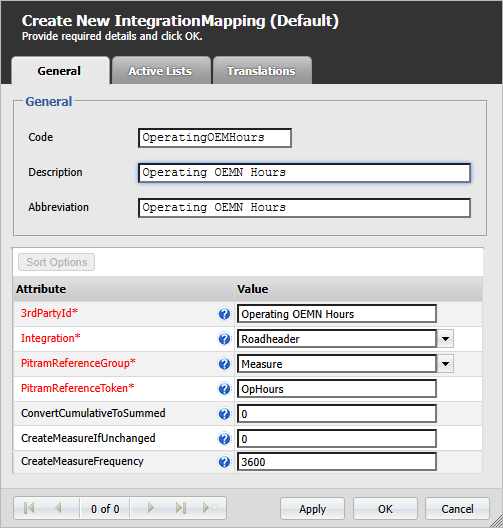
Enter the applicable 3rd Party ID in the field provided.
The Integration drop down is used to select the associated Integration to be mapped; in this case the Roadheader integration.
Select the Pitram Reference Group for the mapping from the drop down provided. In this example, you would select the Measure group.
Use the Pitram Reference Token drop down to select the relevant token from the selected reference group; in this case the OpHours measure created for the Roadheader.
The Convert Cumulative To Summed field is used to configure whether to convert cumulative signal into a summed measure. It does this by using the difference between the value and the previous value. Defaults to off (0), specify 1 to turn on.
In the Create Smu Measure If Unchanged field, set whether to create an SMU measure if the signal has not changed. Defaults to off (0), specify 1 to turn on.
Use the Create Measure If Unchanged field to configure whether to create a measure if the signal has not changed. Defaults to off (0), specify 1 to turn on.
The Create Measure Frequency field is used to configure the time interval, in seconds, that needs to pass before a measure is created. Set to 0 to create measures for every sample.
When the Integration Mapping has been configured and created, you can create Integration Mapping Attributes to associate Integrations with reference data and 3rd Party IDs.
Click on the IntegrationMappingAttributes reference group in the Reference Data tree view:
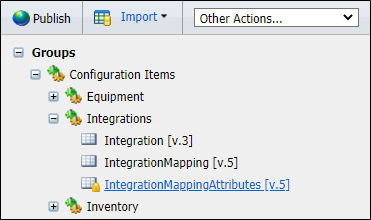
In the Integration Mapping Attributes configuration screen, Checkout the table and click New to create a new Integration Mapping Attribute reference.
The following parameters must be configured. Mandatory attributes appear asterisked and in red:
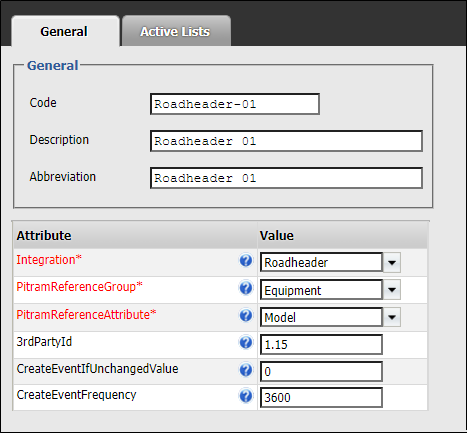
The Integration drop down is used to select the associated Integration for the mapping attribute.
Select the Pitram Reference Group for the mapping attribute from the drop down provided.
Use the Pitram Reference Attribute drop down to select the relevant attribute from the selected reference group.
The 3rd Party ID field is used to enter a 3rd party item value to be mapped to the Roadheader Integration.
The Create Event If Unchanged Value field configures the default behaviour for the integration. If this value is 0, the integration will not trigger any events when the signal has not changed. A value of 1 will enable the creation of events when the signal has not changed.
In the Create Event Frequency field, enter the time interval, in seconds, that needs to pass before an event is created: Set to 0 to create measures for every sample.
When the details of the Integration Mapping Attribute have been configured, click OK to create the reference.
Testing
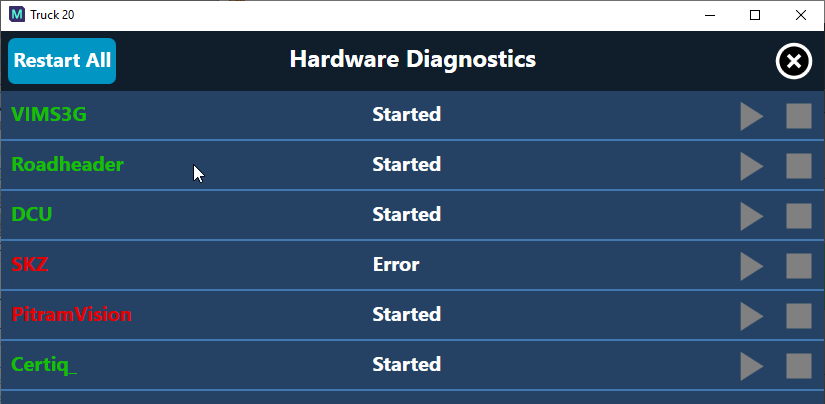
To test in mobile, you can run it and make sure the Roadheader reference groups are published. You can press F5 and select the Roadheader entry. It should be displayed green and in the started state.
If you select Roadheader, you should see a green status, state, health status and Is Connected:
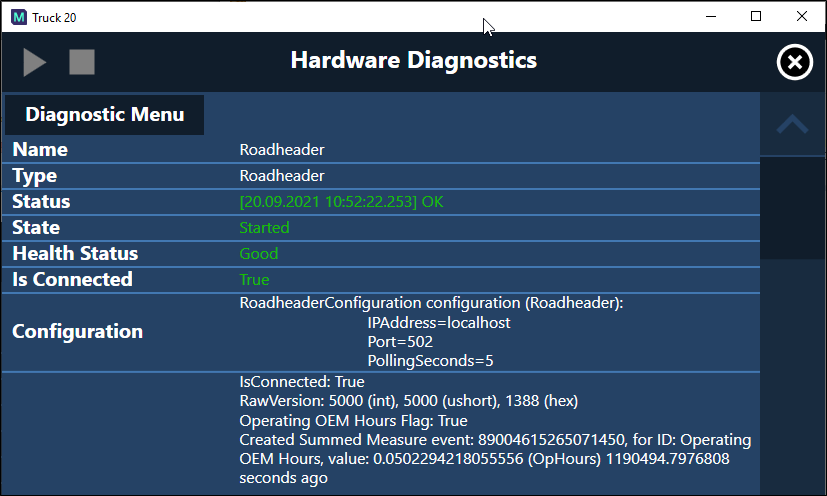
You should be able to scroll down and see the displayed numbers update as they are changed.
You can see whether measures were created using the Equipment measures reports (except the engine hours reports).