Add a shotcrete event
-
Select the Shotcrete View button or select (View | Shotcrete View) from the menu.
-
Click the Add Event button or select the Edit | Add Event menu option.
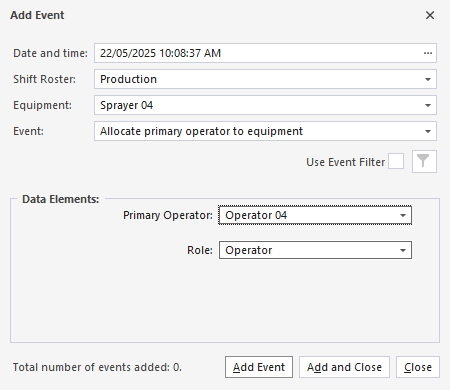
- Accept the default Date/Time or specify the Date/Time of the event you are adding.
By default, the date/time will be 1 second after the event that is currently selected in the grid.
To set the Date/Time use the mouse to select the component of the date and time you want to change, then use the increment/decrement controls to change the selected component.
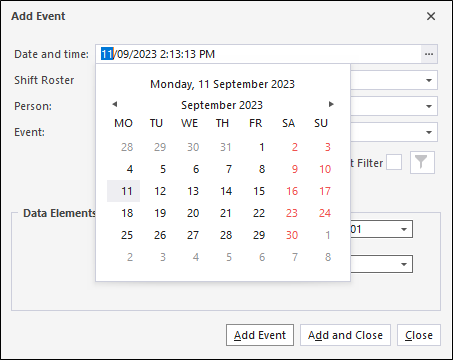
If the date and time you specify is invalid, the date/time will be set back to the default date/time.
-
Select the Equipment for the event you want to add, where applicable.
Only equipment set as a Mixer, Sprayer or Batch Plant will be available for selection.
- Select the Event you want to add from the drop down list of available events:
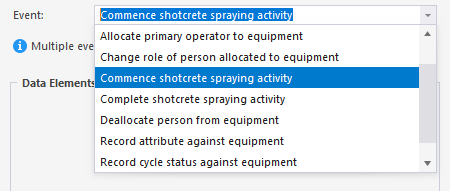
The events specific to Shotcrete activity are as follows:
-
Commence shotcrete spraying activity
-
Complete shotcrete spraying activity
-
Dump to Shotcrete Mixer
-
Against a Batch Plant, or Mixer equipment
-
Note: Not all event types are available for all views. Only the compatible events for the current view will be displayed in the list.
Other events that you might need to apply to shotcreting include:
-
Record summed measure against equipment- to add material and additives to mixing equipment.
-
Record material type against equipment - to select the material type for shotcrete equipment.
Depending on the Event selected from the drop down menu, the Data Elements section of the Add Event form will contain the required data to be configured. For example, for the Commence shotcrete spraying event,
- Select an Attribute and an Attribute Value from the drop-down list provided.
- Click the Add Event button to add the event and keep the dialog open. If you have finished adding events, click the Add and Close button.

To cancel (close the dialog without adding the event), click Close.