App Installation
This topic describes the installation of Pitram Connect on an Android device. Apple users can download the app via the Apple App Store. Apart from that, the installation procedure is the same. Windows devices are not currently supported. To install Pitram Connect:
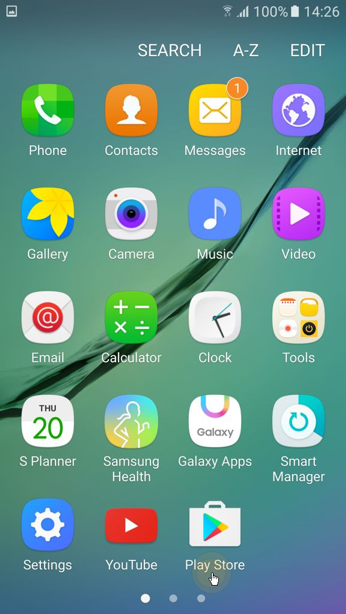
- From the Apps screen, open the Play Store:
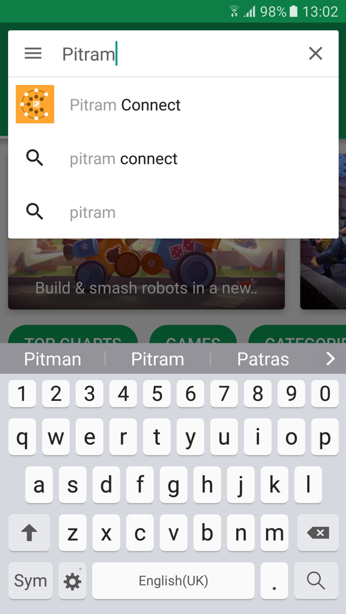
- Enter “Pitram” as a Search string:
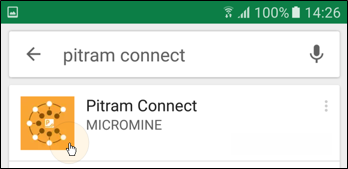
- The Pitram Connect app is listed as a result of your search. Press to select the app:
- Press to Install the app on your device:
- Once installation is complete, press to Open the app:
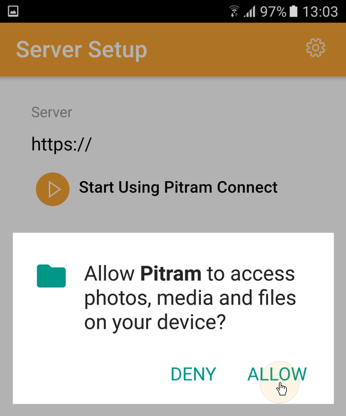
- (Android Devices Only) Pitram Connect requires access to your device in order to store error logging information. Press Allow to allow the app to access the photos, media and files on your device. Note that Pitram Connect does not access any other media on your device
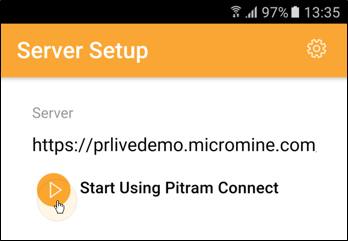
- Pitram Connect also requires access to the Pitram Server at your site. Enter the Server address provided by your Pitram System administrator:
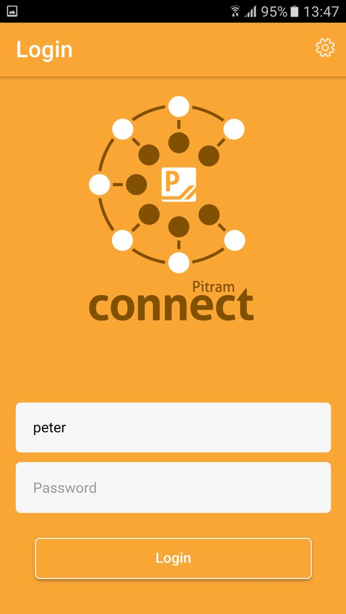
- You are now ready to use Pitram Connect. Enter the Username and the Password supplied to you by your Pitram System administrator:


This step is only required during the installation of the app.