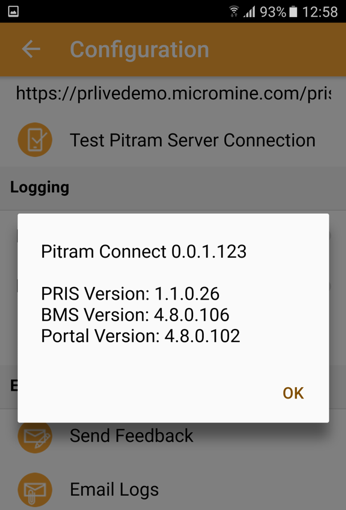
Configuration
The Configuration menu allows users to:
- Change the Pitram Server
- Turn on Logging (if instructed to do so by Pitram Support)
- Send Feedback to Micromine
- Email logs (support logs emailed through the device native mail client)
- About Pitram Connect provides user version information here.
Server Startup
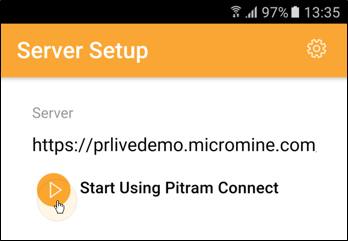
The first time you use Pitram Connect you will need to connect to the Pitram Server:
Logging
To enable message logging for diagnostic purposes, tap and swipe to select one or both of the Logging options:
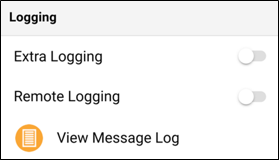
For detailed diagnostic tracing, select the Extra Logging option if advised to do so by Pitram Support.
To enable logging over a remote connection, select the Remote Logging option.
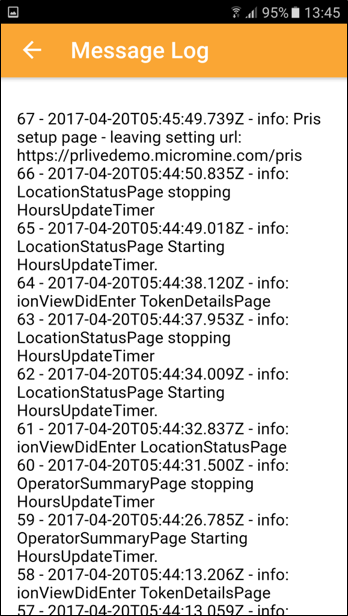
You can also select an option to View the message log and Email message logs to Pitram Support.
About
To view Pitram Connect versioning information, tap the About icon: