Make Changes to Multiple Items
To make the same change to the general definition of multiple items, such as entering the same Cost Code:
- Select the Target tab containing the items you want to modify.
- Click the Select button above the available items.
- In the list of items, select each of the items that you want to modify.
This will enable the target items to be selected.
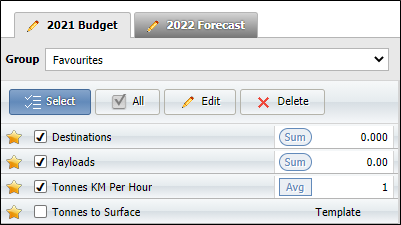
You can select All items using the button.
- Click the Edit button above the items. The Multiple Target Items dialog opens.
- Changes you make to an option will be applied to all of the items you selected.
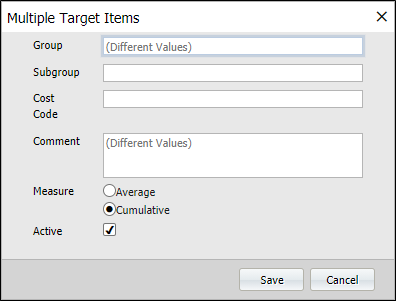
For example, entering a Subgroup value will assign that subgroup to all selected items.
- Click Save to apply the changes to all selected target items.