Targets
Multiple Targets can be configured using the Targets module. Different Targets can be created to differentiate between budgets and forecasts, or between long-term, medium-term, and short-term planning objectives.
Terminology
The terms target, budget and forecast are often used interchangeably, and their meaning and usage can be confused. The use of these terms in Pitram can be summarised as follows:
- Target
In the Targets and Reporting services, the user-defined values that are entered and used to compare with the actual values are referred to as targets. A target is a generic term that is used to define both financial and other values, including tonnes dumped, hours available and % utilisation.
In the Targets service, target measures are defined in terms of a period (made up of a specific set of days) or defined as a range (based on a calendar).
- Budget
A financial term used to set three monthly, six monthly and financial year budget figures. A budget is usually a fixed value.
- Forecast
Changes made to the budgeted value are forecasts. The mill is planned to be down for a week, so a realistic forecast value is used to compare against the actual value for that month.
Examples of targets might be: 2020 Budget, 2021 Forecast, or 3 Month Rolling Forecast, etc. Each target type is made up of one or more target items such as tonnes hauled, loader performance, production metres drilled, etc.
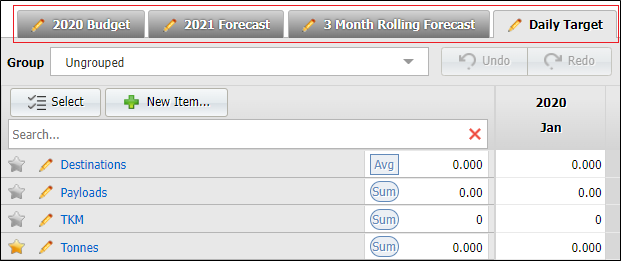
When you click a Target tab at the top of the pane, the target items for that target are displayed.
You can create a new target with the New Target button, or click the Edit icon to modify an existing target.
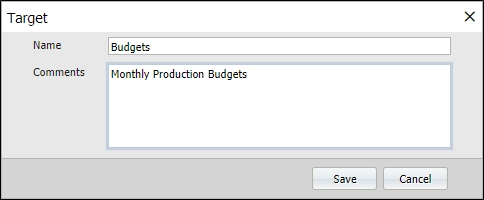
The same Properties dialog is displayed when you create or modify a type:
To add a new target
Use the New Target button to create a new target. Existing targets are tabbed on the Target panel:
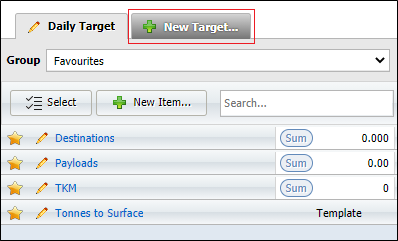
The New Target button opens the Target dialog.
Enter a unique Name for the Target.
Enter a Comment (Optional) that clarifies the purpose of the Target.
Click Save to save the new Target.
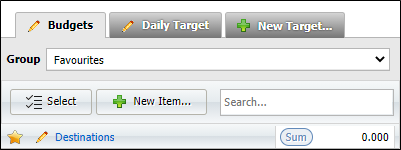
Select the Target you have just created:
To edit an existing target
- Click the Edit icon for the Target you want to modify.
- Modify the Name and Comments of the target.
- Click Save or Cancel to accept or discard the changes.

The Target dialog opens.
To delete an existing target
- Click the Edit icon for the Target you want to delete.
- Click Delete:
- You will be prompted to confirm or cancel the deletion.
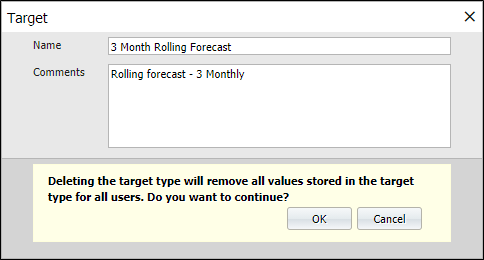
- Click OK to delete the target, or Cancel to keep it.