Running a Report
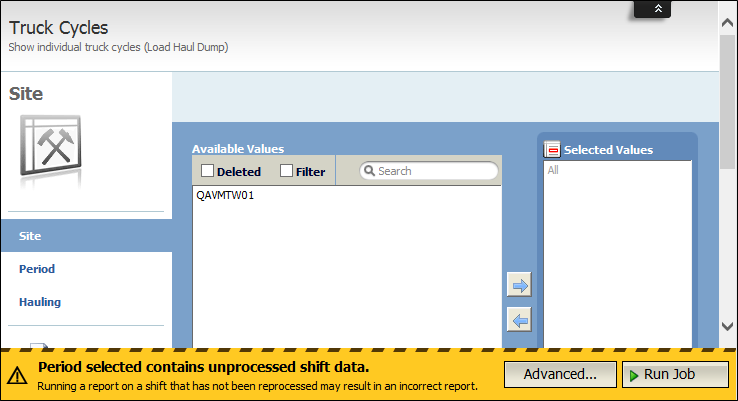
When generating a report, the simplest scenario is to select the required parameters and click the Run Job button. In this case, the report is generated and run immediately, without the need to specify any further options. If you want to schedule jobs and set other distribution and output options, click on the Advanced button.
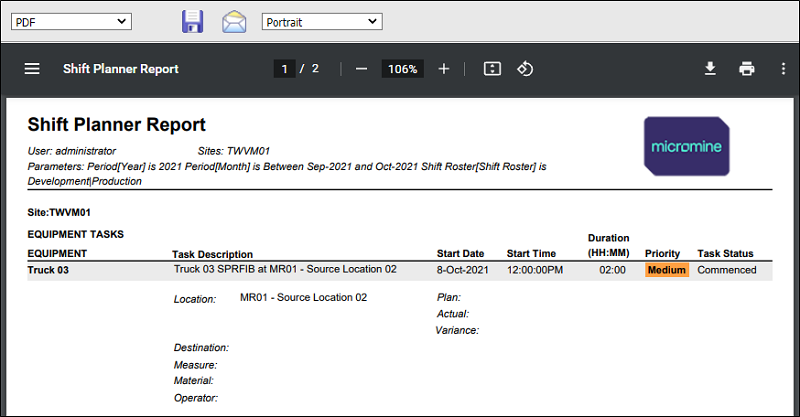
The first time you run a report, the default output format is PDF. However, when the report output is displayed, you can change the format if desired. After a report has been run once, the last selected output format and orientation are used as the default.
Occasionally, you may be redirected to the My Jobs page when a job runs for an extended period of time. When the job has finished, it will appear in the Completed jobs pane where its output can be viewed.
Use the options in the drop-down list above the generated PDF to display results in a different format
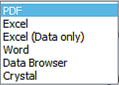
Crystal
The report is opened in a HTML window generated by Crystal Reports™. A navigation toolbar (with First Record, Last Record, Previous Record, Next Record, Goto Page, Search and Zoom options) allows you to browse through the report dataset.

Excel
The report is opened in a separate window as a Microsoft Excel spreadsheet and is custom formatted by Crystal Reports.
Excel (Data Only)
The report is opened in a separate window as a basic Microsoft Excel spreadsheet with no formatting.
The report output is opened as a printable PDF file in a browser window.
If the report is opened in a secondary Adobe Acrobat Reader window, select the Edit | Preferences option from the Adobe Acrobat Reader Application, select the Internet option and then select the Display PDF in Browser check box. When generating a PDF from Crystal Reports, the PDF may not recognise any changes to the page orientation after the report is initially generated. To fix this, the browser configuration needs to be changed. In Internet Explorer, select Tools | Internet Options. Select the General tab and under Temporary Internet Files click the Settings button. Change the 'Check for newer versions of stored pages' option to Every visit to the page.
Word
The report is opened in a separate window as a Microsoft Word document.
HTML
The report is opened in a separate window as a HTML page.
Data Browser
The report is opened in the Data Browser utility.
Save report to library
Save the report output to the Library, so that it becomes generally available.
Print report
Select this option to generate a hard copy of the report. When printing a report, a PDF file is generated regardless of the output format selected.
Mail report
Click this button to distribute the report output to one or more email recipients.
Page layout
Select a Portrait or a Landscape page orientation.
You can also save a copy of the output file to a location that you specify, by clicking on the Save icon on the Acrobat toolbar (below the Pitram Portal toolbar).
For information about saving the parameters of your report as a query set, refer to the Query Manager topic.