Weighbridge Connector Service
The Weighbridge Connector Service records the weighbridge calculated payloads carried by train wagons automatically. The workflow is as follows:
Reference Data
An exciter is installed at each weighbridge and at the dump destination. The Phosagro Weighbridge (PWB) Connector uses a “path_nearest_location_ID_Integer” which identifies the location of each exciter using a new Exciter Reference Group.
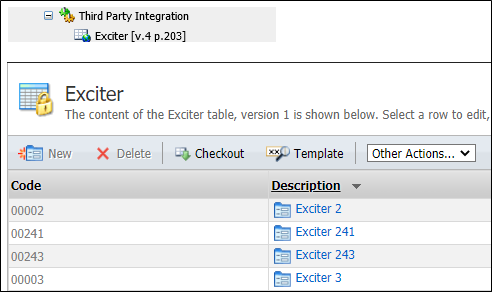
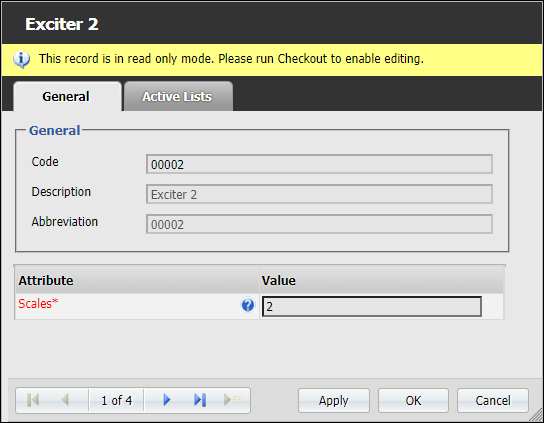
The ICA identifier is mapped to a “Scales” attribute in the reference data which identifies the Weighbridge.
The PWB Connector reads the Weighbridge Database (WBDB) and generates a Payload event per wagon. These Payload events are inserted in front of the dump events (which were recorded initially using the default capacities of each wagon).
Setting attributes for the Train panel in Data Acquisition
A train is represented as a single equipment unit and Pitram has no knowledge of a wagon as a physical entity. Instead, wagons are defined as measure attributes of a train.
In the Equipment Reference Data Group, attributes with a “TRAIN_” prefix and the location codes of each chute are defined. This makes it possible to record how many wagons are loaded from each chute:
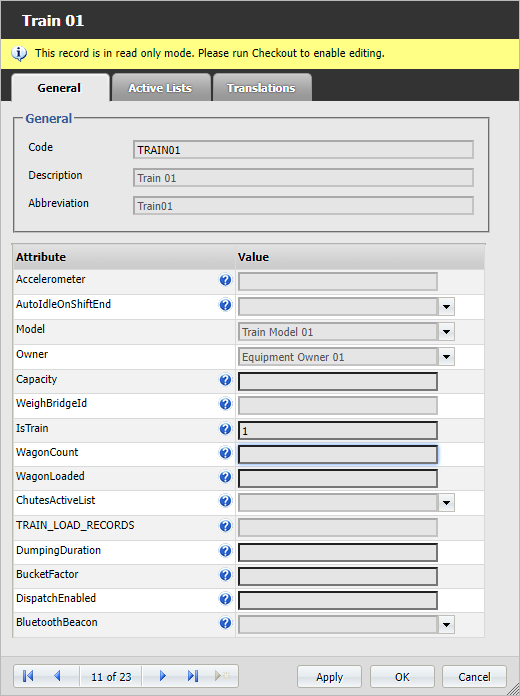
These Chute locations are then available for selection when you create or edit a Train panel in Data Acquisition.
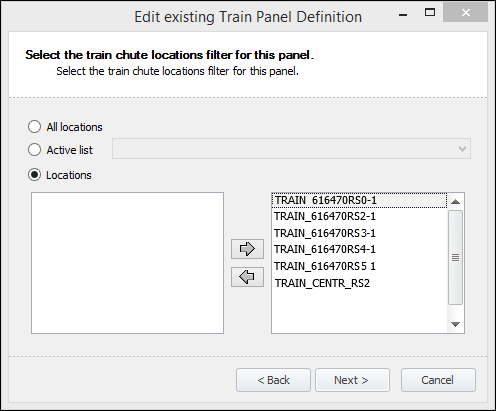
In the Train panel, trains are shown in the left-hand pane, and dump locations are shown in the right-hand pane.
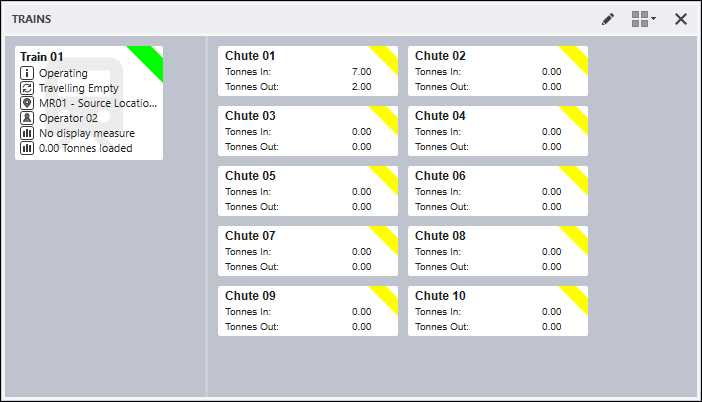
Like other equipment panels, the Train panel relies on cycle statuses. When a wagon is loaded, the cycle status is automatically changed to Hauling. When the wagon is dumped, the cycle status is changed to Travelling Empty. These events are triggered by waypoint events.
When you click on the Wagons Dumps Loaded button for a train, this opens the Load Train dialog. This dialog is used to set the number of wagons that will be loaded from one or more Chute (load) locations.
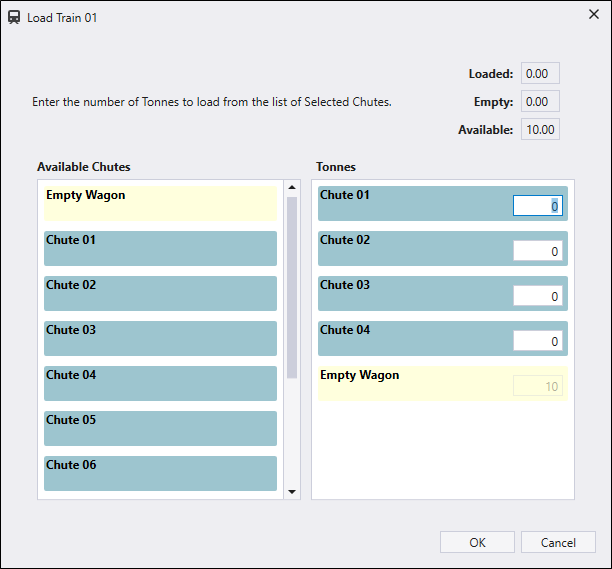
Available chutes are listed on the left-hand side of the dialog. To assign loaded wagon dumps, use the mouse to click and drag a Chute Location to move it into the right-hand pane.
The order of the Chute Locations is IMPORTANT. You can use the mouse and click and drag a location to adjust the order of the Chute locations in the Loaded Wagon Dumps list.
When you click OK to close the Load Train dialog, and one or more loaded wagon dumps have been entered, this puts the train into a Hauling cycle status.