By default the Display pane and the Data Group pane in the Data Acquisition window are docked at (attached to ) the left-hand edge of the application window. To change their position or arrangement you can:
- Float a docked pane. If you drag and drop a docked pane at a random location in the application window, it becomes a "floating" window. Alternatively, right-click on a docked pane and select Window | Floating from the right-click menu.
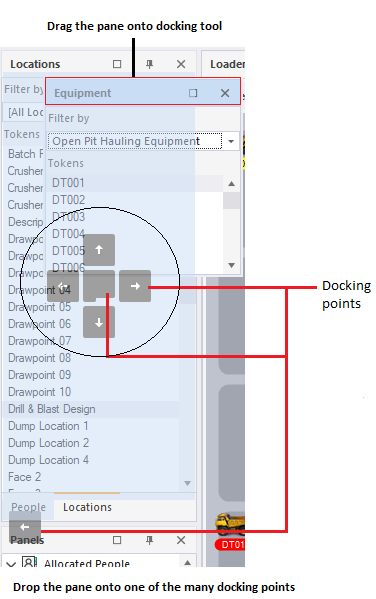
- Dock a floating pane. To do this, click and drag the title bar of the pane to move it to a new location around the edge of the application window. Use the blue arrows to position and auto-size the pane:
Auto-hide

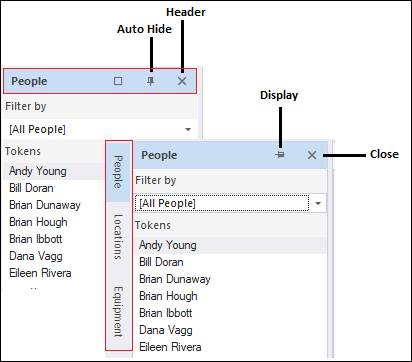
In the top-right corner of every window pane, you will see a small pin button. If you click on this button, the window pane is hidden (or "pinned" to the edge of the application window). You can still see the title of the pane in a tab at the edge of the window. When you hover the mouse over the tab, the window pane is temporarily displayed until you move the mouse away from the pane.
To unpin the pane, simply click the pin button again.
Resizing windows and panes
You can quickly resize the application window, a dialog, or a pane, by clicking on an edge or corner and dragging with the mouse, You can also resize the drop-down menus in the same way.
Note that you can easily revert back to the default layout by selecting View | Restore Default Layout from the menu.