Event Editor
The Event Editor is used to add or edit events in the Pitram database. The Pitram database stores time-stamped events that have occurred throughout the mining operation. When you edit events in the Event Editor, you can choose to view events for a particular day, shift, location, operator, or equipment unit.
An administrator or shift supervisor will use the Event Editor to edit events, such as:
- Allocations of equipment to locations
- Allocations of secondary equipment to primary equipment
- Allocations of people to equipment or locations
- Dump locations (open pit or underground)
- Equipment statuses
- Equipment measures and SMU readings
- Shift Start and Shift End events
- System events
You should use the Event Editor when:
- validation errors were reported during Data Acquisition.
If a shift is edited in the Event Editor, it must be reprocessed. Provided that edits are made within 24 hours of the end of a shift, the shift is reprocessed as you edit it. If you edit events for a shift that ended more than 24 hours ago, you will need to use the Pitram service to reprocess that shift.
Great care should be taken when making changes to operational data.
To open the Event Editor:
- Double-click on the Event Editor icon on your desktop.

- Alternatively, select Start | All Programs | Pitram | Event Editor from the Start menu.
The Event Editor consists of a number of tabbed views and panes, a menu bar, a toolbar, and a status bar. There are six View options (Equipment, Location, Person, Maintenance, System Events and Shift).
You can switch between views using the buttons on the main toolbar:

Each view is shown as a data grid of events, where each row is an event and each column contains information about that event (e.g. Equipment Unit, Event Time, Primary Operator, Measure Value, etc).
Tip: To resize a view, click on a boundary or a corner of the view and drag the mouse to modify its dimensions. If a number of views are open at the same time, you can select the Window | Cascade, Window | Tile Horizontally, or Window Tile Vertically options to rearrange them.
Other panes maybe toggled on and off using the check box options on the View | Show Panes menu.
The components of a view are shown below:
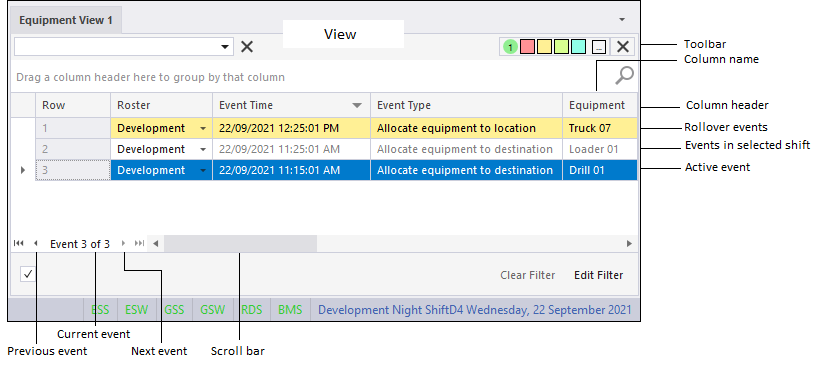
A navigation bar at the bottom of a view allows you to step through the events using the Previous and Next buttons. You can also move to the First and Last rows of the grid. The current event in the grid (i.e. "Event 17 of 231") is also indicated.
Use the vertical and horizontal scrollbars to scroll up and down or from left to right.
The Status bar provides important information such as:
- The name of the current shift. e.g. Production Day Shift Thursday, 16 September, 2010.
- The Client ID. A unique identifier for the Event Editor. This is useful for diagnostics and for tracing the source of changes that have been made in the editor.
- The Reference data version number.
Check the version number to ensure that the most up-to-date information is being edited.