Sending text messages to equipment
|
|
Use the Text Messenger tool button to alert one or more equipment operators by sending a text message which can be typed into the lower pane of the Text Messenger window. |

This option applies only to those equipment units (or operators) that have access to a configurable mobile device that is able to receive and display text messages.
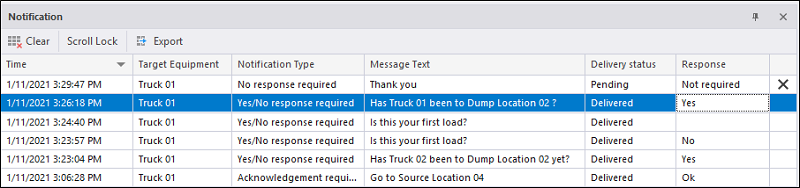
Messages sent to equipment operators during the shift can be viewed in the Notifications Pane. See: Notifications
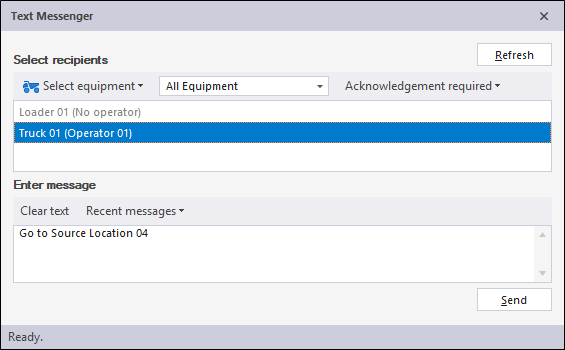
Select Recipients
Select an option from this drop-down list if you would prefer to select based upon the name of the operator rather than the name of the equipment unit.
Refresh
Use the Refresh button to update the list of Equipment / Operators that messages can be sent to.
Response
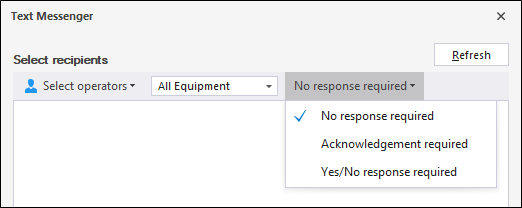
You can mark the message you are sending with a required response - None, Acknowledgement or Yes/No. Select an option from the drop down.
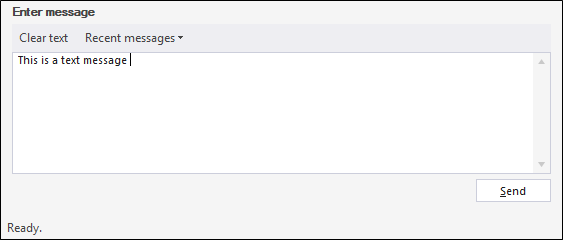
Enter Message
The Enter Message field is used to enter the text message you want to send to the selected Equipment/Operator.
Clear Text
Select the Clear Text option to clear all of the text in the Enter Message field.
Recent Messages
Messages that have been recently sent will be listed in the Recent Messages drop down. You can select a recent message to be added to the Enter Message pane and send it.
Send
Click this button to send the text message to the recipients you have selected in the upper pane.
The messages you send will appear on screen for the selected recipients.
Where acknowledgement has been marked as required, the OK button in the message will send a response to control.
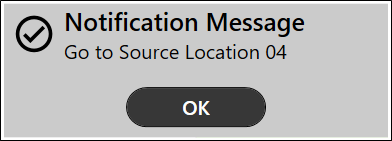
Where a Yes/No response is required, the OK and Cancel buttons will be shown on the message:
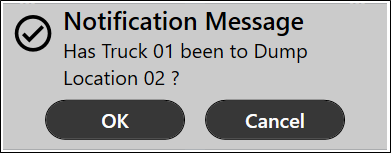
The response for these messages will be displayed in the Notifications pane: