Configure Context Menus
The Tools | Configure Context Menus option opens a dialog from which you can customise the contextual menus used throughout the Data Acquisition panels.
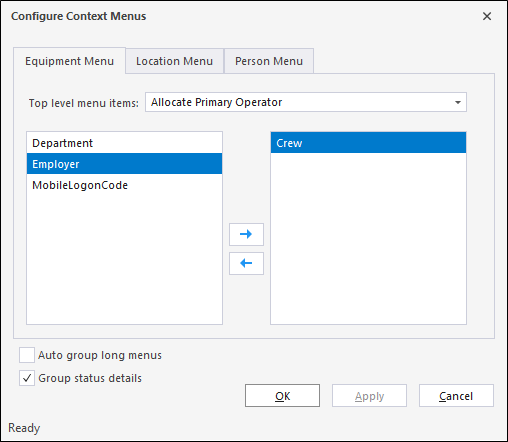
The Equipment View tab contains a drop down used to select the Top level menu items to be configured.
If you select a menu from the drop down, the available options will be displayed in the dialog to be selected. For example,
-
Select Allocate to Equipment to display the context menu options that can be assigned:

The available options are listed in the left panel and any selected using the right arrow are listed in the right panel.
-
Use the left and right arrows respectively to deselect or select an option for the menu.
If you select the Auto group long menus option, long menus will be automatically grouped so that items with sub menus will be split to the top of a menu, with the split sub menus attached.
The Group status details option is enabled by default, and will group all statuses that have parent statuses under a sub menu, where the parent node is labelled as the parent status. The parent status will also be listed in this sub menu, so that it can still be selected.
Note: The parent status may not be displayed show up if it is not in an equipments status active list.
-
Click Apply to apply the changes to the selected menu if you want to configure another menu, or
-
Click OK to save the changes and close the dialog.