Launch Support Archiving Tool
The Tools | Launch Support Archiving Tool option opens the Pitram Support Archiver form. Using the options in the form, you can configure the logs and components included for archiving to send to Micromine Australia Pty Ltd Support.
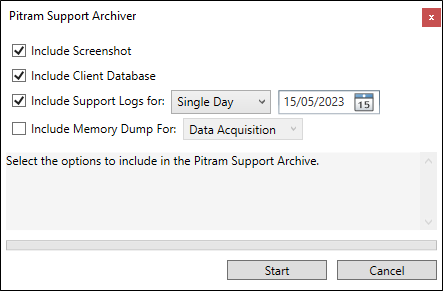
The Include Screenshot option is selected by default. When selected, a screenshot of the Data Acquisition screen will be taken and automatically included in the support archive.
The Include Client Database option is also selected by default and will include a backup file of the current data in the support archive.
The Include Support Logs option is selected by default and set to Single Day and today's date. You can change the date of the Single Day option, or select a Date Range or All support logs to include with the support archive.
If you select the Include Memory Dump option, you can select the Pitram application for which you want to include a memory dump for the support archive - i.e. Data Acquisition, Event Editor etc.
When you have configured the Pitram Support Archiver form as required,
-
Click Start.
The support archiving process will begin and the progress will be displayed in the form.
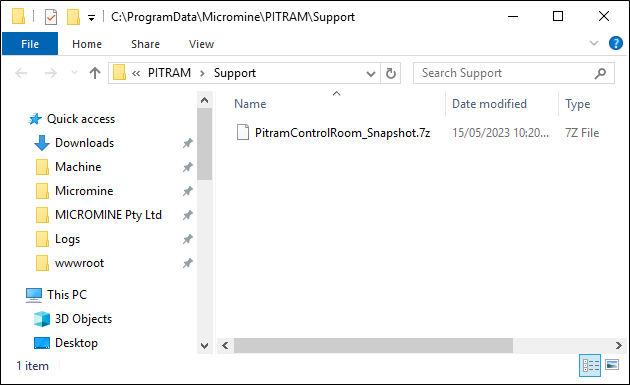
When the process is complete, a prompt will appear and the Support folder in Windows® Explorer will be displayed.

-
Click OK in the prompt. The support archive file is shown in Explorer.
-
As outlined in the prompt, this archive file can be emailed to Pitram Support (pitramsupport@micromine.com) to assist in resolving any issue for which support is required.