Attribute Grouping
The top left of the Data Acquisition window is the default location for a tabbed group of panes which show the data tokens (Equipment, Locations, People) that are active during the shift. You can group these tokens by attribute via the Tools | Configure Token Navigators menu option.
The following example, describes how to group equipment by Model Type:
- In the Data tokens pane of the Data Acquisition window, select theEquipment pane. The equipment tokens that are listed will depend on the filter that is selected in the pane.
- Set the Equipment filter to [All Equipment] to list all equipment units on site.
-
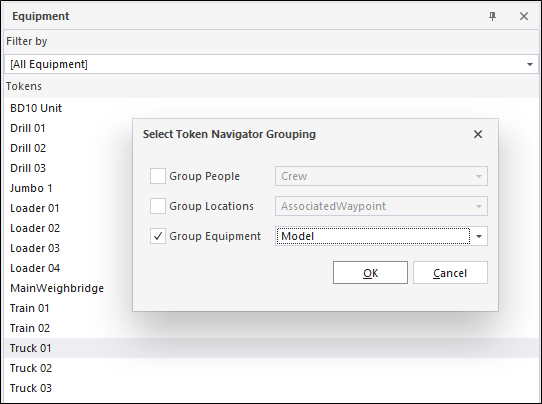
Select the Tools | Configure Token Navigators menu option.
- In the Token Navigator dialog, select Model from the Group Equipment drop-down list.
- Firstly, by Model Type.
- Secondly, in alphabetic order
- Click OK to save the Grouping.
- In the Data tokens pane of the Data Acquisition window, select the Equipment pane and then select the [All Equipment] filter. You will see a list of equipment model types.
- Double-click on +Model: Caterpillar 785D, for example. The list of haul trucks of this model type are displayed.
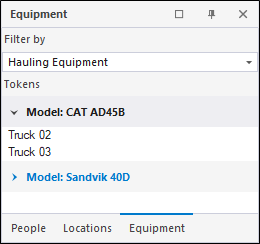
In future, irrespective of any filter that is set, equipment units will be ordered as follows:
You can apply a grouping to the Locations and People panes in a similar way.
To remove a grouping (for example, the Model Type grouping described above):
- Select the Tools | Configure Token Navigators menu option.
- Clear the selection of Group Equipment check box.
- Click OK to close the Token Navigator dialog. All equipment tokens will be displayed in the Equipment pane.
A good way to subset the list of equipment is to use Filter by and select a filter types. Filter types are active lists defined in Reference Edit. For more information refer to the Reference Edit section of the online help.