Transcale (TADAS) Integration
Reference data groups can be configured to allow integration between Pitram and Transcale (TADAS) mining scales and 3D volumetric scanners. Information such as payload weight, distribution and density data is automatically collected by defining the integration between Pitram and the TADAS systems.
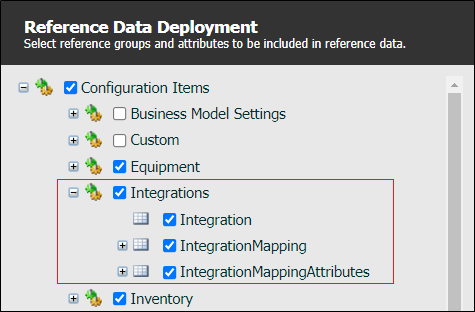
Для интеграции необходимо развернуть группы справочных данных:
-
Интеграция - определяет доступные интеграции.
-
IntegrationMapping - сопоставление между токенами Pitram и токенами, используемыми в сторонних интеграциях.
-
IntegrationMappingAttributes - сопоставление между интеграцией, справочной группой и атрибутом Pitram.
Чтобы включить интеграцию в Сбор данных, справочные данные необходимо развернуть в приложении Справочные данные.
Чтобы получить доступ к экранам настройки Интеграции:
Нажмите на значок Справочные данные, чтобы открыть приложение Справочные данные.

The first step is to set up the measures and integrations that will be mapped and configured.
Measure
It is likely you have already configured the measure that will be used for the TADAS integration. To view the configured measures for your system, in the Reference Data tree view, expand the Measures reference group and click on the Measure label.
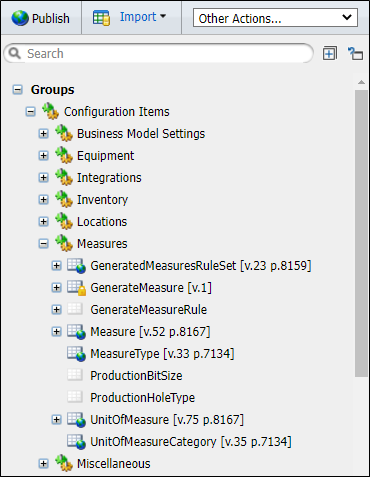
The Measure configuration screen is displayed.
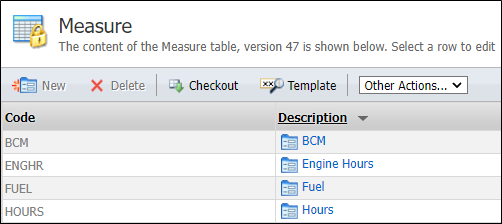
The configuration screen displays the existing Measures. In this example, the configured measure is Kilogram. If you need to create the measure, Checkout the Measure table and click New to create a new measure. The following parameters must be configured.
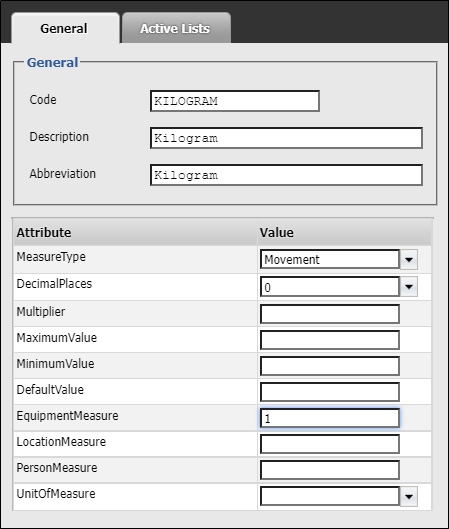
With the measure created and configured, the next step is to create the Integration for TADAS.
Integration
In the Reference Data tree view, click on the Integration reference group:
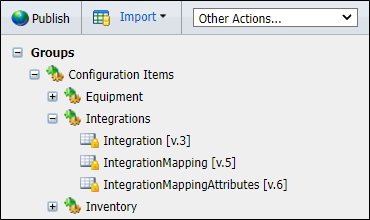
The Integration configuration screen is displayed:
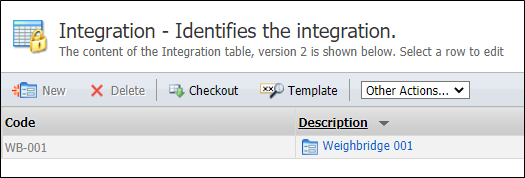
На экране конфигурации перечислены существующие интеграции. Чтобы создать новую интеграцию, Откройте таблицу и нажмите на Создать.
The following parameters must be configured:
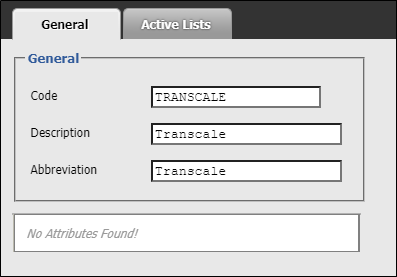
With the Integration created, an integration mapping token needs to be defined for each equipment used in the integration and for the measure code. To do this, in the Reference Data tree view,
Click on the IntegrationMapping reference group:
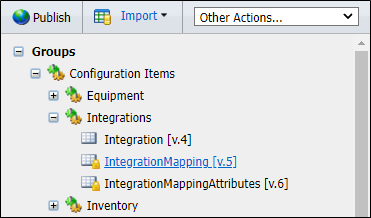
Во вкладке конфигурации Сопоставления интеграции Откройте таблицу и нажмите на Создать, чтобы создать новое Сопоставление интеграции.
The following parameters must be configured. Mandatory attributes appear asterisked and in red:
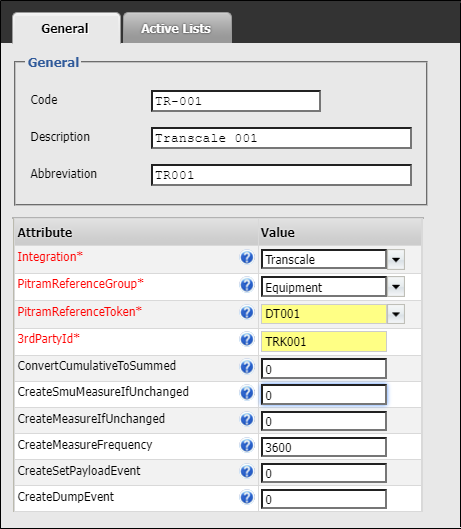
The Integration drop down is used to select the associated Integration to be mapped.
Select the Pitram Reference Group for the mapping from the drop down provided.
Use the Pitram Reference Token drop down to select the relevant token from the selected reference group.
Enter the applicable 3rd Party ID for the Integration in the field provided.
The Convert Cumulative To Summed field is used to configure whether to convert cumulative signal into a summed measure. It does this by using the difference between the value and the previous value. Defaults to off (0), specify 1 to turn on.
In the Create Smu Measure If Unchanged field, set whether to create an SMU measure if the signal has not changed. Defaults to off (0), specify 1 to turn on.
Use the Create Measure If Unchanged field to configure whether to create a measure if the signal has not changed. Defaults to off (0), specify 1 to turn on.
The Create Measure Frequency field is used to configure the time interval, in seconds, that needs to pass before a measure is created. Set to 0 to create measures for every sample.
Enter a value in the Create Set Payload Event to configure whether a payload event is generated if the signal has not changed. Defaults to off (0), specify 1 to turn on.
Use the Create Dump Event field to configure whether a dump event is created when the signal has not changed. Defaults to off (0), specify 1 to turn on.
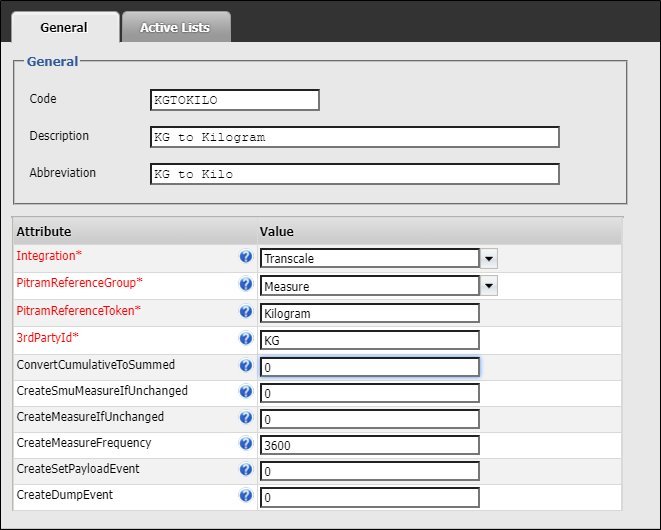
When the Integration Mapping has been configured and created for TADAS, you can create an integration mapping for the Kilogram measure. To do this, repeat the new Integration Mapping procedure to create a new mapping with the following parameters configured.
Database Marker Configuration (DatabaseMarkerConfiguration.xml)
The DatabaseMarkerConfiguration.xml file is found in the root folder of where the Transcale Connector is installed e.g.:
C:\Program Files (x86)\Micromine Pty Ltd\Transcale Connector.
-
LastDateTimeQueried- The time that the connector last queried for data and will be used for the request. The format used is the ISO 8601 format e.g. 2021-07-02T00:37:54.670Z.