Recurring Tasks
Where a task you create is to reoccur at a specific interval, such as every month, you can set the recurrence details for the task using the Create Task page - See Create Task.
Set recurrence
To set the task as recurring, select the Set recurrence check box. This will enable the recurrence settings for the task.
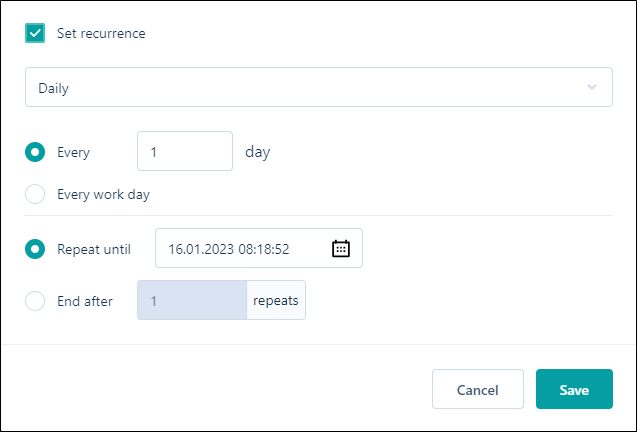
From the drop down list, select the recurring basis for the task - Daily, Weekly, Monthly or Yearly.
Daily
When you select Daily for the recurrence, you can set whether the task recurs Every day or selected number of days, or Every work day.
Use the calendar button to set the date for which the task should Repeat until, or select the End after option and enter the number of times the task should be repeated at the specified interval.
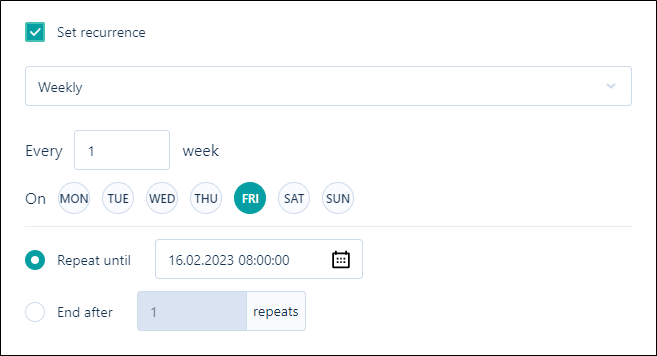
Weekly
When you select Weekly from the recurrence drop down, you can set the number of weeks between recurrence for the task, as well as the day of the week the task recurs.
Use the calendar button to set the date for which the task should Repeat until, or select the End after option and enter the number of times the task should be repeated at the specified interval.
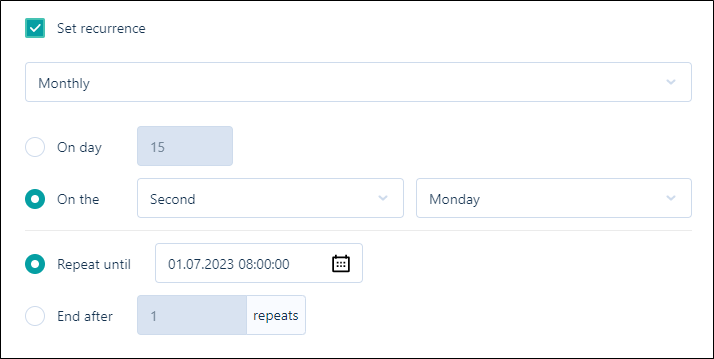
Monthly
When you select Monthly from the recurrence drop down, you can set the Day of the month on which the task recurs, or the time of the month - such as the Second Tuesday.
Use the calendar button to set the date for which the task should Repeat until, or select the End after option and enter the number of times the task should be repeated at the specified interval.
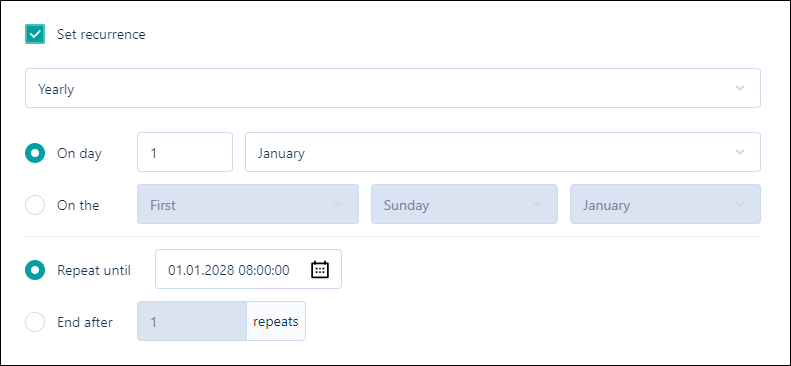
Yearly
If you select Yearly from the recurrence drop down, you can set the date of the yearly recurrence with the On day option, or configure the time of year for the recurrence - such as the First Sunday in January.
Use the calendar button to set the date for which the task should Repeat until, or select the End after option and enter the number of times the task should be repeated at the specified interval.