Attach to Task
When creating a Task, you can attach files to that task using the Create Task dialog. Where a task has been created, you can also attach files from the browser using the Attach to Task option.
To attach a file(s) or folder to an available task:
-
Select the file(s) or folder you want to attach and click Attach to Task on the local ribbon:
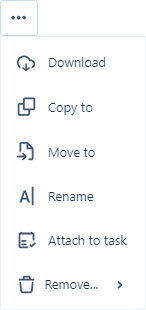
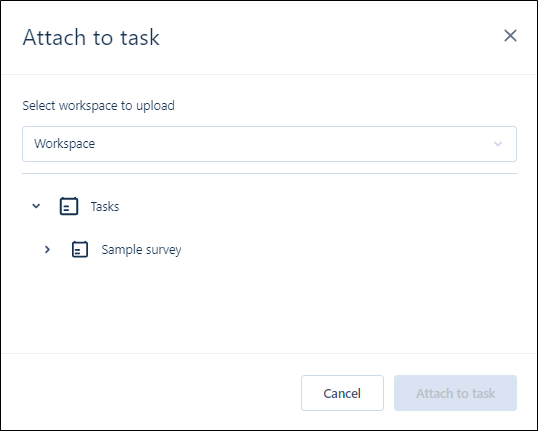
The Attach to Task dialog is displayed.
-
Select the Workspace for the task from the drop down.
-
Navigate to the task to which you want to attach the file(s) or folder.
- Click Attach to Task.
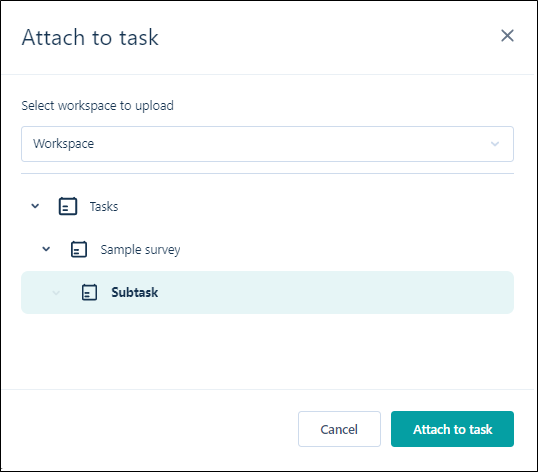
The file(s)or folder is attached to the selected task.
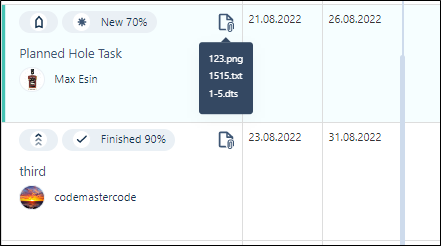
You can view the attachments for a task from the Attachments icon in the Gantt Chart: