Nexus Integration
Micromine Nexus is a web-based, enterprise-level file management solution which seamlessly integrates with Micromine Origin & Beyond, Micromine Alastri and Open API applications to provide secure data storage, file versioning and access control, plus flexible tools to facilitate the governance of corporate-wide business processes.
To establish a connection to Nexus from Micromine Origin & Beyond, you need to enter the Server URL on the MMO&B Backstage.
The Server URL of the Nexus server is nexus.micromine.com for all users (except on-premises users). Click Sign In to connect to Nexus. A Sign Out option is available instead when a link is active.
Micromine Origin & Beyond
When a project linked by a previous Micromine Origin & Beyond version (before MMO&B 23.5) is opened (or Nexus deployment changes to offer new known connection capabilities), the application will prompt you to make use of the new functionality. Earlier MMO&B projects should be connected to MM Nexus v1.3.0 or later.
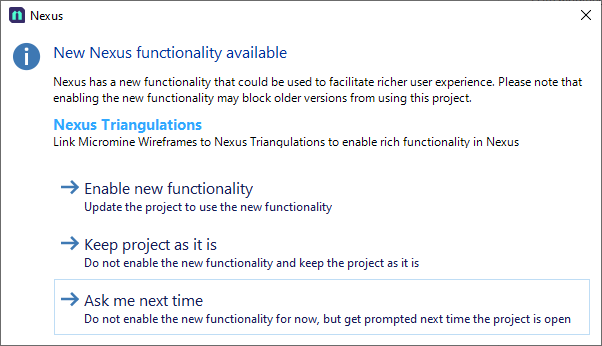
Select an option from the prompt to proceed to Origin & Beyond with Nexus updated or not. These settings may be changed later on Nexus Options dialog.
Please be aware that new connection capability settings only apply to newly published objects. The settings for existing objects will not change.
Home | Nexus
Use the options on the Home tab, in the Nexus group, to manage your connection to the linked Nexus project.
-
Select Link Project. You will be redirected to the Nexus backstage page. (This option is unavailable when a link is already active - you will need to unlink first. You must also be signed in to Nexus to enable this option.)

-
Select Unlink Project. You will be redirected to the Nexus backstage page.

-
Select Switch User to sign out and sign back in to the linked Nexus project as a different user.
The current user is signed out and you will be prompted to sign in.

-
Select Open Nexus to open the Nexus home page for the linked Nexus project. The home page is opened as a new tab of the application.

-
Select Open Browser to browse the linked Nexus project.

-
Select Open File Manager to manage the files your local project and a linked Nexus project.

-
Select Upload Files to upload multiple project files to a linked Nexus project.

-
Select Check for Updates to check for new versions of project files from the linked Nexus project.

-
Select Sync Files to view out of date or modified project files for the linked Nexus project using the Sync Tool.

-
Select Options to configure system-wide options for Nexus.
