Download
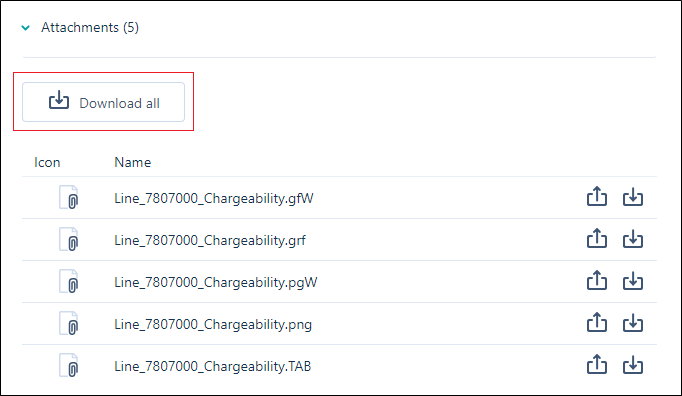
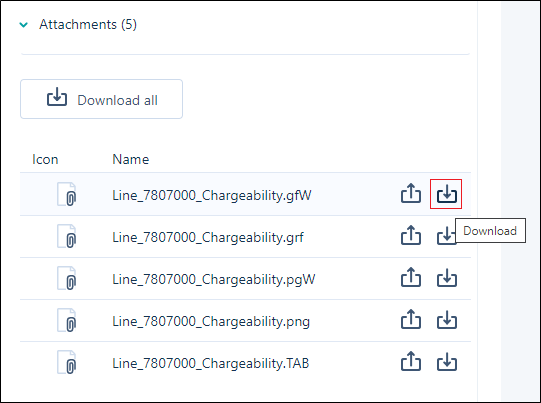
The files attached to Tasks can be downloaded using the Download All button, or the individual Download icons for each file.
To download all of the files attached to a task,
-
Open the Task page for the task containing the files to be downloaded.
-
Click Download All above the file list in the Attachments section of the page.
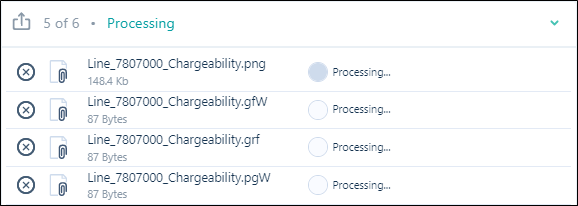
The progress of the download of the files you have selected is shown:
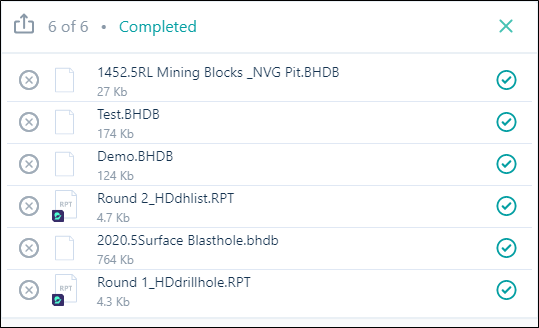
You will receive confirmation when the download is done:
Note that you can cancel a download at any time by clicking on the Delete icons to the left of each file name:

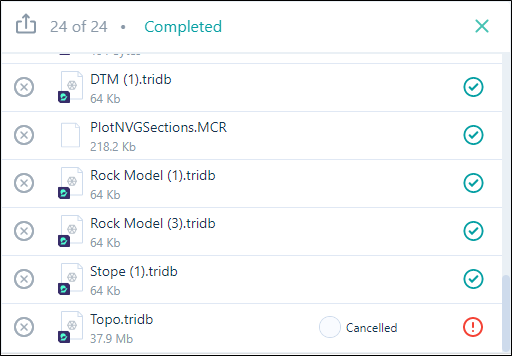
When the file transfer is complete, you can close the Download window:

To download individual files attached to the task, with the Task page open,
-
Click the Download icon at the right of the file to be downloaded.
New versions of the attached files can also be uploaded from the file list. See Upload.