Comments
Use the Comments pane to view or enter comments about the file you have selected in your Nexus project browser:
Note that you cannot comment on a file until it has been uploaded to Nexus.
Make Comments
To make a comment:
-
Type the comment text into the edit box provided.
-
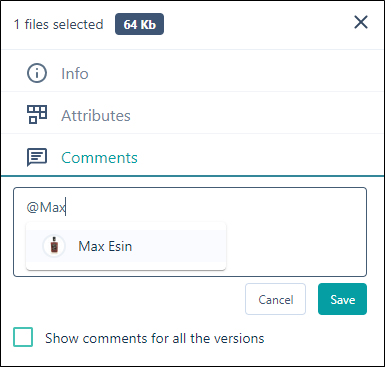
Optionally, use the @ symbol to mention another user by name within the comment. Users with a name that matches the text you enter are available for selection:
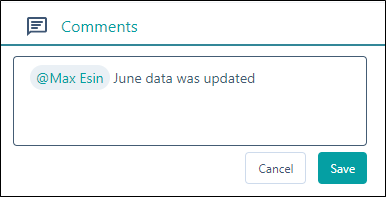
When you select a user, the user's name is embedded into the comment:
-
Finally, click Save to save the message. The user who was mentioned will receive an email notification.

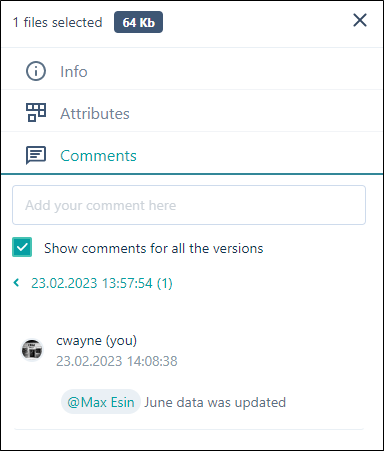
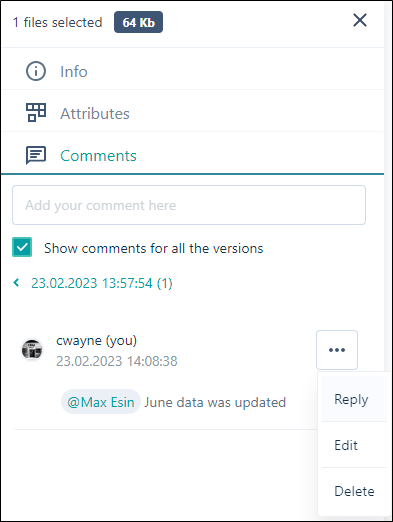
The comment is shown in the Comments pane:
View Comments
By default, comments are shown for the current version of the file only.
-
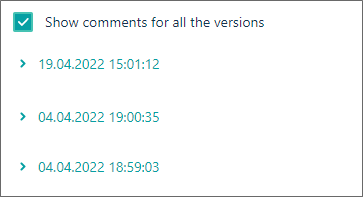
To List comments for all versions select the check box:
Reply
To reply to a comment, select Reply from the context menu:
Edit
To edit a comment, select Edit from the context menu.
Delete
To delete a comment, select Delete from the context menu.
Note that only the author of a comment can Edit or Delete the comment. Other users can Reply to a comment.