Sign In (Verification)
-
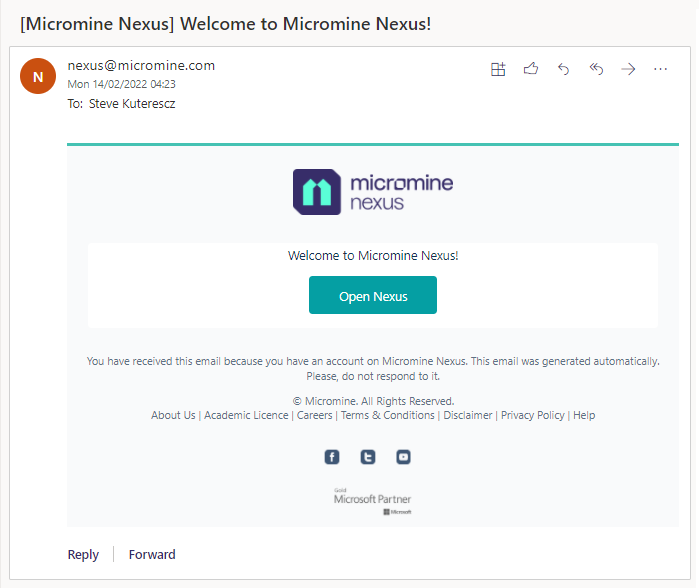
You will have received a welcome email with a link to Nexus:
-
If you click Open Nexus and have previously registered or signed-in under a different subscription, you will be directed to sign in: Go to Step 10.
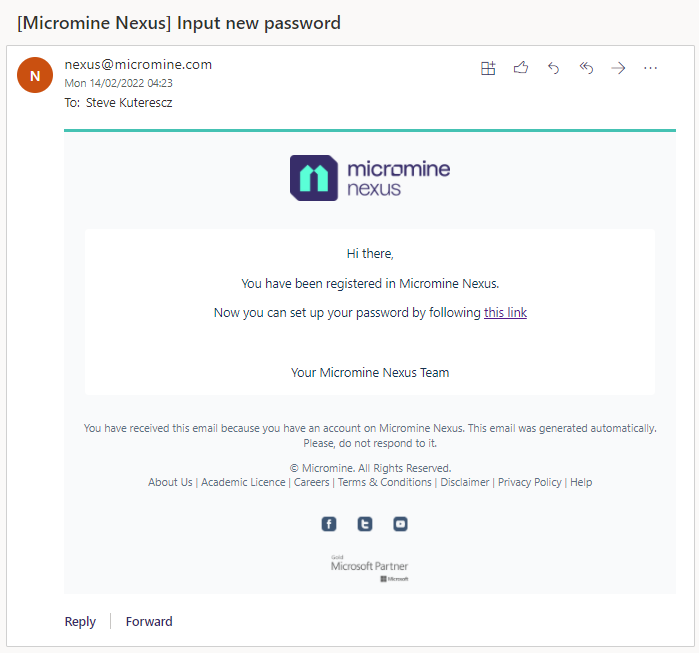
Otherwise, you will need to setup your password using the link that was sent to you in a separate email:
-
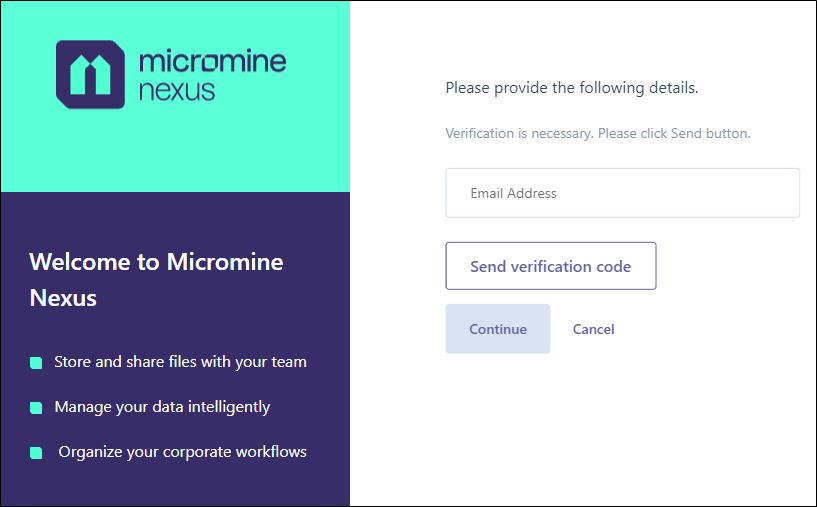
You will need to enter your email address (the email account to which the invitation was sent).
-
Click Send verification code to have a verification code sent to you:
-
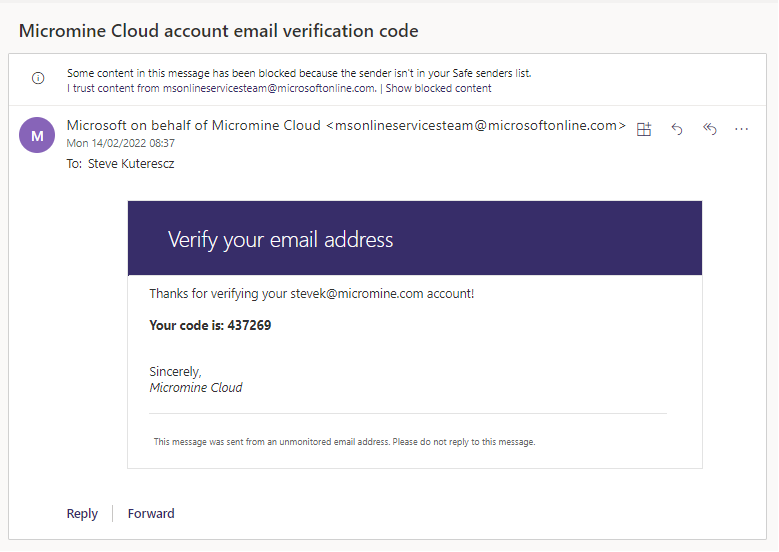
You will receive a verification code from Micromine:
-
You will need to confirm your email address.
-
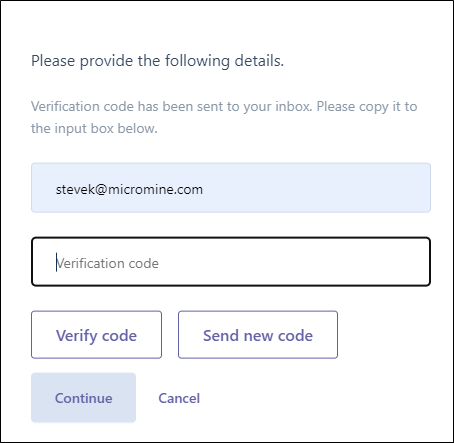
Enter the code and click the Verify code button to complete the email verification process and click Continue:
-
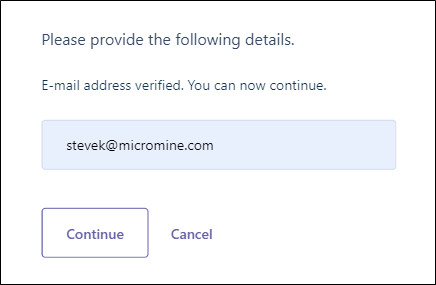
You will receive confirmation of your email verification. Click Continue:
-
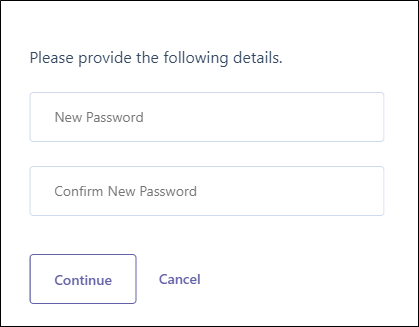
Enter your Nexus user password. Confirm by entering the password again and click Continue:
-
Once your email has been verified and your password has been accepted, you are ready to sign-in to Nexus:
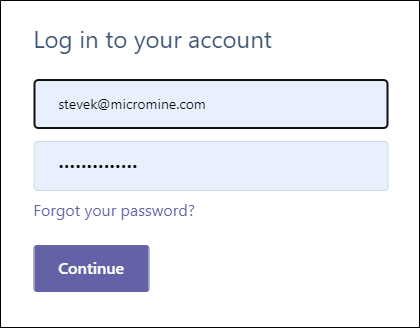
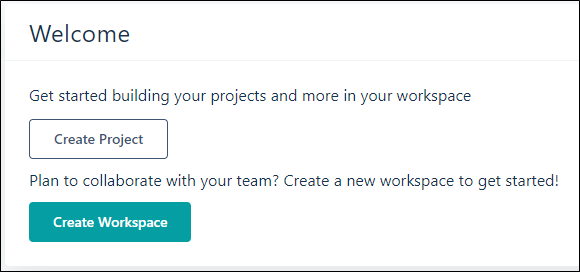
After successfully signing-in, a Welcome page is displayed:
-
Remember to bookmark your Nexus Home page for easy recall in your Internet browser!