Edit Attribute
To edit an attribute:
-
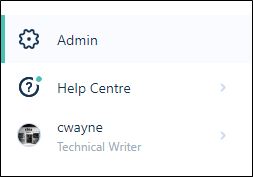
On the Navigation menu, click Admin to open the Administration page:
-
Click to select the Attributes tab.
-
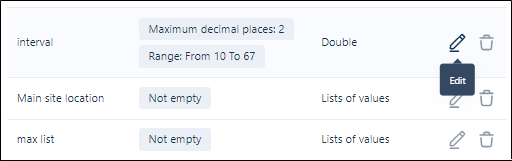
Click on the Edit icon at the far right of the attribute you want to edit:
Set the following properties of the attribute:
Properties
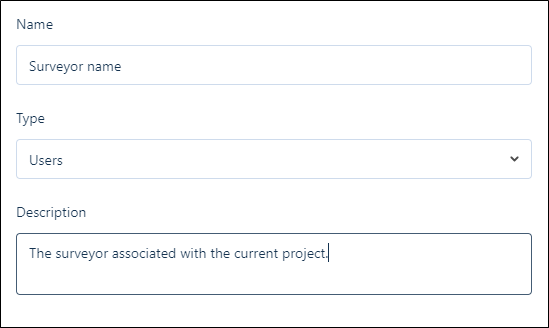
Name and Description
The Name and Description of the attribute. Attribute names must be unique.
Type
The following attribute types are supported:
| Type | Description |
|---|---|
|
Character |
Any character (text) value. |
|
Double |
Any decimal number. |
|
Integer |
Any integer number. |
|
Boolean |
Boolean logic (True/False or Yes/No). |
|
Timestamp |
Date and Time. |
|
Users |
A list of users who are members of the tenancy. |
|
List of values |
A predefined list of values can be used to provide a lookup capability with built-in validation. |
Validation
In order to select a Validation option, you must first select the attribute type (see Edit Attribute above).
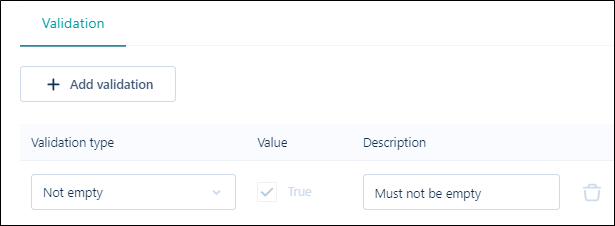
Attribute validation rules can be defined by Type, Value and Description (Note that an attribute description is mandatory for all attributes).
Add Validation
Click this button to add one or more validations for the attribute.
Validation type
Select one of the following validation types and specify the associated parameter (if any). Which validation types are available for selection will depend on the attribute type:
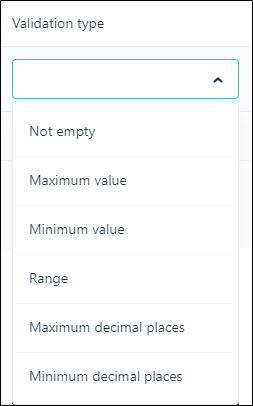
| Type | Description |
|---|---|
| Not empty | A compulsory value. A NULL value is not allowed. |
| Minimum value | The minimum value of the specified numeric type. |
| Maximum value | The maximum value of the specified numeric type. |
| Range | A value which falls within the specified range, for the specified type. |
| Maximum decimal places | The maximum number of decimal places for the specified numeric type. |
| Minimum decimal places | The minimum number of decimal places for the specified numeric type. |
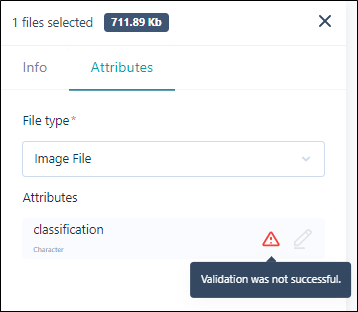
If validation is not passed for an attribute (such as an empty attribute which is set as Not Empty) when uploading a file, the upload process will not complete and a warning icon is shown in the list of attributes for the file:
List of Values
If you select List of values as the attribute type, a List of Values tab is available below the properties of the attribute. Enter a value and press Enter to add it to the list. Repeat this for each value to be added to the list.
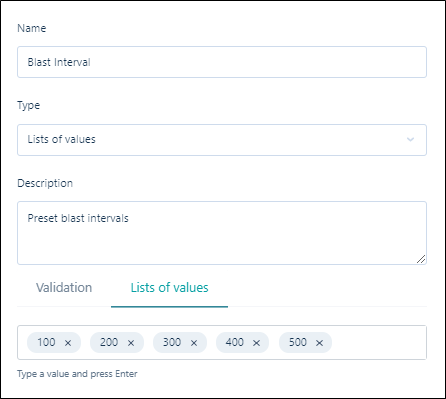
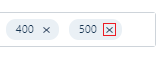
You can remove a value from the list using the cross at the right of the value:
If a List of values attribute has been linked to the file type:
-
Users may enter multiple values for the attribute while uploading file, for example, an attribute containing Value 1, Value 2 and Value 3 (Hole_ID, Block_ID and Bench_ID).
-
Multiple attribute values may be specified in an Advanced Search to find files which contain those attributes values.
Update
Finally, click Update to save your changes.