Restrict with Wireframes
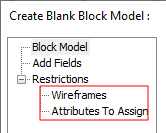
Select the Restrict with Wireframes option to generate and to code a blank model within one closed wireframe or a set of wireframe solids. "Wireframes" and "Attributes To Assign" pages are available on the Navigation tree at the left of the Create Blank Block Model form:
Wireframe
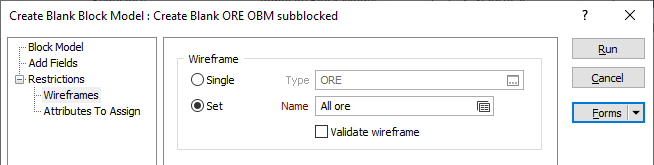
Specify a wireframe, or a set of wireframes, that will be used to constrain the blank block model.
To process a single wireframe, select the Single option, select the Type of the wireframe, and then the Name of a wireframe of that type.
To process multiple wireframes, expressions, wildcards and partial names may be used in the Name field to select multiple wireframes as an adhoc wireframe set. A right-click Preview option will perform a check of an expression before using that expression to generate an updated list of wireframes. Alternatively, you can click the Expression icon  and use the Expression Editor to create, modify and validate the expression. When a name or wildcard is entered in the Name field, and the Expression button is selected, the name/wildcard will automatically be converted to a valid expression when opened in the editor.
To process the wireframes in a predefined wireframe set, select the Set option.
It is recommended that you Validate wireframes prior to using them in any process.
Attributes to Assign
You can assign up to 10 wireframe attributes to the fields in the associated data file. To do this, use the Navigation tree on the left of the Create Blank Block Model form to open the Attributes to Assign page.
Assignment Method
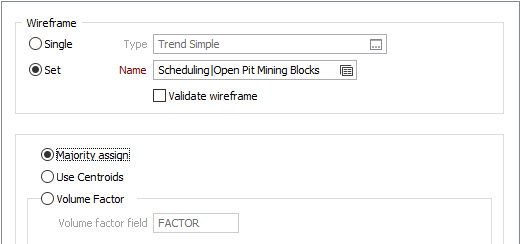
Majority Assign
This is a good option for speed and ease of use. A minimum volume factor value of 0.5 is applied based on a Union of volume factor values. Blocks less than 0.5 are deleted.
Use Centroids
The Use centroid method simply allows blocks to be assigned according to their centroids. However, in scenarios where there are millions of triangles, the speed of assignment may be very slow.
Note: For the methods above, the Assign Attribute for Blocks inputs (on the Attributes to Assign tab of the form) are not applicable. If an attribute is assigned, all blocks will be assigned the attribute.
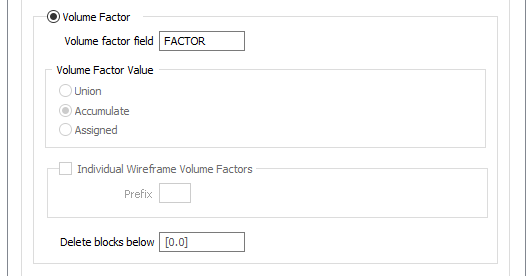
Volume Factor
If you choose to perform a Volume Factor calculation, if a block intersects with a wireframe it will be kept. The proportion of the volume (Volume Factor) that occurs inside the wireframe is recorded as a number between 0 and 1. A value of 0.65 will mean that 65% of the block is inside the wireframe.
Volume Factor field
(Optional) To write volume factor values to the block model file, specify a field name.
Volume Factor Value
When multiple wireframes are specified as inputs, choose how the volume factor values are reported when a block or part of a block falls within more than one wireframe:
| Accumulate | (Default) The sum of the volume factors from each wireframe. |
| Union | The volume factor inside the union of all wireframes. |
| Assigned | The volume factor of the wireframe the block was assigned to. |
Individual WF Volume Factors
This option allows the volume factor for each individual wireframe to be recorded. Columns containing the volume factor for each wireframe are created in the destination block model file.
The name of each column is the name of each wireframe, prefixed with the specified Prefix.
Delete blocks below
The option will delete blocks with a volume factor value strictly less than the specified value.

Sub-blocks
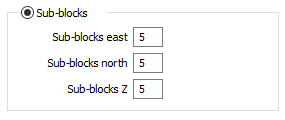
Sub-blocks East, North, Z
If you selected Sub-blocks as the
If the volume factor is not 2 or 4 or 5 or 8 or 10, then block size fields should have at least 5 decimal places, otherwise 3 decimal places.