Resize

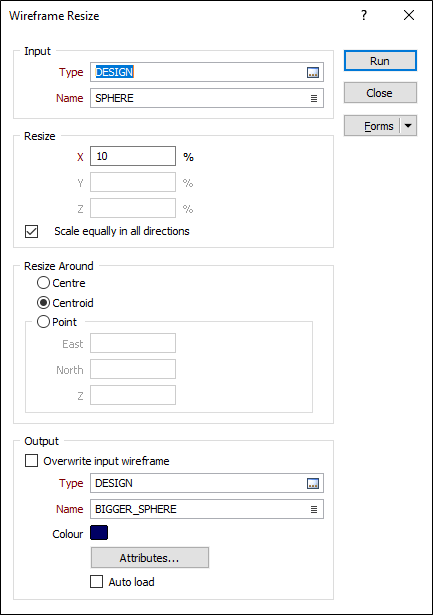
Input Wireframe
Specify the type and name of the input wireframe.
Resize
Enter a percentage value that will be used to scale the wireframe to size in each (or all) directions.
Use values greater than 100 to increase size and values less than 100 to decrease size. To Scale equally in all directions select the check box option. Entering a value of 10%, for example, will reduce the wireframe to 10% of its current size in the chosen direction(s).
Resize around
Specify the point around which the wireframe object will be resized:
- Centre - The centre of the bounding box that defines the extent of the object.
- Centroid - The centre of gravity of the object.
- Point - A user-defined point. If this option is selected, enter the X,Y,Z coordinates of the point.
Output Wireframe
Select the Overwrite input wireframe option if you want the result of the process to be applied to the Input wireframe. If this option is selected, the following Output prompts will be disabled:
Type and Name
Specify the type and name of the Output wireframe.
Colour
Specify a default display colour for the Output wireframe.
Attributes
Click the Attributes button to set Wireframe Attributes for the wireframe output.
User-defined attributes may be mapped against the fields in the Input file. It is also possible to specify a default value for each attribute. Default values are used when a corresponding value in the Input file is either missing or is not mapped.
Auto load
Select this option to load the generated output in Vizex. The default draw style for an auto-loaded wireframe is 3D Shaded.
Forms
Click the Forms button to select and open a saved form set, or if a form set has been loaded, save the current form set.
OK
Finally, click OK to begin the process.