Annotation
Engineers rely on annotations and dimensions to communicate their designs to others.
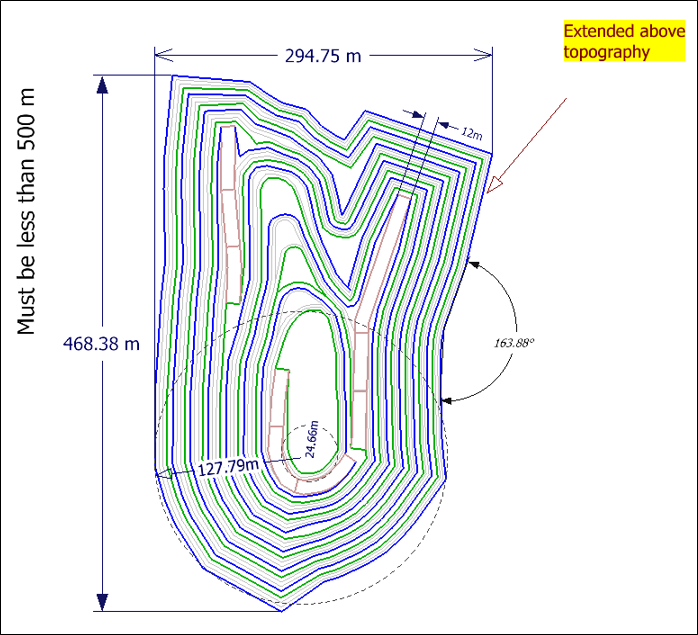

This option is also available on the Design tab, in the Annotation group.
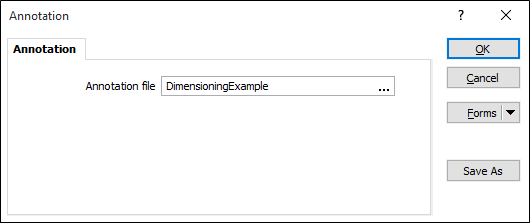
Annotation file
Double-click (F3) to select an input (*.xml) file that contains the annotated text you want to add as a layer.
You can set Edit Annotation Sets and set the display characteristics of the annotation layer using the options provided on the Vizex | Annotations tab.
You can also merge the annotations displayed in Vizex. Simply select the annotations you want to merge and then select Merge from the right-click menu. Alternatively:

Forms
Click the Forms button to select and open a saved form set, or if a form set has been loaded, save the current form set.
Save As
Click Save As to save your changes as a new form set. Save As will default to the first available form set number.
OK
Click OK to load the annotation as a layer in Vizex.