Network Licence: Connection Technical Information
Micromine network licensing has several critical components which must be able to communicate in order for a licence to be successfully setup and used.
-
The Micromine Licensing Service (MLS) server is hosted on Amazon AWS cloud and is responsible for generating the licence.
-
The Micromine LM-X Network Licence Server (NLS) software is responsible for serving network licence seats to computers running Micromine software.
-
Computers on the network running Micromine software which requires a network licence seat.
Connectivity via the network between these components is critical. An I.T. administrator may be required to configure firewalls or proxies to allow the licence server connections. An Internet connection is required to communicate with the MLS.
Micromine software will need to periodically contact the MLS to validate, refresh and update the software licence.
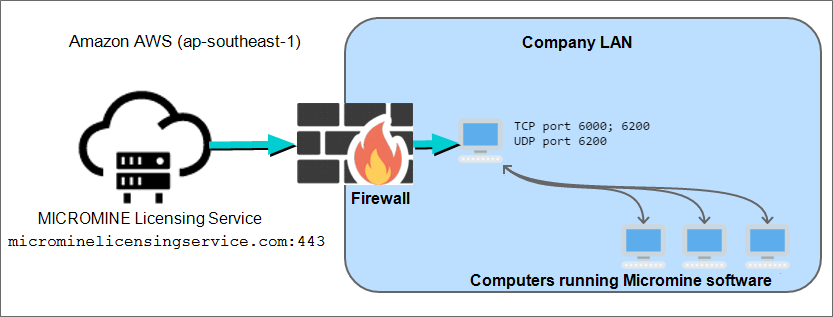
Note: It is recommended that proxy servers, firewalls, and other intermediate security devices be configured to pass the traffic to and from the IP addresses of the MLS unhindered:
-
Configure your proxies and SSL inspection devices for the URL
microminelicensingservice.com(Micromine Licensing Service) to pass through or skip traffic processing using CONNECT. -
Configure your firewalls for the IP addresses of the MLS to allow traffic without additional processing.
MLS: Connection Details
| Details | Notes | |
|---|---|---|
| MLS server address | microminelicensingservice.com | |
| Port | 443 | |
| Protocol | SSL/TLS over TCP |
 This connection uses self-signed (by Micromine Pty Ltd) SSL certificates to establish a mutually authenticated secure connection between the Micromine Licensing Service (MLS) and the Network Licence Server (NLS). See "Secure Connection" info note below. This connection uses self-signed (by Micromine Pty Ltd) SSL certificates to establish a mutually authenticated secure connection between the Micromine Licensing Service (MLS) and the Network Licence Server (NLS). See "Secure Connection" info note below. |
| IP Address (static) | 18.138.193.37 | These IP addesses are static and unique to Micromine. They are within the Amazon AWS ap-southeast-1 IP range. |
| 18.138.136.212 | You can always check what the current IP addresses are with the following command: | |
nslookup microminelicensingservice.com
|
||
| Proxy Compatible | Yes | Proxy configuration will be auto detected by default. To configure the proxy it is recommended to use the NetworkUtilitiesTool (nls-util.exe). Alternatively, it can be manually configured via environment variables; the proxy settings can be overridden by the setting with http_proxy environment variable to have the address of a proxy server to use. To instruct Micromine NLS to bypass or skip configured proxy server, set the no_proxy environment variable. |
| Proxy Mode Supported | CONNECT |
Pass through HTTPS proxy is not supported as the Micromine software clients establish a mutually authenticated secure connection to licensing cloud service (MLS). |
Secure Connection
The application uses SSL/TLS connection to the licensing cloud service; it establishes mutually authenticated secure connection to licensing cloud service. The SSL/TLS connection protocol is designed to detect and withstand Man-in-the-middle attach (which a pass-through proxy server effectively is).
Even though the service connection point URL starts with https and the port is 443, it is not a web site. As this is not a web site and is not supposed to be opened in a web browser, there's no need for the connection point certificate to be signed with any CA. That's why if you attempt to use a web browser to get to that URL, you get an error saying that the connection is not secure.
The application unconditionally trusts the certificate issued by Micromine as a company. No third-party software products are expected to be using this connection.
Licensing cloud service also performs client's certificate validation and rejects any connections that present no or an invalid client certificate.
Due to the nature of the SSL/TLS mutually authenticated secure connection, the application requires the HTTP 1.1 CONNECT method of connection via any proxy server.
Since version 1.1, HTTP supports a special method, CONNECT. This sets up the TLS tunnel through the proxy, even though your computer only directly connects to the proxy. HTTPS knows how to tunnel the TLS handshake even through the proxy. The CONNECT method converts the request connection to a transparent TCP/IP tunnel, usually to facilitate SSL-encrypted communication (HTTPS) through an unencrypted HTTP proxy. A variation of HTTP tunnelling when behind an HTTP Proxy Server is to use the "CONNECT" HTTP method. In this mechanism, the client asks an HTTP Proxy server to forward the TCP connection to the desired destination. The server then proceeds to make the connection on behalf of the client. Once the connection has been established by the server, the Proxy server continues to proxy the TCP stream to and from the client.
Note that only the initial connection request is HTTP - after that, the server simply proxies the established TCP connection. This mechanism is how a client behind an HTTP proxy can access websites using SSL (i.e. HTTPS).
However, note that not all HTTP Proxy Servers support this feature, and even those that do, may limit the behaviour (for example only allowing connections to the default HTTPS port 443, or blocking traffic which doesn't appear to be SSL).
Network Connectivity
Micromine network licensing is intended to be used inside a private LAN or WAN. It may be required to configure firewalls on the client desktop and/or the computer hosting the Micromine LM-X Network Licence Server software.
Network connectivity between the Micromine LM-X Network Licence Server (NLS) and the Micromine software client inside the LAN is detailed in the following table:
| Protocol | Port | Use | Configurable |
|---|---|---|---|
| TCP | 6200 | Network licence services (check in/out, borrow etc) | Yes |
| UDP | 6200 | Auto discovery of LM-X network server inside LAN | No |
| TCP | 6000 | Network licence server management (activation, updates etc) | No |