Wireframes
This
 Display
Interactive Wireframe Rotation
On the Wireframe tab, in the Editing group, you can now click Move/Rotate to interactively move, copy or rotate the wireframes you have selected in Vizex. Selecting this option will activate wireframe transform display mode.
Note that editing is disabled when wireframes are loaded as a single layer. To move and rotate wireframes, you may need to deselect the Load large sets as a single layer check box option on the Input Data tab of the Display | Wireframes form and reload them.

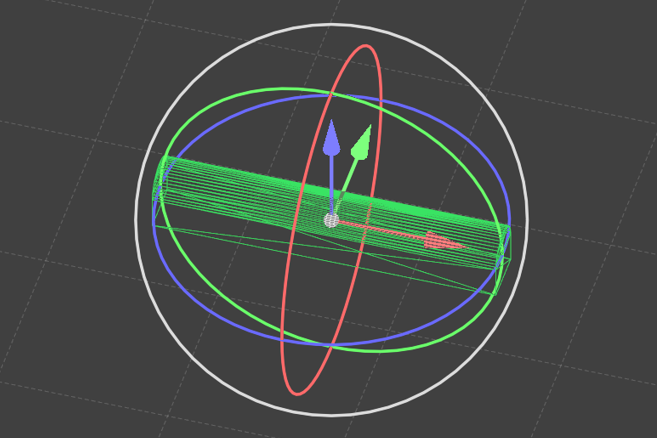
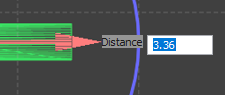
Distance and angle annotations are shown during interaction with the wireframes. The displayed distance will be negative when moving in the negative axis direction.
When typing in a distance or an angle value, you can press ENTER to preview the change in position or rotation. You can then either:
-
Press ENTER again to commit the change
-
Modify the value and press ENTER to preview again.
Copy
Copying is achieved by holding down the CTRL key as you finish a Move interaction. A preview of the original position of the copied wireframe is shown:
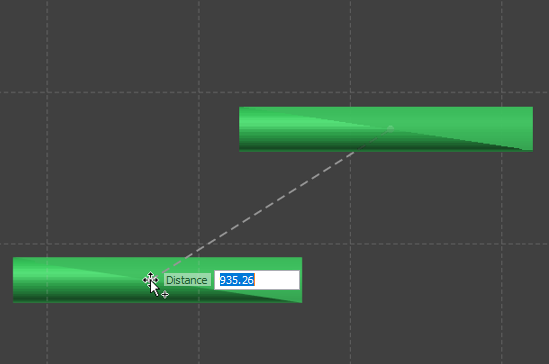
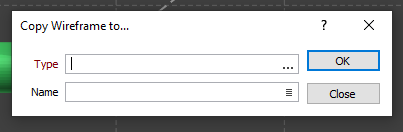
You will prompted to select a Type and a Name for the copied wireframe:
Manage
Performance Improvements
Speed improvements have been made to the the Wireframe Manager. These improvements mean the Wireframe Manager will open in approximately half the time, compared with previous releases.
In Wireframe Manage Attributes, the performance (update speed) of the Modify Structure tool has been significantly improved.
The processing speed of volume calculations has been significantly improved for functions which generate grades and/or tonnage reserves for wireframes by interrogating a block model.
The performance of the volume calculation in Wireframe | Manage | Attributes has been improved.
The load time has been significantly improved for Wireframes in Vizex, in particular when large wireframe sets are loaded with a 3D shaded draw style and when colour attributes are selected.
Clearing (unloading) the display is also improved when a large number of wireframes have been loaded.
Modify Structure Title
The automatically generated Modify Structure title in Wireframe Manage Attributes now displays the wireframe set name rather than the set number when multiple types are contained in the set.
Absolute TRIDB Path
The Absolute TRIDB path option has been added to the Report Wireframe Properties form to output absolute TRIDB paths instead of relative paths when generating a wireframe report.
Maximum Volume Improvement
The Maximum Volume tool on the Wireframe | Build Wireframe ribbon has been enhanced to ensure a valid wireframe is produced.
User Attributes Sorting
The Insert, Move Up and Move Down toolbar buttons have been added to the Modify Structure grid for wireframe user attributes to allow custom sorting of the user attributes.
The configured ordering is stored and is used wherever the list of attributes is displayed in Micromine Origin & Beyond.
Wireframe Attribute Editor Tools
A number of tools have been added to the Wireframe Attribute Editor toolbar:
-
The Increase Decimal and Decrease Decimal options are available for REAL type attributes and increase or decrease the number of decimal places for the field respectively.
-
The Increment One increments the field values in the successive record. The Increment Many option can be used to define the increment value in multiple records.
-
The Execute Parameters option provides a form to configure commands to be run on multiple fields at the same time. It also allows you to Hide and Show fields. The configuration can be saved so that it can be re-used at a later date.
-
The Execute One and Execute Many options are used to carry out the next action or multiple actions defined for each field in the Execute Parameters form.
Wireframe Properties Improvement
Wireframe properties reported using the Wireframe | Manage | Manage Wireframes | Report option are now reported in accordance with type, format and units. Numeric user attributes are reported as doubles in the report file and carry over their unit and formatting options.
Edit
Wireframe Delete Triangles
Improvements have been made to Wireframes which substantially improve the speed of triangle deletion.
For wireframes containing any number to more than a million triangles, delete operations will occur almost instantaneously.
Wireframe Set Conversion
Support for Wireframe Sets has been added to the Coordinate Systems and Plane Grid Wireframe conversion tools.
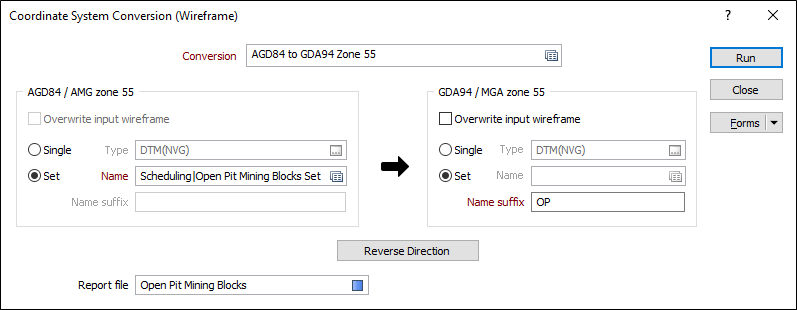
Where Overwrite input wireframe is selected, the conversion tool will overwrite all wireframes in the wireframe set.
Where the output is a single wireframe, the Name field will be disabled and the wireframe type and name suffix fields will be enabled. The input wireframes will be created to the output file, named by the input names and the nominated name suffix.
Where the output is a Wireframe Set, the Name and Type field will be disabled and the output will be saved to the input files with the suffix on the wireframe name from the wireframe set.
Wireframe from Strings
Interactive Centreline to Solid
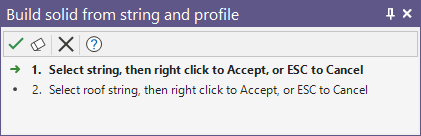
On the Wireframe tab, in the From Strings group, when you click Centreline to Solid to convert one or more strings to a wireframe, the option to build the wireframe along two centrelines (the first running along the floor and a second optional string running along the roof) is now provided.
Attributes
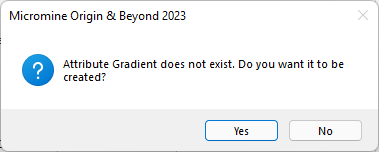
When you click on the List icons to select Attributes to Assign, if an attribute name you specify does not exist, you will now be prompted to create that attribute:
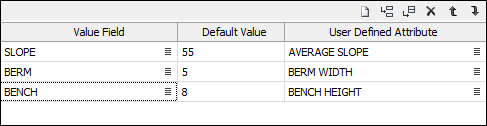
You can also now map user-defined attributes against the fields in the Input file, just as you can in the form-based Centreline to Solid function:
Centreline to Solid: Numbering options
On the Wireframe tab, in the From Strings group, when you use the interactive or the form-based Centreline to Solid functions, you can now add number suffixes to the names of the output wireframes.
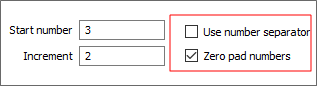
The following options apply when the "Start number" and/or "Increment" fields are used on the Output tab of the form. Note: If the "Start number" and "Increment" fields are not used, but the chosen naming scheme produces the same name for multiple wireframes, then numbers will be generated automatically to ensure each output wireframe name is unique. When this happens, the numbers are formatted using both of the following check box options.
-
When the "Use number separator" check box option is selected, an underscore ("_") is inserted between the base name of each wireframe and its generated output number.
-
When the "Zero pad numbers" check box option is selected, leading zeros are added to each number to make the number a fixed number of characters for all output wireframes.
This enhancement has also been applied when you setup wireframe task sources for a Schedule Definition.
Bedding Plane from Points
When you generate wireframe output and choose which user-defined attributes to write to the new wireframes, new attributes may now be created on-the-fly.
If a named attribute does not exist, you will be prompted to confirm the creation of the new attribute.
Wireframe Operations
Copy Wireframe Attributes
The option to copy input wireframe attributes to the output wireframes has been added to a number of Wireframe functions, including Cut, Slice and Separate.
If the input wireframe is a set of wireframes with different types, the function copies wireframe attributes and their values from the first input wireframe.
When the check box is enabled, the Attributes dialog grid control is disabled, and only the attributes and data from the input wireframe will be appended to the output wireframes.
Wireframe Cut Autofill Attributes
The Autofill the grid option has been added to the Wireframe Cut Keep Inside tool. The option automatically calculates the attributes from selected slices for the Wireframe Cut grid.
Attributes
Field Selection
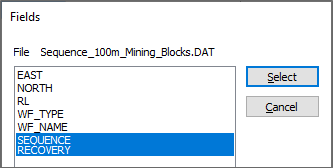
On the Wireframe tab, in the Assign group, when you select Attribute Assign (Simple) or Attribute Assign (Advanced) to select the fields in an input file and write the values of those fields to the attributes of a wireframe or a wireframe set, you can now select multiple data fields in one go:
Expressions
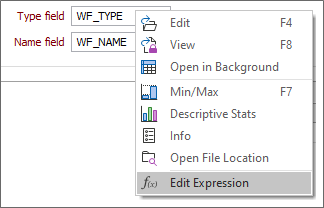
When you right-click on a Type or a Name field selection, the option to use dynamic field expressions is now supported:
Auto Attribute Selection
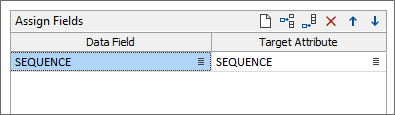
On the Wireframe tab, in the Assign group, when you select Attribute Assign (Simple) or Attribute Assign (Advanced) to select the fields in an input file and write the values of those fields to the attributes of a wireframe or a wireframe set, if a Target Attribute has the same (or a similar) name as a selected Data Field, the Target attribute is now auto-selected.
Attribute Lookups
On the Wireframe tab, in the Manage group, when you click Attributes to display and edit the attributes of a selected wireframe type, you can now attach a DAT file lookup table to an attribute.

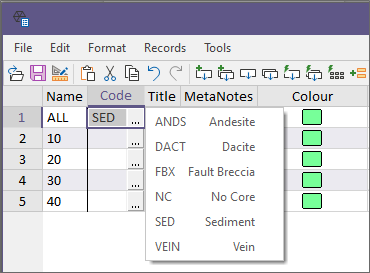
This allows the values of that attribute to be edited by selecting an entry in the lookup table: