Vizex
This
 Display
Section Control File
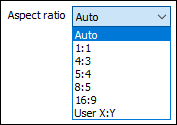
On the Vizex | Sections tab, in the Section Control File group, when you select New | Create Section Control File from Strings or click Convert to String File to generate strings from the section definition fields in a Section Control File, you can now define the Aspect Ratio to be used when visualising or converting the Section Control File:
Polyline Section (Fence)
On the Vizex tab, in the Sections group, when you click Define Polyline Section to define multiple sections by digitising a (fence) polyline, the Measure tool (Vizex hot-key "M") is now supported.

Rotate Mode
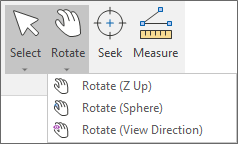
The Rotate command on the Vizex tab, in the Pointer Mode group, now provides access to new Z Up and Sphere rotate modes:
Default Rotate Mode
On the Vizex tab of the Options | System form, a Default Rotate Mode option has been added which allows the default rotation mode for Vizex to be selected:
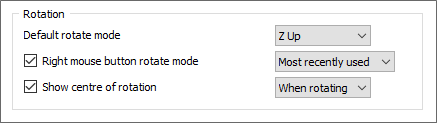
When navigating in Vizex, the Shift key and middle mouse button rotation will always use the Default rotate mode.
If the Right mouse button rotate mode check box is selected, the rotate mode specified here will be used when the right mouse button is used to rotate the view. The Most recently used rotate mode is the default.
Select By Condition Progress
On the Vizex ribbon in the Selection group, when you click Select by Condition to select display objects based on one or more attribute value conditions, a progress bar has now been added.
The operation processes all potential selection candidates and evaluates them against the selection conditions. This may take some time. A progress bar displays an increment for each processed selection candidate.
The operation can be cancelled using the ESC key.
Geolink Windows
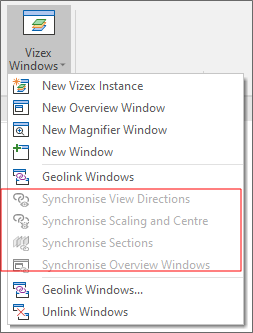
On the Vizex tab, in the Windows group, the Vizex Windows menu has been improved to show which options are enabled/disabled when the Geolink Windows option is enabled/disabled:
Segment Label Sequence Number
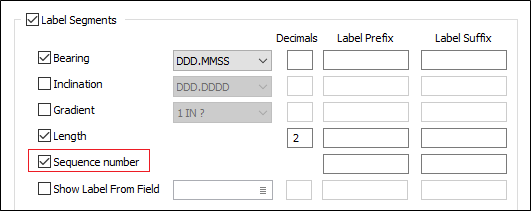
The Sequence number option has been added to the Segment Labels tab of the Vizex layer String form to allow display of a sequence number for each segment.
Display Labels for Selected Strings
An option has been added in String Display to only show Point, Segment and Polyline Labels only when string (or partial string) is selected. The new option is useful to enable the display of points on specific strings or partial strings without cluttering the display by having every point labelled.
Image Georeference
The performance of the Geolink tool in the Image Georeference window has been improved. The Geolink option is also no longer active by default.
Layers
Add Disc to Surface
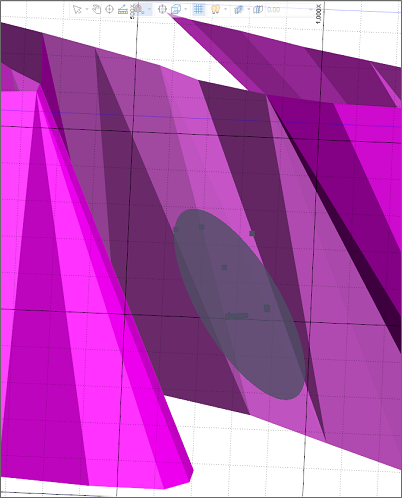
An Add Disc to Surface tool has been added to the Structural Data layer in Vizex. The tool is used to select multiple points to create a disc on the plane of a surface at the best fit of those points.
Holding down the mouse button will "paint" points. Holding down control whilst doing this will remove them. The points will be painted on the snapped surface, whether a point cloud or wireframe. A preview circle will be displayed as points are added, showing the plane of best fit, and the location of its centroid.
Volume Slider
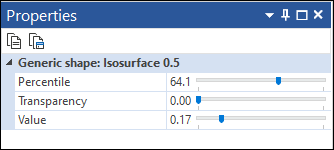
The Value property for the iso surfaces in a Volume layer has been updated to a slider control to allow improved sensitivity for displaying the iso-values:
CAD Cursor Line Width
A Line Width option has been added to the CAD Cursor Settings for the Circle, Square and Crosshair settings.
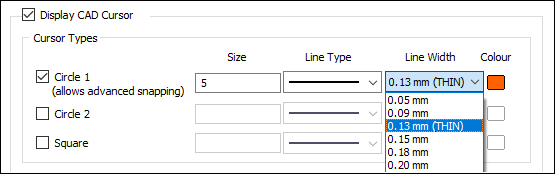
Image Georeferencing: Move Control
Clicking on control points, either in the image pane or the 3D view, will now set focus to the image pane. While the image pane has focus, arrow key presses will adjust the image coordinates of all selected control points by values of 1.
Point Average Values
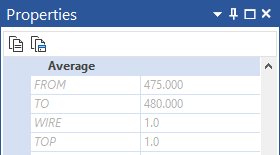
Averages have been added to the properties of a Points layer. The application will display average values for multiple selected points:
Structural Data
Structural Data Interaction
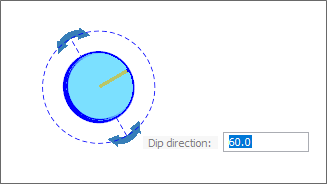
Improvements have been made to interaction with structural data in Vizex. You can now edit the angle annotations that are shown during rotation:
There are now two modes of interaction:
-
Hold down and drag the mouse to move/rotate and then release the mouse to complete the interaction.
-
Click to begin the interaction, then move the mouse to move/rotate, then click to complete the interaction.
This mode allows easier use of the input angle fields, because you don't have to hold down the mouse while typing in a value.
Both pressing Escape and a mouse right-click will cancel the current interaction.
In addition:
-
The CTRL key can now be held to snap rotation angles to 30/45 increments.
-
When rotating, you can snap to objects in Vizex. This will make the structural data 'point towards' the snapped object.
Create Structure Tool
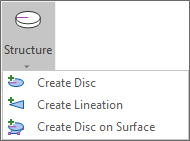
The Create Structure option has been added to the Design ribbon in the Create group. The tool is used to create structural elements in a structural data layer. Options for the tool allow the creation of a Disc, Lineation or Disc on a Surface.
Plot Editor
Plot View Refresh
Vizex plots based on live Vizex views now refresh automatically when a section is changed, when the camera stops moving, and when zooming. The plot will not update when dragging sections, only when loading and stepping through them.