Manage Attributes
Attributes must be defined before you can create the task types and the tasks of the schedule. Select the Scheduling | Attributes menu option (or click the Manage Attributes button on the Gantt toolbar).

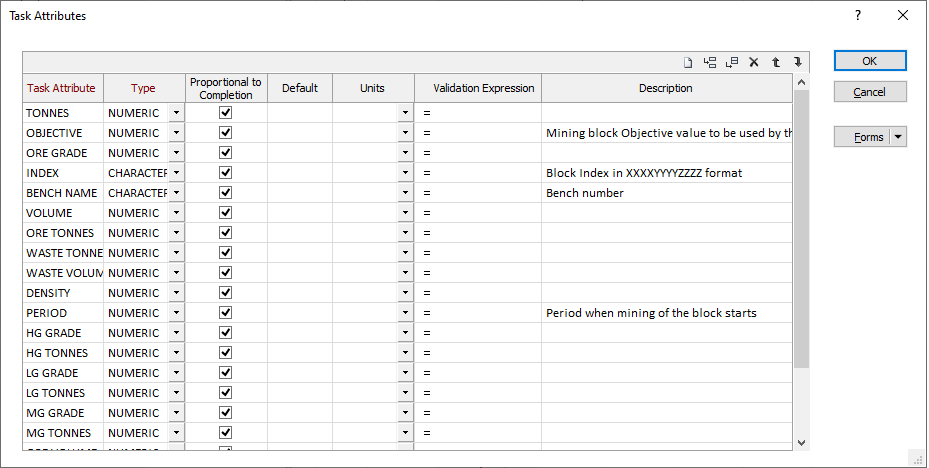
In a mining context, the numeric attributes that you want to keep track of might include the volume, tonnes, and grade of the material that is to be mined. Character attributes can also be defined.
Use the buttons on the grid list toolbar to Manage the rows in the list.
Definition
When you create a new attribute, you specify the Type of the attribute, and its Default value. The Default value will be used when an actual value has not been defined at the Task level (and when no default value is set at the Task Type level).
For example, if the Density values for the blocks in a mining block model are mostly constant, a default attribute value can be applied to ALL blocks. At the Task level, actual values can then be assigned to those blocks for which Density values are known to vary.
Reporting
Select the Sum and Mean calculations to perform on the raw values. A raw value is a basic metric associated with a task, for example, a grade or RD value.
Select the Keep value constant option to report on the current attribute as a constant (typically RD and Grade values, etc.) rather than as a time-based pro-rata value.
For example: If a task (with a grade of 4.0) takes 4 weeks to complete, for example, week by week reporting will report a grade value of 1.0. Select the Keep value constant check box to report a constant grade value (i.e. 4.0).
If you have chosen to calculate a weighted mean, select the weighting attribute.
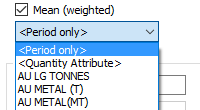
To understand how to set a weighting attribute, it will be helpful to remember how a weighting was applied in version 2014. When using the “raw” value there were two “mean” options. Simple and Weighted (based on "period").
Let’s say that there are 2 tasks (mining blocks) and one has a grade of 5 and the other has a grade of 10. How do you report on the “mean” grade for that month? Clearly the grade for the first task should get twice the weight of the second task. This is weighting by period in an OPERATIONAL schedule.
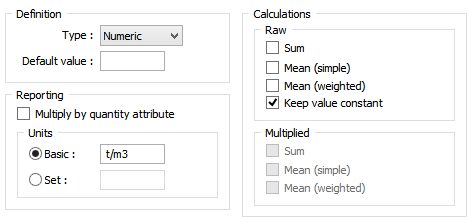
When the “Multiply by quantity attribute” option was selected, the “Multiplied” calculations were enabled. In this case the weighted mean referred to a weighting based on the task’s quantity attribute.
In a STRATEGIC schedule we need to report on the mean grade per period. Since each period will contain only complete tasks (a mining block is either completely mined or not mined at all) the period weighting does not apply.
The quantity attribute is expected to be Tonnes (of all material) as this is used to calculate the mining rate per period (which in turn calculates the start and end dates for each task). However to calculate the average ore grade you need to use ore tonnes as the weighting variable:
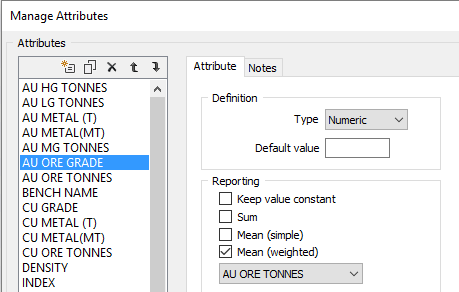
This is why there is now (in version 2016) a weighting attribute.
If you want to report on [ATTRIBUTE] * [QUANTITY ATTRIBUTE] you are expected to create a new attribute with the definition [ATTRIBUTE] * [QUANTITY ATTRIBUTE].
Units
For each attribute, you can either:
- Select the Basic option and accept or specify the default units of measure.
- Select the Set option to select from a list of units already configured for other attributes.
Double-click to select the units for the attribute, or right-click to invoke a Units dialog which allows you to customise how the units will be displayed for the raw values of the current attribute.