Filtering Options

The Task Filter tool can be used to filter the tasks in the Task List based on Date Range, Allocated Resources, Task Category, and Task Type. The filter is applied to the Vizex display layer and the Gantt Chart.
-
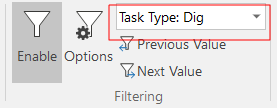
When a single filter is active, use the Quick Filter drop-down menu to select a different attribute value to filter by:
-
Click Previous to select the previous attribute in the list of attributes:

-
Click Next to select the next attribute in the list of attributes:

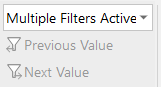
The drop-down menu is unavailable when multiple filters have been defined in the Task Filter form:
Filter Tasks

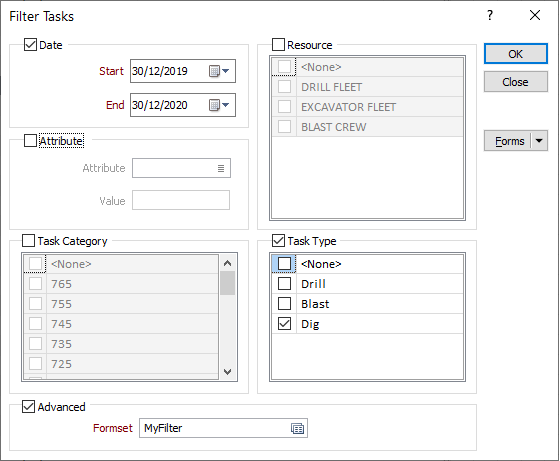
In the Filter Tasks form, the tasks in the Tasks List can be filtered based upon the criteria you select in the following groups:
Date
Select the Date check box to filter tasks by a specified date range. Use the calendar controls to select a start date and an end date. Only those tasks that fall within the specified date range will be shown in the Tasks List.
Note: When the filter is active, Real-TimeReal-Time is also affected. If the task filter is active and you have also applied a date range for real-time reporting, it is possible that two date range filters may be active. If those date ranges do not overlap, the Real-time Reporting window may return no results.
Resource
Select the Resource check box to filter tasks based on the resources that are allocated to them. Select the resources that will be included in the filter. Only tasks that have the selected resources allocated to them, will be shown in the Tasks List.
Select the <None> check box if you want to filter on tasks that don't have a resource allocated to them.
Task Category
Select the Task Category check box to filter tasks by task category. Select the task categories that will be included in the filter. Only tasks that belong to the categories you select, will be shown in the Tasks List.
Select the <None> check box if you want to filter on tasks that do not belong to a category.
Note: The Group By feature added in version 2021 effectively replaces previous “Task Group” functionality as the means of grouping tasks. However, all “Task Group” related options and utilities which were available in previous versions have been retained and renamed as options and utilities which relate to Task Categories.
You can still specify a Task Category attribute when configuring an attribute for a Task Type via the Task Type Attributes form. The scheduler will simply treat this as another attribute which is used to further categorise tasks.
Task Type
Select the Task Type check box to filter tasks by task type. Select the task types that will be included in the filter. Only tasks of the types you select, will be shown in the Tasks List.
Select the <None> check box if you want to filter on tasks that don't have a task type.
Advanced
In addition to, or instead of, using the parameters you have set in the Filter Tasks form, select this check box to apply an Advanced Filter.

The Advanced Filter form allows you to use expressions to define filter conditions.
Double-click (F3) to select an advanced filter you have previously defined and saved as a form set. You can then right-click (F4) to edit the form set.
Alternatively, right-click to create a New form set.