Files & Projects
This
 File Editor
File Editor Find
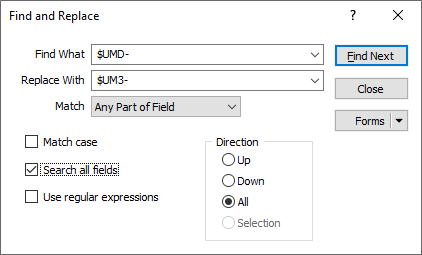
The Find and Replace forms in the File Editor now default to All for the Direction settings, providing a more efficient find and replace of the data.
Calendar Navigation Improvements
Improvements have been made to Calendar navigation when selecting Date values in the File Editor.
When opening the date picker on a blank field, the picker will default to today's date and Day view. In Day view, a different Month may be selected using the previous (left) and next (right) arrows in the header:
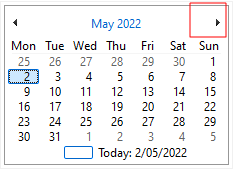
Any selection in Day view will exit the date picker window and fill-in the cell value. You can also pick Today's date using an option in the calendar.
Clicking the header of the calendar successively, will move the view from Day view to Month view, then from Month view to Year view, then from Year view to Decade view:
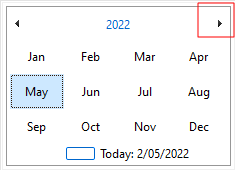
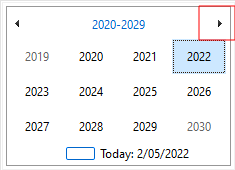
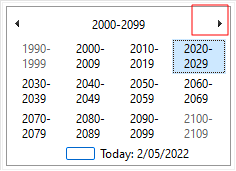
When in Month, Year or Decade views, any selection in the calendar will drill down to the previous (Day, Month or Year) view type.
When in Day, Month, Year or Decade view, you can use the previous (left) and next (right) arrows in the header to move to the next Month, Year, Decade or Century, respectively.
Filter: Date Field Selection
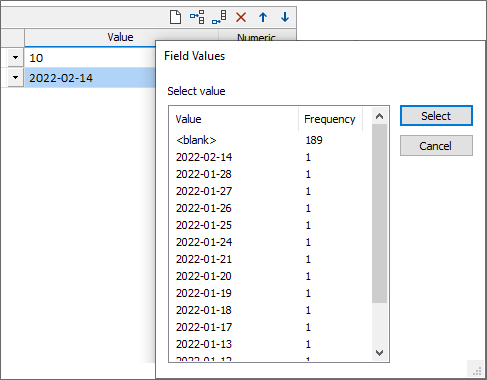
Field values can now be selected when defining and editing filters for Date and Date/Time fields in the File Editor:
Imports & Exports
Import Text
A new and improved Text Import function on the File tab, in the Import group, now provides greater flexibility (support for extended character sets, a custom delimiters and text qualifiers) and better performance for large files.

The ability to use information in the Input file to guess the structure of the Output file, including the precision and width of numeric fields, plus the option to import numeric data in binary format, is provided.
You can also determine the location of field and unit definitions in the Input file and map those units to the corresponding fields in the Output file.
Dates and colours can also be imported. For example:
date, c, x, y, z
2022-05-12, ff0000, 1, 2, 3
2021-08-30, 00ff00, 4, 5, 6
Can be imported using:
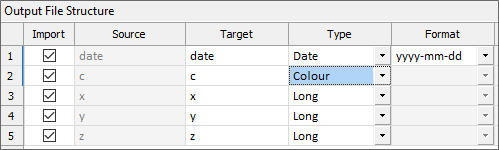
To give:

For compatibility, the previous import function is still available and is renamed Text (Legacy).
Import Text (Bulk)
A simplified version of the new Import Text function is provided which allows multiple files to be quickly and efficiently imported.
Like the Import > Text function, the Text (Bulk) function on the File tab, in the Import group, provides greater flexibility (support for extended character sets, a custom delimiters and text qualifiers) and better performance for large files.
Import Vector Data
On the File tab, in the Import group, when you select Import | Vector (GIS/GPS) Data to import data in a variety of third-party GIS and GPS formats, the Google KMZ file format is now supported.
KMZ is a file extension for a placemark file used by Google Earth and is a compressed version of a KML (Keyhole Markup Language) file. KMZ stands for Keyhole Markup language Zipped.
Import Surpac
On the File tab, in the Import group, when you select Import | Block Model to import a SURPAC BINARY block model file, version 3.0 format files, with rotation, are now supported.
LAS Import Encoding Support
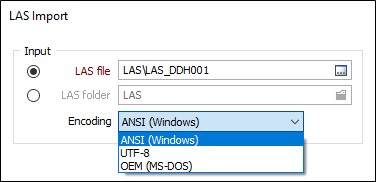
The LAS file import process now better supports non-ANSI OEM encoding with an option allowing you to select the Encoding for the import file. The following formats are supported:
- ANSI (Windows) - Used by native non-Unicode Windows applications.
-
UTF-8 - Used by most modern applications.
-
OEM 866 - Used by legacy and some console applications.
Export to Excel
On the File tab, in the Export group, when you click Excel to export data to a Microsoft Excel worksheet, the decimal precision of the numeric fields in the source data file is now preserved.
Projects
Project Options
Per-project settings including new file encoding options are now unified under a new Project Options page on the backstage menu.
A new page allows you to accept the recommended (Auto) file encoding or explicitly set a new encoding for new data files:
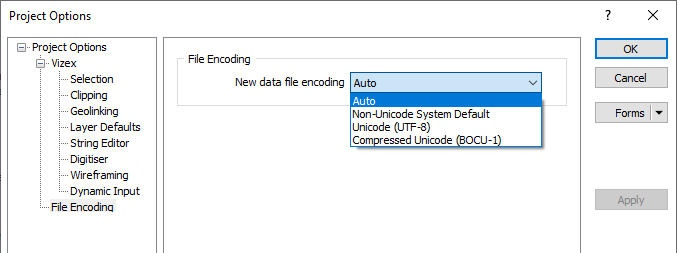
The recommended (Auto) file encoding for new data files is currently Compressed Unicode (BOCU-1).
Project Auto Search
On the Open Project tab of the backstage menu you can now simply start typing to search for a project of interest. The text you type is automatically entered into the Search box and the list of projects is restricted to those projects with a name that matches or partially matches the text you have entered.