Geology

This function is generally used to prepare a geology file from an assay file that contains a geological description in every record. In a geology file it is only necessary to have intervals that match the changing geology. Geology Compositing reduces the quantity of geological information that will appear in a drillhole display, or plot, without reducing its quality.
The coordinates for each geological interval are averaged to recalculate the interval centres. To generate exact coordinates, use the XYZ Coordinates | Downhole function (on the Drillhole tab, in the Generate group).
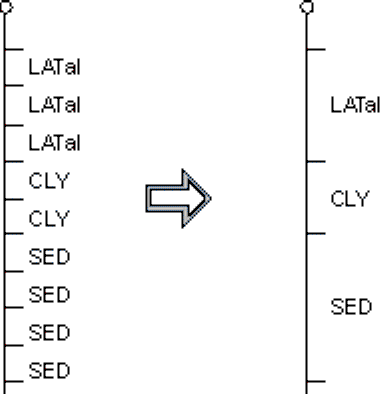
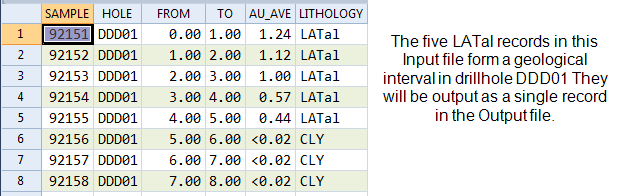
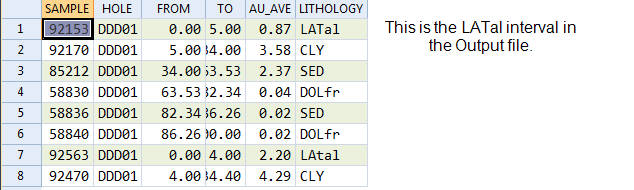
When you run the function, a new file with the same structure as the input file is created:
The Extraction function (on the Drillhole tab, in the Calculations group), provides a more complex way to extract data into groups based on values in up to three variables.
Input
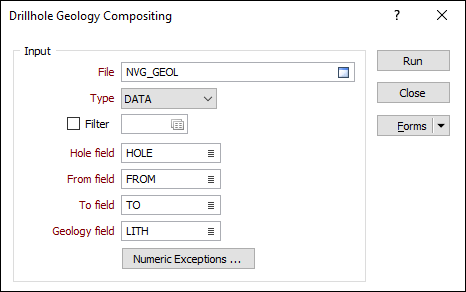
File
Double-click (or click on the Select icon) to select the name of an input file. This will be a drillhole assay file containing the records (with identical geology codes over successive intervals) that you want to composite. If required, define a filter to selectively process the records.
Hole, From, and To fields
In order to composite the data in an Assay file, you need to identify the Hole field and the fields containing the From and To depths that define each interval. Double-click to select the Hole, From, and To fields in the input file.
Geology field
In addition to the Hole, From, and To fields, you must also identify the Geology field. While Hole name remains constant, the function looks for consecutive records with identical values in this field. Double-click to select the Geology field in the input file.
Numeric Exceptions
(Optionally) Use the Numeric Exceptions group to control the way that non-numeric values are handled. Non-numeric values include characters, blanks, and values preceded by a less than sign (<).
Default Method
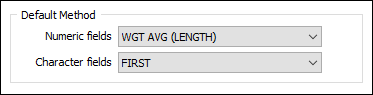
The Default Method options in the Drillhole Geology Compositing form are used to set the default compositing method for the numeric and character fields of the input file. One compositing method can be applied to all Numeric fields and another method can be applied to all Character fields. For information on the available methods, see Compositing Method.
Numeric Fields
Select the default compositing method for Numeric fields from the drop down list.
Character Fields
Use the Character fields drop down to select the default compositing method for character fields in the input file.
Output
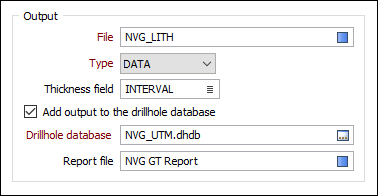
File
Double-click (or click on the Select icon) in the File field to select the name of an output file. If you select an existing file, it will be overwritten.
Thickness field
(Optionally) If you specify a Thickness field, the function will calculate and enter the downhole length of each continuous interval and write them to the Output file.
Add output to the drillhole database
Select this option to automatically add the composited output file to the drillhole database specified below.
In many cases, it may be useful to store the results of the compositing process to the database that the input interval or assay file is associated with. This aids in visualisation, making it easier to display related downhole data in Vizex.
Drillhole Database
Double-click (or click on the Select icon) to select from a list of drillhole databases in the current project.
Press F5 to create a new drillhole database. Press F4 to edit a drillhole database you have selected.
Report file
(Optionally) Enter the name of the Report file. If any errors occur during the process, they will be written to this file.
Run
When the details for the Drillhole Geology Compositing have been configured, click Run to perform the compositing process.