Edit Charge Templates
Click Edit Charge Templates to edit the charge templates that can be assigned to drillholes.

Click Edit to define the explosive interval lengths, detonator/booster primer pairs and depth, for the selected charge template:
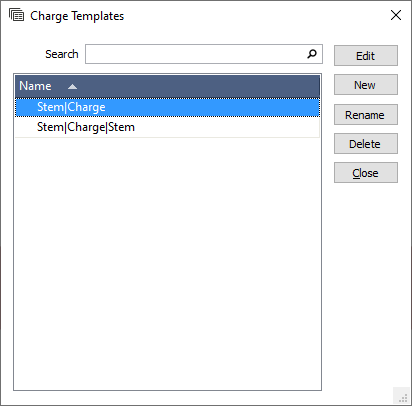
Alternatively, click New to create a New Charge Template.
Explosives and Others
Select the explosives or other material that can be used to load holes.
The Interval column allows you to select bulk or packaged explosive or consumables defined in the Other tab of the Consumables Library.
For each explosive charge, specify the Length of the interval. This is a mandatory field.
Note: If the combined lengths of a charge template’s intervals is greater than the length of the selected hole(s), then the intervals that extend beyond the length of the hole(s) will not be assigned to the hole(s). This is technically treated as an invalid charge template definition.
In the case of packaged explosives:
-
A length specified here does not have to match the length specified in the Consumables Library - for example, to allow for the definition of tamped cartridges.
-
If multiple packaged explosives are used to load a hole, then an interval should be defined for each item. Failure to do so will result in incorrect cost calculations.
Primers
Use the Primers tab to configure detonator and booster combinations, and the downhole depth of each primer. You can add rows to the grid and define multiple detonator and booster combinations, for example to model deck priming.
Select the Detonator for the primer using the drop down.
Select the Booster for the primer from the drop down - or set the Booster to <None> when a primer is made up of cartridge explosive carrying a detonator.
The Depth field is used to enter the depth of the primer charge.
When you have configured or modified the charge template as necessary, click OK to save.
The charge templates you create and edit can be assigned to drillholes using the Charging | Assign Charge Template function.
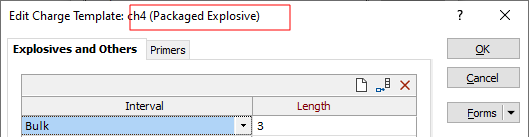
Note: When Charge Template settings are saved as a form set, the name of the form set is shown in brackets alongside the name of the template:
Changes made to a Charge Template
Any modifications made to a charge template will update the charge information of any assignee holes charged by that template.
Forms
Click the Forms button to select and open a saved form set, or if a form set has been loaded, save the current form set.
By design, the Forms button is not available for loaded Vizex layers (i.e. when opening the form set properties of a layer in the Vizex Layer Display pane). In Vizex, the Forms button is only available for new forms opened via the Home tab or the Vizex tab, in the Layers group (or by double-clicking on a form type node in the Vizex Layer Types pane).
Save and Save As
Click the Save button to save the changes you have made to the form set. Click Save As to save your changes as a new form set. Save As will default to the first available form set number.
Reset
Click Clear to clear the form of all values and reset the form to its default state. In the case of tabbed forms, set the first tab as the active tab.
Undo and Redo
Click Undo (CTRL + Z) to undo recent changes in the form. After an Undo, click Redo (CTRL + Y) to restore the last change that was undone.
Collapse
Collapse (roll-up) the form to preview a chart, or preview the results of an operation in Vizex, or obtain input values from Vizex, the Property Window, the File Editor, or the Plot Editor.