Planar Intersection

As a result of the process, the slice strings are written to a nominated output file. Up to 10 wireframe attributes can also be written to the output file.
Input
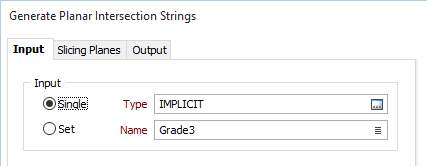
On the Input tab of the Generate Strings form, specify the Type and Name of the input wireframe.
To process multiple wireframes in a wireframe set, select the Set option. When you create or edit a wireframe set, you can specify wireframes of several types. Wildcards and partial names may be used to select multiple wireframes for each type.
To process a single wireframe, select the Single option, select the type of the wireframe, and then the name of a wireframe of that type. Wildcards and a partial name in the Name input box may be used to select multiple wireframes. This will load the wireframe as if it were a wireframe set.

Note that wildcards in the Name input box will only be considered as a valid set definition, if the name does not already exist. In other words, it is possible for a wireframe name to contain a wildcard character, for example “+”.
See: Wildcards
Forms
Click the Forms button to select and open a saved form set, or if a form set has been loaded, save the current form set.
By design, the Forms button is not available for loaded Vizex layers (i.e. when opening the form set properties of a layer in the Vizex Layer Display pane). In Vizex, the Forms button is only available for new forms opened via the Home tab or the Vizex tab, in the Layers group (or by double-clicking on a form type node in the Vizex Layer Types pane).
Save and Save As
Click the Save button to save the changes you have made to the form set. Click Save As to save your changes as a new form set. Save As will default to the first available form set number.
Reset
Click Clear to clear the form of all values and reset the form to its default state. In the case of tabbed forms, set the first tab as the active tab.
Undo and Redo
Click Undo (CTRL + Z) to undo recent changes in the form. After an Undo, click Redo (CTRL + Y) to restore the last change that was undone.
Collapse
Collapse (roll-up) the form to preview a chart, or preview the results of an operation in Vizex, or obtain input values from Vizex, the Property Window, the File Editor, or the Plot Editor.
Use the drop-down button menu to save the changes you have made as a form set, load a form set, or reset the form as the default form set:
Run
When you have specified the inputs and outputs to the process and defined the slicing planes, click Run to begin the process.