Advanced Filter
When you set filter conditions in the Filter Tasks form, the option to apply an Advanced filter is provided. In the Advanced Filter form, there are two modes:
Simple
Use Simple mode to define a filter condition using a single row or combine multiple rows using the AND or OR comparison operators.
Attribute
The Attribute drop-down provides a list of the Task Attributes and the Scheduler core attributes you can use in a filter condition.
Operator
The operators available in Micromine field expressions are also available here.
Value
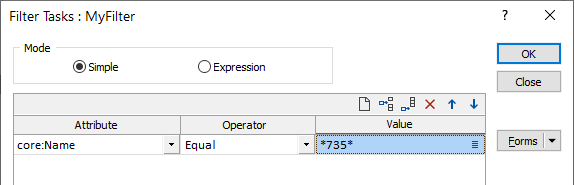
Specify the value that sets a filter condition. Wildcards can be used when defining values in filters, for example, to filter on all tasks that contain "735" in their name:
Combine Lines
(Optional) To apply more than one condition, use logical (Boolean) and comparison operators. These define how the lines of filter conditions are combined. If you use the logical operator AND or the logical operator OR, then that operator will apply to ALL filter conditions. Condition1 AND Condition2 AND Condition3 for example.
To mix AND and OR operations select the EQUATION option, build the filter conditions and then combine the lines in the Equations field.
Reverse Filter
Sometimes it is easier to define a set of conditions for the records you do NOT want to use. Selecting Reverse filter will include records NOT defined by the filter conditions.
Expression
Use Expression mode to add multiple filter conditions in a single operation. Filters are evaluated using the precedence rules that apply to field expressions.
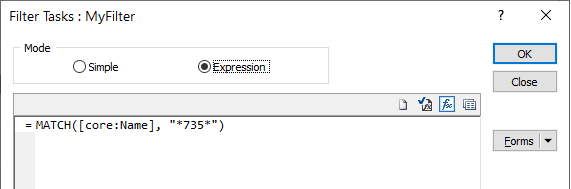
Note: Conditions specified in Simple mode will be automatically converted to expressions in Expression mode, and vice versa, when the mode is switched (where possible, depending on the complexity of the expression).
A function to match values to wildcards (or a regular expressions) may be used:
Use the tools above the Expression window to:

|
Clear the expression you have entered. |

|
Validate the syntax of the expression you have entered. |

|
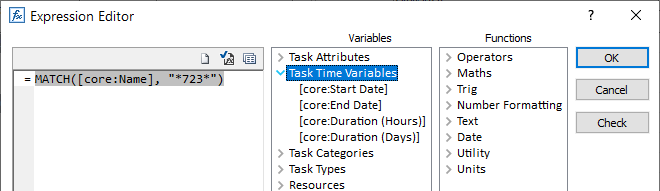
Use the Expression Editor to access the fields, variables, and functions you want to include in an expression. See: Expression Editor |

|
Save the expression you have entered as a form set. |
In the Expression Editor, the Variables group provide a list of the project’s Task Attributes, Core Attributes, Task Groups, Task Types and Calendars. A variety of other variables and functions also available for use in an expression: