Calculated Columns
Calculated columns use existing columns and/or mathematical expressions to calculate the value of another column. Calculated columns are defined using an Expression Editor.
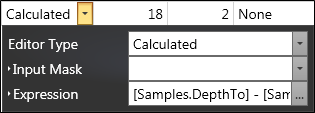
In the example below, there is a calculated column whereTotalDepth = DepthTo - DepthFrom
The data type of the calculated column is Decimal, the same as that of the columns used to build the expression.
The Editor type is defined as "Calculated". Once the editor has been chosen as calculated, you are required to create the expression used to calculate the values for the column.
Click on the tool drop-down arrow next to Calculated, then click on the ellipsis (...) next to Expression to open up the Expression Editor.
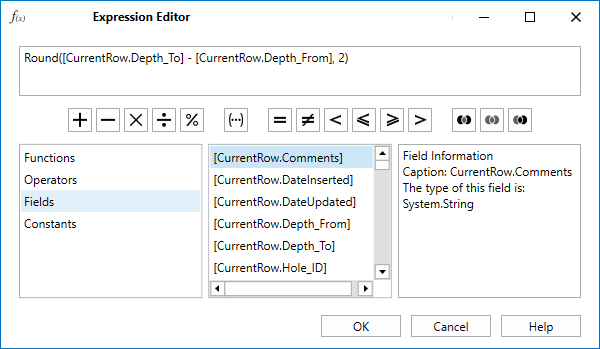
In the Expression Editor you can type an expression manually, or select functions, operators and operands using the editor's controls.
An expression is a string that evaluates to some value. Expressions consist of column names, constants, operators and functions. Column names must be enclosed in square brackets, which happens automatically when a column is selected from the Columns list.
The following are examples of expressions:
To calculate RD:
[CurrentRow.WeightInAir]/( [CurrentRow.WeightInAir] - [CurrentRow.WeightInWater])
Concatenation:
[CurrentRow.HoleId]+’_’+ToStr([CurrentRow.DepthFrom] ]+’_’+ToStr([CurrentRow.DepthTo]+’.png’
Boolean expressions:
“[CurrentRow.QCTypeCountry] == STANDARD’”
“[CurrentRow.DateDrilled] > #06/09/2021# AND [CurrentRow.EOH] > 20”
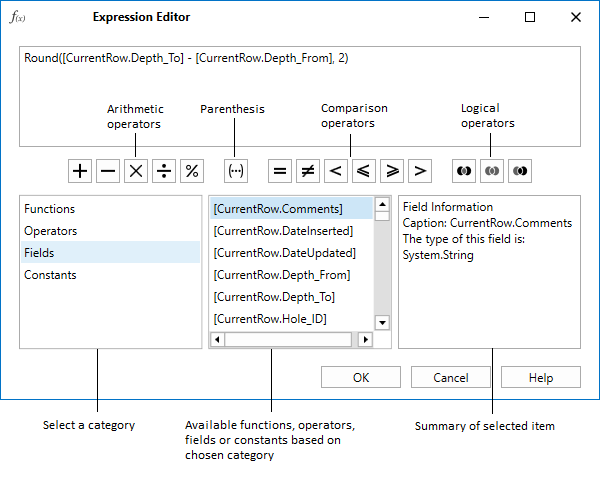
The Expression Editor supports numerous standard functions, allowing you to easily perform simple or complex string, date-time, logical and mathematical operations on your data.
You can edit the expression manually using the keyboard, or by selecting available fields, functions, operators and constants:
The Expression editor supports expressions which access values from the previous or next rows. The order which determines which is the previous and which is the next row is based on the sort order configured in the profile.
When any column in a table has a calculated field which references a value in the previous or next row, then recalculation is done by:
-
Evaluating expressions row by row in the configured sort order,
-
Then doing a second pass to re-evaluate in the reverse of the configured sort order
Cascading of values from rows further afield is possible by rolling values up or down using conditional expressions e.g. to roll down the Id of the first sample for a drillhole, use:
If(IsBlankOrEmpty([PreviousRow.SampleId]),[CurrentRow.SampleId],[PreviousRow.SampleId]
Note: Row sorting has a hierarchy: If the configured sort returns identical values, or if there is no configured sort, then the next priority for sorting is the primary key values in ascending order; if identical primary key values are found (an error will show) but then the sort will use the date/time inserted in ascending order.