Export Columns
When you have chosen which tables to include in the export template, click on a table in the navigation pane to specify which columns in that table to export.
- By default all columns are selected for Export. Deselect the check boxes for those columns you want to exclude from the export.
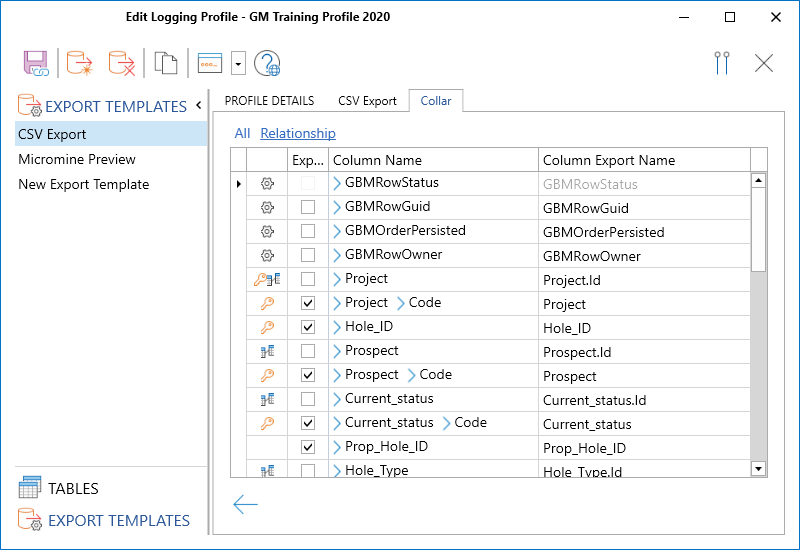
The names of the columns in the database and the hierarchy of the columns that can be exported, are shown in the Column Name and Column Export Name columns.
If you do not intend to reimport data back into Micromine Geobank For Field Teams, you can specify different names under Column Export Name (however each column name must remain unique).
The following symbols are used to differentiate between System columns, Primary Key columns, and Relationship columns:
Symbol Description 
Denotes that the column is a System Column; System columns allow data sharing between different devices running Micromine Geobank For Field Teams. When you create an export template, all columns are selected for export by default. System columns are essential if you want to reimport data back into the same schema on the same device or on a different device. If the exported data is not intended for reimport back into Micromine Geobank For Field Teams, System columns can be deselected and the Column Export names can also be renamed. 
Denotes that the column is a Primary Key column of its own table. 
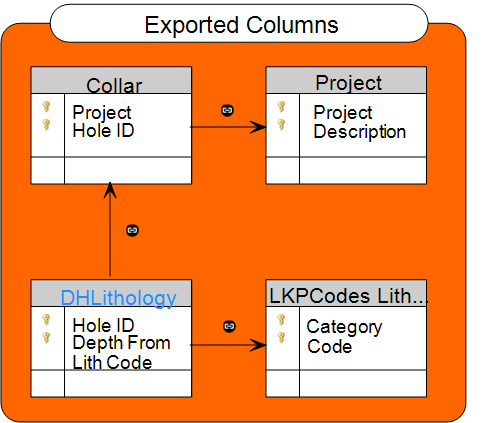
Denotes a Relationship column. A Relationship column references data from another table. Relationship columns can be defined as a Lookup, a Dropdown, or a Cascade Dropdown column. In the example above, Hole_ID is a Primary Key column of the DHLithology table, and is also a Relationship column. The parent table (to which Hole_ID belongs) has a column Project, which is a primary key of that table, and which also has a relationship to the Project column in another table. The parent table (to which Hole_ID belongs) also has a column Hole_ID. Lith_Code is not a Primary Key column, but has a relationship to the Code column in another table.
Select the columns you want to include in the export individually, or use the All option toggle. The All option toggle:
-
For preview exports, selects or deselects all fields.
-
For change-status-to-exported exports, selects or deselects all fields except GBMRowStatus, which is not selectable for change-status-to-exported exports (as for these exports, the status will always be 'Exported' (E))
Finally, click the Back button to return to the Export Template details tab.
